|
` |
View Contract (OPCNW03) > Create/Update Booking > Field Descriptions |


Create/Update Booking - Field Descriptions
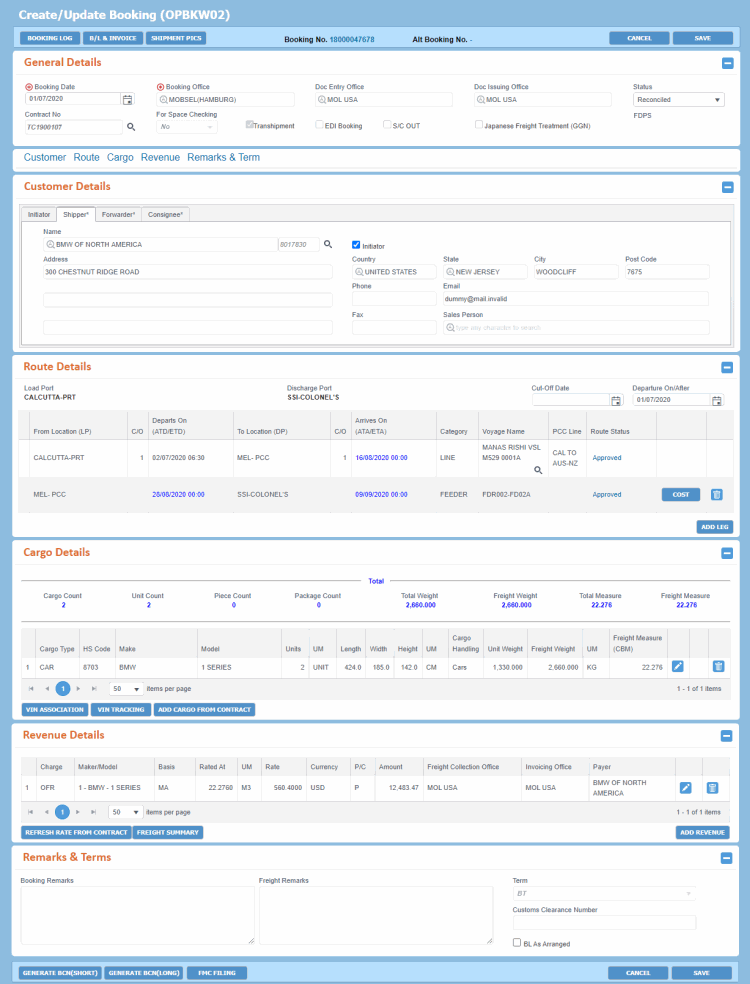
This screen is used to create and maintain basic information of a Booking.
-
The Create/Update Booking (OPBKW02) screen
 appears after clicking CREATE BOOKING in the View Contract (OPCNW03) screen. This is the screen where you can start creating a Booking from a Contract.
 -
The screen also appears on clicking COPY BOOKING in the View Booking (OPBKW03) screen. You can create a Booking by copying the details of an existing Customer-requested Booking in Requested, Accepted or Reconciled status only.
-
You can also open this screen from the Search Result section of the Search Booking (OPBKW01) screen by clicking the
 icon and one of the following options:
-
Edit: The Create/Update Booking (OPBKW02) screen appears in Edit mode.
-
Copy Booking: The Create/Update Booking (OPBKW02) screen appears with the Booking in Draft status, where all relevant Booking information is a copy of the initial source Booking.
-
This option is available for a Customer-Requested Booking only. The status of the corresponding Booking must be Requested, Accepted, or Reconciled.
-
Menu > Operational > Contract Search (OPCNW01) > Contract No. hyperlink > View Contract (OPCNW03) > Create/Update Booking (OPBKW02)
Based on the action you want to perform, the functionality of few fields, links, and buttons differ, which is mentioned below.
For a description of additional icons, buttons, fields and links appearing on this screen, see Common Interface Controls.
|
Field |
Description |
||||||||||||||||||||||||||||||||||||||||||
|
Buttons |
|||||||||||||||||||||||||||||||||||||||||||
|
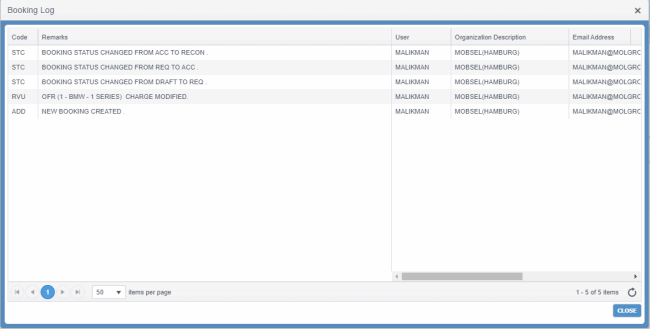
Button to view both manual and auto-generated log entries of the corresponding Booking in the Booking LogBooking Log pop-up.
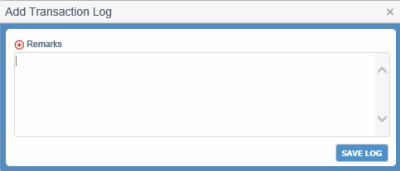
If validation errors are not encountered, PCC.NET saves the transaction log information, which you can view later in the Booking Log dialog box by clicking BOOKING LOG in the Booking Header.
PCC.NET enters an automatic log in case of the following:
Disabled while you are adding information to a new Booking. Booking log helps to track changes in a Booking for future references. The drop-down list values are defined in the Code Definition (ADCMW02) screen (domain= XNS_CODE, for development usage only, by PCC.NET Administrative users). |
|||||||||||||||||||||||||||||||||||||||||||
|
B/L & INVOICE |
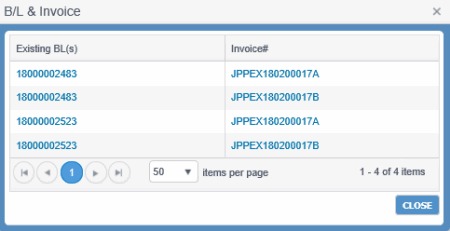
Button to view what all B/L(s) and invoices that are associated with an existing Booking using the B/L & InvoiceB/L & Invoice pop-up.
Disabled if B/L is not available for the Booking. |
||||||||||||||||||||||||||||||||||||||||||
|
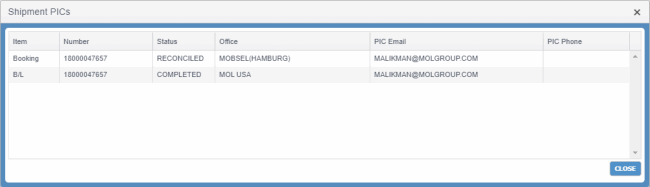
SHIPMENT PICS |
Button to display the physical Office, E-mail ID and Phone Number of the shipment contact person (PICs) for a Booking, and its associated B/L and Invoices (if any). The information is displayed in the Shipment PICsShipment PICs pop-up.
Disabled if an active B/L is not available for the Booking. The PICs for Booking are displayed considering following conditions:
|
||||||||||||||||||||||||||||||||||||||||||
|
CANCEL |
Button to cancel the entries and navigate back to the Search Booking (OPBKW01) screen. If there is any unsaved change, a warning message appears when you click this button asking you to confirm the cancellation '100022-COM-Data is not saved, do you want to proceed?'. |
||||||||||||||||||||||||||||||||||||||||||
|
SAVE |
Button to save the changes you make in the Booking.
Create/Edit mode: When you click this button, Add Transaction LogAdd Transaction Log dialog box is displayed to specify the changes you made in the Booking, so that PCC.NET can save the log entry in the Booking log.
PCC.NET considers the booking to be Used Car Booking if commodity code for any associated Cargo falls within list of domain items defined in the Code Definition (ADCMW02) screen (domain=USED_CAR_CMD_DOMAIN), for example, N07. In rest of the cases, PCC.NET considers it as New Car Booking. Copy mode: When you click this button, a new Booking number is generated. Notes:
|
||||||||||||||||||||||||||||||||||||||||||
|
Fields panel: Basic information of the PCC Booking. |
|||||||||||||||||||||||||||||||||||||||||||
|
Booking No. |
PCC Booking number. It is an 11-character number generated out of a sequence with minimum value 18000000001 and maximum value 1999999999. The number will contain 10 digits, numbered in sequence, and a check digit at the end. Format of Booking Number: Booking No (11 digits) = 10 digits from Booking Number Sequence + 1 Check digit. Examples:
This field displays either New Booking (if Booking is still not saved) or the Booking Number (for a saved Booking). You can click the Booking No. hyperlink to navigate to the View Booking (OPBKW03) screen, which displays the Booking information in Read-only mode. Copy mode This field displays New Booking until the Booking is saved. Once the details are saved, a new Booking number is generated. |
||||||||||||||||||||||||||||||||||||||||||
|
General Details panel: Basic information of the PCC Booking. In Copy Booking mode, relevant field information are populated from the source Booking No. You can edit the details if required and save the Booking information. |
|||||||||||||||||||||||||||||||||||||||||||
|
Alt Booking No. |
Alternate Booking number corresponding to an EDI Booking. If not available it is represented by “-“. |
||||||||||||||||||||||||||||||||||||||||||
|
Booking Date |
Date on which the space is reserved in the PCC Vessel and Voyage. Create/Edit mode: The current system date is displayed as a default. You can change it to another date (future or past date) using the Calendar Copy mode: The current system date is displayed as a default, irrespective of the Booking Date for the source Booking. |
||||||||||||||||||||||||||||||||||||||||||
|
Booking Office |
The organization where MOL accepts the Booking request. By default, the current Booking user's organization is set as Booking user's organization. You can change the organization code by entering 6-character organization code or the organization name. This field has the Auto-complete feature, which helps to populate the full organization name as you start typing the organization code. After you select the appropriate organization from the list of organizations, the name of the organization appears in this field. An EDI Booking is loaded with dummy Booking office as EDIOFC. You must update it to a valid Booking office before saving the Booking. |
||||||||||||||||||||||||||||||||||||||||||
|
Doc Entry Office |
The entry organization of the Bill of Lading. The field will be Auto-populated from the Location Master (RFLCW10) if Documentation entry organization is predefined for the Booking Load Port. You can change the organization code to any organization by entering 6-character organization code or name. This field has the Auto-complete feature, which helps to populate the full organization name as you start typing the organization code. You cannot modify the Doc Entry office of a Booking if you have been assigned with the Update Booking Doc Entry Office role type with Update Booking Without Revenue system action and delegation as Doc Entry Office. |
||||||||||||||||||||||||||||||||||||||||||
|
Doc Issuing Office |
The issue organization of the Bill of Lading. The field will be Auto-populated from the Contract or from the Location Master (RFLCW10) with Booking Load Port. You can change the organization code by entering 6-character organization code or organization name. This field has the Auto-complete feature, which helps to populate the full organization name as you start typing the organization code. Doc Issuing Office data is not refreshed if a Contract is modified after Booking creation. |
||||||||||||||||||||||||||||||||||||||||||
|
Status |
Drop-down list to select the Booking status, which vary based on the Booking type: Statuses available for Space Checking Bookings:
After you convert Space Checking Booking to a Customer-requested Booking, the status of the Booking follows the behavior of the Customer Requested Booking.
Statuses available for Customer Requested Bookings:
Copy mode: Click to know about the statusClick to know about the status.
Initially, a Customer-Requested Booking is created in Draft status. After entering all the required information, you can manually change the status to Requested. Once the Booking status becomes Requested, you cannot change back the status to Draft. Booking status becomes Accepted automatically when the required information and all the Route legs are approved. You can also manually change the status Requested to Accepted. If Approver rejects any leg, the Booking remains in Requested status. Once Booking status becomes Accepted, you cannot change it manually back to Requested. A Space-Checking Booking is also at first created as Draft. After data entry is complete, you can change the status to Space Checking. Once, you convert Space Checking Booking to a Customer Requested Booking, the status of the Booking follows the behavior of the Customer-requested Booking. Notes:
|
||||||||||||||||||||||||||||||||||||||||||
|
Contract No. |
The identification number for a Contract associated with the PCC.Net Booking. Auto-populated from the corresponding Contract. Read-only. Create/Edit mode:
An EDI Booking cannot be associated with a Contract if the Port-pair has been deleted. Also, while selecting the Contract No. to switch the Contract type from Agreement with Brokers to Agreement with Broker Customers, PCC.NET does not display the deleted Port pairs in the Find Contract dialog box. Copy mode: You can change the Contract number only when you have saved the Booking details, and you want to switch the Contract type from Agreement with Brokers to Agreement with Broker Customers. |
||||||||||||||||||||||||||||||||||||||||||
|
For Space Checking |
Drop-down list to indicate if the Booking is meant for space checking in a vessel. While creating a Booking from a Contract you can select the value Yes (Space checking) or No (Customer Requested) accordingly. Default is No, which indicates that the Booking is Customer-requested. While editing a Booking's information, this field becomes Read-only. More on Booking TypesMore on Booking Types
Notes:
|
||||||||||||||||||||||||||||||||||||||||||
|
Transshipment |
Check box that indicates the presence of Transshipment leg in the Booking. Automatically selected during Booking Route creation. Read-only. |
||||||||||||||||||||||||||||||||||||||||||
|
EDI Booking |
Check box to indicate if the Booking is created with the data received from EDI or from the RoRo Website. Read-only. More about EDI BookingMore about EDI Booking Booking requests that are received through EDI are automatically created in PCC.NET, with default indicative dataindicative data, in Draft status. Contract No may not always be available in such Booking requests. Thus, as a Booking user you must assign a Contract number for the respective Customer, Port pair, Make and Model and update its information after replacing the default indicative data by the desired actual data. You can search for the Booking using the Search Booking (OPBKW01) screen and update the information. Copy mode: Deselected even if initial source Booking is an EDI Booking. |
||||||||||||||||||||||||||||||||||||||||||
|
S/C OUT |
Check box to indicate if a third party shipping company (as Shipper) has requested to ship their Cargo in a MOL Vessel. Auto-populated from the Customer (RFCSW01) screen and Read-only. PCC.NET treats Bookings with this check box selected as S/C Out booking and with this check box cleared as S/C In Booking.
|
||||||||||||||||||||||||||||||||||||||||||
|
Japanese Freight Treatment (GGN) |
Check box to indicate if freight treatment code for Japan is applicable for the Booking. PCC.NET uses only GGN as the freight treatment code for Japan. Auto-populated from the corresponding Contract. Read-only. If the value for GGN is changed in the Contract after Booking creation, PCC.NET fetches the latest status of GGN from the last completed version of the Contract, so that Booking user can see the latest GGN value in the screen. |
||||||||||||||||||||||||||||||||||||||||||
|
FDPS |
Display the payment terms associated with the selected Booking. Auto-populated from the corresponding Contract. Read-only. If the value for FDPS is changed in Contract after the Booking creation, PCC.NET fetches the latest status of FDPS from the last completed version of the Contract so that you can see the latest value of it on the screen. PCC.NET again fetches the latest status of FDPS from the last completed version of the Contract on clicking SAVE, to ensure that the latest value is always saved. FDPS stands for Fixed Day Payment System, that is, a fixed day of the month on which Customer makes payment against the Invoice(s). Invoices, against which Customers make payment as per their fixed payment day, are referred as FDPS Invoice. While creating any Booking for such Customer, PCC.NET automatically populates the Customer's fixed payment day in the FDPS Day field of the Booking screen. |
||||||||||||||||||||||||||||||||||||||||||
|
This panel consists of Initiator, Shipper, Forwarder, and Consignee tabs. When you open the screen, Shipper tab remains open. Notes:
Copy mode All field information are populated from the source Booking No. You can edit the details if required and save the Booking information. On saving, PCC.NET checks if at least one of the Booking Customers (Initiator/Shipper/Forwarder) is either the Main Customer or the Affiliated Customer in the associated Contract. |
|||||||||||||||||||||||||||||||||||||||||||
|
Initiator |
Initiator is the customer who initiates the Booking of a cargo for shipment to the final destination.
Notes:
|
||||||||||||||||||||||||||||||||||||||||||
|
Shipper |
The Shipper is the customer who sends a shipment after entering into a Contract with the Carrier, that is, the person or company who is usually the supplier or owner of the cargo shipped. The shipper need not be a registered exporter. He/she can also be a freight forwarder who transfers the cargo to the Carrier for shipment. Notes:
|
||||||||||||||||||||||||||||||||||||||||||
|
Forwarder |
The Forwarder performs the same function as a Shipper, however, he does it on behalf of a number of Shippers. Precisely, the Forwarder is a person or company who organizes shipments for individuals or corporations to transport cargo from the manufacturer or producer to the final point of distribution. Notes:
|
||||||||||||||||||||||||||||||||||||||||||
|
Consignee |
The Consignee is the customer to whom the Carrier is supposed to deliver the goods at the destination. He is the person or company who is legally allowed to receive the cargo. In most cases the Consignee is the buyer of the cargo but not always. Consignee could be the agent nominated by the buyer or the buyer’s bank.
|
||||||||||||||||||||||||||||||||||||||||||
Validations for LINE:
Validations for PCL:
Validations for Feeder:
Copy mode: All Route details are populated from the source Booking No. where the Booking legs are unapproved. |
|||||||||||||||||||||||||||||||||||||||||||
|
<Serial No.> |
Sequential number of the record. |
||||||||||||||||||||||||||||||||||||||||||
|
Load Port |
First port of loading the cargo. Auto-populated from either the Contract's Place Of Receipt or From Port field. Read-only. For EDI Bookings, this field may appear as text box initially. In such a scenario, you need to select the correct location code as the Load Port. MoreMore. The EDI process may send the Place of Receipt (PR) and Place of Delivery (PD) descriptions instead of the corresponding codes as route information. So, when the EDI Booking is opened in Edit mode, you may see the LP and DP as text boxes. We have to select the proper LP and DP to complete the Booking. After the Booking is saved successfully, then onwards the LP and DP will appear as labels like in normal Bookings. And after changing the PR and PD, you need to change the route accordingly. |
||||||||||||||||||||||||||||||||||||||||||
|
Discharge Port |
Last port of discharging the cargo. Auto-populated from either the Contract's Place Of Delivery or To Port field. Read-only. For EDI Bookings, this field may appear as text box initially. In such a scenario, you need to select the correct location code as the Discharge Port. MoreMore. The EDI process may send the Place of Receipt (PR) and Place of Delivery (PD) descriptions instead of the corresponding codes as route information. So, when the EDI Booking is opened in Edit mode, you may see the LP and DP as text boxes. We have to select the proper LP and DP to complete the Booking. After the Booking is saved successfully, then onwards the LP and DP will appear as labels like in normal Bookings. And after changing the PR and PD, you need to change the route accordingly. |
||||||||||||||||||||||||||||||||||||||||||
|
Departure On/After |
Date of vessel departure. Initially, the current date is defaulted as Departure On/After date. Click the Calendar You should enter this date before route creation. It is used to select ETD of the first leg. ETD of first leg must be later than or on the Departure On/After date. You can edit this field even after Booking creation to find proper Vessel and Voyage of first leg. |
||||||||||||||||||||||||||||||||||||||||||
|
Cut-Off Date |
Terminal cut-off date. For some countries (like US), this date must be notified to the customer at the time of issuing Booking Confirmation Note. This field appears blank initially. You may click the Calendar |
||||||||||||||||||||||||||||||||||||||||||
|
From Location (LP) |
The First Port of loading for the itinerary leg. A valid registered 7-character port. For the first leg, it is Auto-populated from Contract, and second leg onwards it is same as the previous Discharge Port. Read-only. Notes:
|
||||||||||||||||||||||||||||||||||||||||||
|
C/O |
Calling order of Port of Loading. In case voyage calls at a port more than once, this field indicates the sequence of call on which the cargo is loaded on the vessel. Required except for Feeder vessels and PCL vessels that do not have schedule registration. |
||||||||||||||||||||||||||||||||||||||||||
|
Departs On (ATD/ETD) |
Actual or expected time of Departure at Load Port of the vessel associated to the currently selected leg. The ETD of the First Loading Port (for Pre-Carriage Line or Line) should be between the validity period of the associated Contract. Based on the Category you have selected, this field varies as follows:
|
||||||||||||||||||||||||||||||||||||||||||
|
To Location (DP) |
Port of discharge for the itinerary leg. Port must be a valid registered 7-character port. This field has the Auto-Complete feature, which helps you to populate the relevant port as you type. For the last leg of Route, To Location (DP) should be same as the Discharge Port (PD). |
||||||||||||||||||||||||||||||||||||||||||
|
C/O |
Calling order of Port of Discharge. In case, voyage calls at a port more than once, this field indicates the sequence of call on which the cargo is loaded on the vessel. This is a required field, except for PCL vessels without schedule registration and Feeder vessels. |
||||||||||||||||||||||||||||||||||||||||||
|
Arrives On (ATA/ETA) |
Actual or expected time of arrival at Discharge Port of the vessel associated to the currently-selected leg. Based on the Category you have selected, this field varies as follows:
|
||||||||||||||||||||||||||||||||||||||||||
|
Category |
Drop-down list to select the transport category for route creation. Available values are:
If for a feeder leg, the corresponding Auto Approval Required check box is selected in the Feeder Service (OPBKW09) screen, PCC.NET automatically marks the feeder leg as Approved. Notes:
COST remains disabled if you have been assigned with the Update Booking Doc Entry Office role type along with Update Booking Without Revenue system action and delegation as Doc Entry Office. |
||||||||||||||||||||||||||||||||||||||||||
|
Voyage Name |
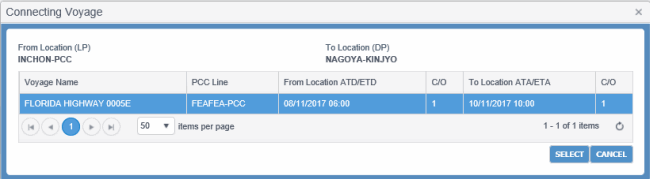
Voyage name for the selected Vessel. For LINE and PCL, click
Notes:
How does PCC.NET find connecting Voyages for a Vessel? PCC.NET finds the connecting Voyages for a Vessel according to the following conditions:
|
||||||||||||||||||||||||||||||||||||||||||
|
PCC Line |
PCC Line of the voyage to the currently-selected leg. Read-only. PCC.NET populates this value for respective type of transport categories as per the following logic:
|
||||||||||||||||||||||||||||||||||||||||||
|
Route Status |
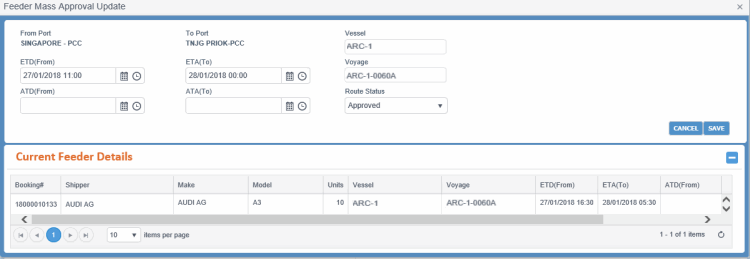
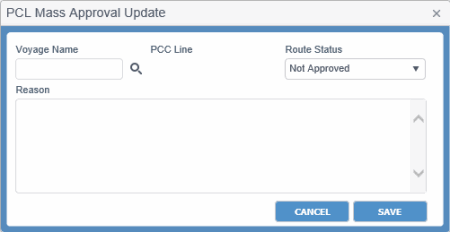
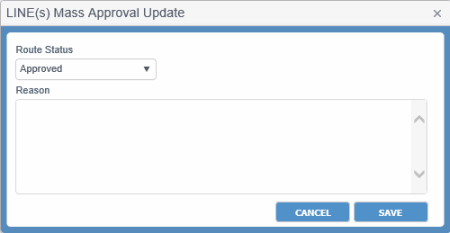
Approval status of currently selected leg: Not Approved/Approved/Arranged/Rejected. These statuses appear as hyperlinks. Depending on the transport mode and your role and task delegationrole and task delegation, clicking the status hyperlink displays the Line Approval Update or PCL Approval UpdateLine Approval Update or PCL Approval Update or Feeder Approval UpdateFeeder Approval Update dialog box for approving/rejecting the corresponding route leg.
Display of this dialog box differs for the PCL (with Voyage) or LinePCL (with Voyage) or Line category and PCL (without Voyage)PCL (without Voyage) category.
During Booking creation, the status appears as Not Approved for all the transport modes. Each of the leg needs to be approved by the respective Approver. After approval, route status changes either to Approved or Rejected. Points to remember for Line, PCL, and FeederPoints to remember for Line, PCL, and Feeder For PCL and LINE
For FEEDER
The drop-down list values are defined in the Code Definition (ADCMW02) screen (domain= RT_STATUS, for development usage only, by PCC.NET Administrative users). |
||||||||||||||||||||||||||||||||||||||||||
|
Buttons |
|||||||||||||||||||||||||||||||||||||||||||
|
COST |
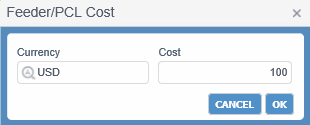
Button to enter associated feeder or PCL costs using the Feeder/PCL CostFeeder/PCL Cost dialog box. This is optional.
|
||||||||||||||||||||||||||||||||||||||||||
|
|
Button to delete the leg. In PCC.NET, you can delete only the last leg of the route. |
||||||||||||||||||||||||||||||||||||||||||
|
ADD LEG |
Button to add a new itinerary row. In edit mode, you cannot add a leg between existing legs. You must always add route after the last leg. |
||||||||||||||||||||||||||||||||||||||||||
|
This panel contains all cargo related information.
Copy mode: All details are populated from the source Booking No. |
|||||||||||||||||||||||||||||||||||||||||||
|
Total |
A summary of the following cargo attributes is displayed on top of this panel: Total Cargo Count, Total Unit Count, Total Pieces Count, Total Package Count, Total Weight, Total Freight Weight, Total Measure and Total Freight Measure. |
||||||||||||||||||||||||||||||||||||||||||
|
<Serial No.> |
Sequential number of the record. This field is available only in the Cargo panel. |
||||||||||||||||||||||||||||||||||||||||||
 icon
icon and select a Contract from the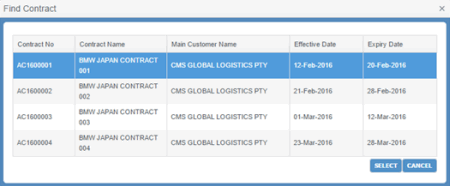

 in the
 |
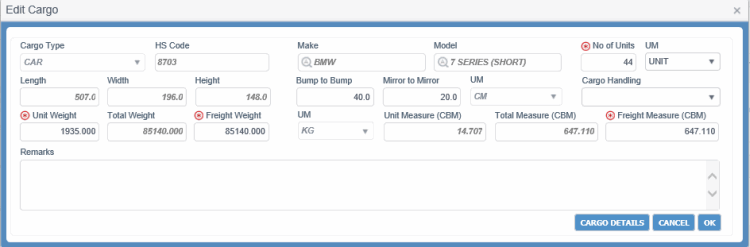
Cargo Type |
Type of the CargoType of the Cargo. Auto-populated during Booking creation from the Contract. The following are the cargo types:
View mode (Cargo Details panel) This information appears as Read-only. Edit mode (Edit Cargo dialog box) You can edit this value only for EDI Bookings. |
|
HS Code |
Denotes the World Customs Organization (WCO) defined Harmonized Code (HS code) for the commodity. It is a coding for identification and classification of imported and exported goods, for the purpose of compiling trade statistics and determining customs tariff. Every commodity that enters or crosses international borders have to be declared to customs by means of this code. This helps in standardizing the commodity codes worldwide. Auto-populated during Booking creation based on the corresponding Model number and Read-only. |
|
Make |
The name of the vehicle manufacturing company. Auto-populated during Booking creation from the Contract. View mode (Cargo Details panel) This information appears as Read-only. Edit mode (Edit Cargo dialog box) You can edit this value only for Generic Model. You can modify this value using the Auto-Complete feature, which helps to populate the relevant Make based on the selection of Cargo Type. Make and Model are often used together to identify a particular vehicle. A vehicle’s complete identification and name is made by the Make and its Model. |
|
Model |
The corresponding Model name of the cargo. Auto-populated during Booking creation from the Contract. View mode (Cargo Details panel) This information appears as Read-only. Edit mode (Edit Cargo dialog box) You can edit this value only for Generic Model. You can modify this value using the Auto-Complete feature, which helps to populate the relevant Model based on your selection of Make. Notes:
|
|
Units |
Number of units of PCC Cargo. View mode (Cargo Details panel) This information appears as Read-only. Add/Edit mode (Edit Cargo dialog box) Name of this field appears as No. of Units in the Edit Cargo dialog box. You can enter/edit this value in the Edit Cargo dialog box. Required to save a Booking as Draft. Notes:
|
|
UM |
Unit of measurement of the cargo unit. This information is populated from the Contract entered while creating the Booking. You can make the necessary changes. View mode (Cargo Details panel) This information appears as Read-only. Add/Edit mode (Edit Cargo dialog box) You can enter/edit this value. Required to save a Booking as Draft. |
|
Length |
Length of the PCC Cargo. Auto-populated during Booking creation based on the corresponding Model number. View mode (Cargo Details panel) This information appears as Read-only. PCC.NET shows the saved values up to 1 digit after decimal point. Edit mode (Edit Cargo dialog box) You can edit this value only for Generic Model. In such case, you can enter values up to 1 digit after decimal point. |
|
Width |
Width of the PCC Cargo. Auto-populated during Booking creation based on the corresponding Model number. View mode (Cargo Details panel) This information appears as Read-only. PCC.NET shows the saved values up to 1 digit after decimal point. Edit mode (Edit Cargo dialog box) You can edit this value only for Generic Model. In such case, you can enter values up to 1 digit after decimal point. |
|
Height |
Height of the PCC Cargo. Auto-populated during Booking creation based on the corresponding Model number. View mode (Cargo Details panel) This information appears as Read-only. PCC.NET shows the saved values up to 1 digit after decimal point. Edit mode (Edit Cargo dialog box) You can edit this value only for Generic Model. In such case, you can enter values up to 1 digit after decimal point. |
|
Bump to Bump |
The distance between the front side bumper of a vehicle and the backside bumper of another vehicle associated with the corresponding Booking. Auto-populated during Booking creation based on the corresponding Model number. Edit mode (Edit Cargo dialog box) You can change this value for any kind of Make/Model that is used for the current Booking. You can enter values up to 1 digit after decimal point. This field is available only in the Edit Cargo dialog box. |
|
Mirr to Mirr |
The distance between the left side mirror of a vehicle and the right side mirror of another vehicle associated with the corresponding Booking. Auto-populated during Booking creation based on the corresponding Model number. Edit mode (Edit Cargo dialog box) You can change this value for any kind of Make/Model that is used for the current Booking. You can enter values up to 1 digit after decimal point. Name of this field appears as Mirror to Mirror in the Edit Cargo dialog box. This field is available only in the Edit Cargo dialog box. |
|
UM |
Unit of measurement of the cargo Length, Width, Height, Bump to Bump, and Mirr to Mirr. Default value is CM. Auto-populated during Booking creation based on the corresponding Model number. View mode (Cargo Details panel) This information appears as Read-only. Edit mode (Edit Cargo dialog box) You can edit this value only for Generic Model. |
|
Cargo Handling |
The mode of handling the cargo to load or discharge from a vessel. Auto-populated during Booking creation based on the corresponding Model number. The available options in the drop-down list are:
View mode (Cargo Details panel) This information appears as Read-only. Edit mode (Edit Cargo dialog box) You can edit this field for any Make/Model used in the Booking. |
|
Unit Weight |
Weight of one unit of car. Auto-populated during Booking creation based on the corresponding Model number. View mode (Cargo Details panel) This information appears as Read-only. Edit mode (Edit Cargo dialog box) You can edit this field for any Make/Model used in the Booking. You can enter values up to three digits after decimal point. PCC.NET shows the saved values up to three digits after decimal point. |
|
Total Weight |
Weight of all units of the cargo. Total Weight = Weight of one unit of car of the corresponding Model Number in the Model Master (RFMKW02) screen multiplied by the number of units of the car. This field shows values up to 3 digits after decimal point. Read-only. This field is available only in the Edit Cargo dialog box. |
|
Freight Weight |
Weight of all units of the cargo. This field accepts a value with a maximum of three decimal places. Total Weight = Weight of one unit of car of the corresponding Model Number in the Model Master (RFMKW02) multiplied by number of units of the car. View mode (Cargo Details panel) This information appears as Read-only. PCC.NET shows the saved values up to 3 digits after decimal point. Edit mode (Edit Cargo dialog box) You can edit this field for any Make/Model used in the Booking. PCC.NET uses this weight for Revenue calculation if the Basis is WA (Weight at Actual). You can enter values up to three digits after decimal point. Minimum value can be zero. |
|
UM |
Unit of measurement of the cargo weight. Auto-populated during Booking creation based on the corresponding Model number. Default value is KG. View mode (Cargo Details panel) This information appears as Read-only. Edit mode (Edit Cargo dialog box) You can edit this value only for Generic Model. |
|
Unit Measure (CBM) |
Volume of one unit of car. PCC.NET shows the saved values up to 3 digits after decimal point. Auto-populated during Booking creation based on the Length, Width and Height of the corresponding Model number. Read-only. This field is available only in Edit Cargo dialog box. |
|
Total Measure (CBM) |
Total volume of the cargo. PCC.NET shows the saved values up to 3 digits after decimal point. Auto-populated during Booking creation based on the corresponding Model number and Read-only. Total Volume = Volume of one unit of car of the corresponding Model Number in the Model Master (RFMKW02) screen multiplied by the number of units of car. This field is available only in Edit Cargo dialog box. |
|
Freight Measure (CBM) |
Volume of all units of the cargo in cubic meter. Total Volume = Volume of one unit of car fetched from corresponding Model Number in the Model Master (RFMKW02) multiplied by the number of units of the car. Default value is Total Volume. Default value is Total Volume. View mode (Cargo Details panel) This information appears as Read-only. Edit mode (Edit Cargo dialog box) You can edit this field for any Make/Model used in the Booking. PCC.NET uses this weight for revenue calculation if the Basis is MA (Measure at Actual). You can enter values up to 3 digits after decimal point. PCC.NET shows the saved values up to 3 digits after decimal point. Minimum value can be zero. |
|
Remarks |
Space to provide remarks about the vehicle. You can enter a maximum of 4000 characters. This field is available only in Edit Cargo dialog box. |
|
Buttons |
|||||||||||||||||||||||||||||||||||||||||||||||||||||||||||||||||||||||||||||||||||||||
|
|
Button to open Edit CargoEdit Cargo dialog box to edit the corresponding record.
PCC.NET populates the remaining details either from Contract or Model Master based on the Make/Model used in the Booking. |
||||||||||||||||||||||||||||||||||||||||||||||||||||||||||||||||||||||||||||||||||||||
|
|
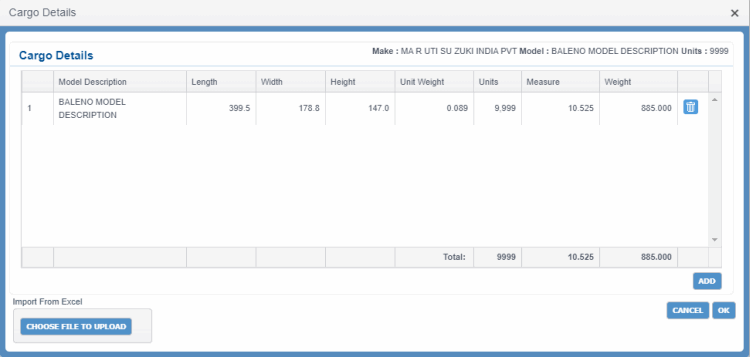
Button to copy generic Make and Model information. When you copy generic Make and Model; all details including revenue information of the cargo are copied. You can later change the generic Make/Model to actual Make/Model. But the Rate in the Revenue panels must remain unchanged for that Generic Model based on the following logic:
|
||||||||||||||||||||||||||||||||||||||||||||||||||||||||||||||||||||||||||||||||||||||
|
|
Button to delete the corresponding cargo in the Booking. Minimum one cargo must be present in the Booking. You need to manually delete a cargo which is not present within the latest revision of the currently selected Contract. |
||||||||||||||||||||||||||||||||||||||||||||||||||||||||||||||||||||||||||||||||||||||
|
VIN ASSOCIATION |
Button to associate VINs with the Booking using the Associate VIN dialog box. Vehicle Identification Number, commonly abbreviated to VIN, is a unique serial number used by the automotive industry to identify individual motor vehicles. VINs can consist up to 17 characters. Copy mode When you click this button, PCC.NET displays an error message. Once the Booking data is saved and new Booking number is generated. you can proceed with associate VIN operations again.
|
||||||||||||||||||||||||||||||||||||||||||||||||||||||||||||||||||||||||||||||||||||||
|
VIN TRACKING |
Button to open the VIN Tracking (OPBKW08) screen that displays the tracking information of the current Booking. You need to have the "Create Booking" or"View Booking without Revenue" role with "VIN Tracking" system action to perform this activity. Copy mode: When you click this button, PCC.NET displays an error message. Once the Booking data is saved and new Booking number is generated. you can proceed with VIN tracking again. |
||||||||||||||||||||||||||||||||||||||||||||||||||||||||||||||||||||||||||||||||||||||
|
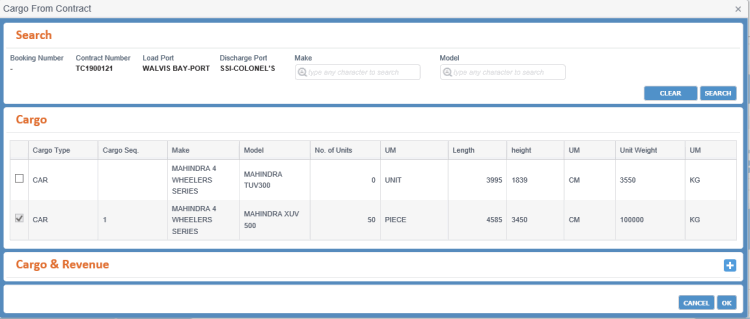
ADD CARGO FROM CONTRACT |
Button to add cargo information to the Booking from the Contract using the Cargo From ContractCargo From Contract dialog box. The dialog box displays all the cargoes associated with latest revision of the current Contract (restricted by Customer, Contract and Port pair of the current Booking) with their associated charges.
|
||||||||||||||||||||||||||||||||||||||||||||||||||||||||||||||||||||||||||||||||||||||
|
Panel to define revenue information of a Booking. This panel is editable only if you have the Create Booking role and Update Booking system action privilege. You cannot update revenue information if you are assigned with the Update Booking Doc Entry Office role type along with Update Booking Without Revenue system action and delegation as Doc Entry Office.
Copy mode: All details are populated from the source Booking No. |
|||||||||||||||||||||||||||||||||||||||||||||||||||||||||||||||||||||||||||||||||||||||
|
<Serial No.> |
Sequential number of the record. |
||||||||||||||||||||||||||||||||||||||||||||||||||||||||||||||||||||||||||||||||||||||
|
Charge |
Charge code for the charge as classified for the shipping business. Read-only if the charge is retrieved from Contract. In PCC.NET, two types of charges are applicable:
PCC.NET retrieves all Contractual charges from Contract in these fields, which you cannot edit. But you can add various supplementary charge codes by clicking ADD REVENUE. This field has the Auto-Complete feature, which helps you to populate the relevant charge as you type. While viewing Revenue, Charge Description is displayed as a tooltip while hovering over the selected Charge code. |
||||||||||||||||||||||||||||||||||||||||||||||||||||||||||||||||||||||||||||||||||||||
|
Make/Model |
Make/Model information for the corresponding charge. This information must be present in corresponding Contract. In case of Contractual charges this field is Read-only. But for supplementary charges added in Booking, this value can be optionally selected. This field has the Auto-Complete feature, which helps you to populate the relevant Make/Model from the selected Contract as you type. |
||||||||||||||||||||||||||||||||||||||||||||||||||||||||||||||||||||||||||||||||||||||
|
Basis |
Drop-down list to select the basis for calculation. Following are the available options while adding a record:
Notes:
|
||||||||||||||||||||||||||||||||||||||||||||||||||||||||||||||||||||||||||||||||||||||
|
Rated At |
Freighted quantity/value. Read-only except for the Contractual/Supplementary charges where Basis is PT/RT.
Notes:
Rated At value is rounded off up to 3 decimal points and displayed up to 4 decimal points. For example: (value=123.55555 is displayed as 123.5560, and value=123.5544 is displayed as 123.5540).
Rated At value is rounded off up to 4 decimal points and is displayed up to 4 decimal points. For example: (value=123.55555 is displayed as 123.5556, value=123.55554 is displayed as 123.5555 and value=123.554 displayed as 123.5540)
Rated At is calculated based on the Basis value as mentioned below:
During entering Supplementary Charge in Booking, if the charge is entered without associating it with any Make/Model and Basis is selected as Weight Actual (WA)/Measure Actual (MA), PCC.NET considers the sum of Freight Weights/Freight Measure of all Make/Models present within the Booking as the default value of Rated At corresponding to that charge. In case of Basis PT/RT, PCC.NET allows you to modify the default value of Rated At, too. |
||||||||||||||||||||||||||||||||||||||||||||||||||||||||||||||||||||||||||||||||||||||
|
UM |
Drop-down list to select the unit of measure for Rated At. |
||||||||||||||||||||||||||||||||||||||||||||||||||||||||||||||||||||||||||||||||||||||
|
Rate |
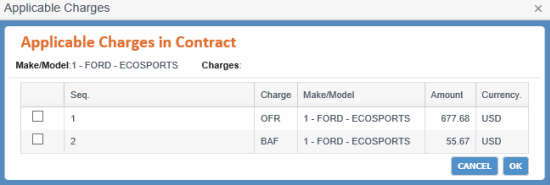
Charge rate applicable on the Rated At value. PCC.NET multiplies it with Rated At to get the Amount for this charge. For the charges retrieved in Booking from the Contract, a Search
For Generic Model cargoes, you must enter a rate for the Generic Model in Contract. After creating a Booking, you can change the Make and Model in the Cargo panel from the Model Master (RFMKW02) screen. However, the Rate for that cargo must remain unchanged for that Generic Model based on the following logic:
You can enter values up to 4 digits after decimal point and the Rated At value is rounded off up to 4 digits after decimal point. PCC.NET shows the saved values up to 4 digits after decimal point. When you change the Payment Term (P/C) value or Freight Collection Office value in Booking, PCC.NET tries to find a unique Rate based on the Charge, Basis, Payment Term and Freight Collection Office, and automatically set it. |
||||||||||||||||||||||||||||||||||||||||||||||||||||||||||||||||||||||||||||||||||||||
|
Currency |
Charge currency applicable to the rate, for example, USD (US dollars). This field has the Auto-Complete feature, which helps you to populate the relevant currency as you type. Notes:
|
||||||||||||||||||||||||||||||||||||||||||||||||||||||||||||||||||||||||||||||||||||||
|
P/C |
Drop-down list to select the payment method to indicate whether the revenue is prepaid or collect type. Available values are P, which means Prepaid and C, which means Collect.
|
||||||||||||||||||||||||||||||||||||||||||||||||||||||||||||||||||||||||||||||||||||||
|
Amount |
PCC.NET automatically calculates this amount by multiplying the value of Rate with Rated At. Read-only. Amount is rounded off up to the precision value of currency but shows the saved values up to two digits after decimal point. |
||||||||||||||||||||||||||||||||||||||||||||||||||||||||||||||||||||||||||||||||||||||
|
Freight Collection Office |
Organization name of the freight collection office of the charge. By default, PCC.NET populates this field from Contract; if unavailable, it populates from the Location Master (RFLCW10) screen with respect to the Booking Load Port. You can update this field. You can enter either the six-character organization code or the organization name. This field has the Auto-Complete feature, which helps you to populate the relevant organization as you type. |
||||||||||||||||||||||||||||||||||||||||||||||||||||||||||||||||||||||||||||||||||||||
|
Invoicing Office |
The organization where the invoice for the corresponding charge is created.
|
||||||||||||||||||||||||||||||||||||||||||||||||||||||||||||||||||||||||||||||||||||||
|
Payer |
Payer is a customer who pays the charges in the invoice. By default, PCC.NET populates this value from Contract. However, you can add or edit this values. This field has the Auto-Complete feature, which helps you to populate the relevant payer as you type at least three characters. You may select the Dummy Customer (2nd Hand Car (9999996)) in Collect Transaction as Payer. |
||||||||||||||||||||||||||||||||||||||||||||||||||||||||||||||||||||||||||||||||||||||
|
Buttons |
|||||||||||||||||||||||||||||||||||||||||||||||||||||||||||||||||||||||||||||||||||||||
|
|
Button to open the corresponding record in edit mode in the record row. As you click this button, the corresponding row becomes editable and Notes:
You cannot modify revenue if you are assigned with the Update Booking Doc Entry Office role type along with Update Booking Without Revenue system action and delegation as Doc Entry Office. |
||||||||||||||||||||||||||||||||||||||||||||||||||||||||||||||||||||||||||||||||||||||
|
|
Button to delete the corresponding charges in Booking. Notes:
|
||||||||||||||||||||||||||||||||||||||||||||||||||||||||||||||||||||||||||||||||||||||
|
REFRESH RATE FROM CONTRACT |
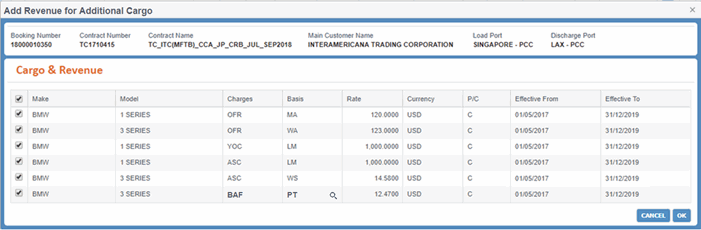
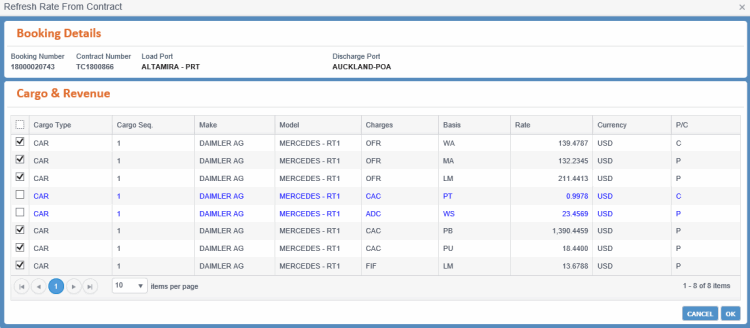
Button to refresh and populate the rates from the latest version of the corresponding Service Contract, in case there are any changes in Contract revenue after the Booking creation, using the Refresh Rate from ContractRefresh Rate from Contract dialog box. This dialog box shows you all cargo details used for current Booking, for the concerned Load Port and Discharge Port along with the refreshed rates from Contract. Click OK in the dialog box to update all the refreshed rates in the Booking Revenue.
During Booking creation, Revenue information, both Contractual and Supplementary, are inherited from the corresponding Contract. For Contractual charges retrieved in the Booking, only the Freight Collection Office, Invoicing Office, and Payer information can be updated. If there is any change in the Contract revenue after the Booking creation, it must reflect in the corresponding Booking also. The latest rates of the Contract can be inherited in the Booking using REFRESH RATE FROM CONTRACT. The modified revenue details of the Contract linked with the corresponding Booking for the concerned Load Port and Discharge Port can be updated by virtue of this feature. This is applicable to both Contractual and Supplementary charges in the Contract. Rates from the Contract that are populated in the dialog box and refreshed:
The discrepancy between Contract revenue and Booking revenue is displayed in Blue color.
This button is not applicable if you are assigned with the Update Booking Doc Entry Office role type along with Update Booking Without Revenue system action and delegation as Doc Entry Office. |
||||||||||||||||||||||||||||||||||||||||||||||||||||||||||||||||||||||||||||||||||||||
|
FREIGHT SUMMARY |
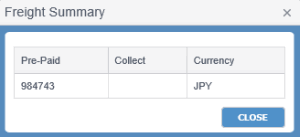
Button to view the total Prepaid and total Collect charges currency wise in the Freight SummaryFreight Summary pop-up.
This button is not applicable if you are assigned with the Update Booking Doc Entry Office role type along with Update Booking Without Revenue system action and delegation as Doc Entry Office. |
||||||||||||||||||||||||||||||||||||||||||||||||||||||||||||||||||||||||||||||||||||||
|
ADD REVENUE |
Button to add new blank row to add Supplementary charges to the Booking. You can enter the revenue details and click This button is not applicable if you are assigned with the Update Booking Doc Entry Office role type along with Update Booking Without Revenue system action and delegation as Doc Entry Office. |
||||||||||||||||||||||||||||||||||||||||||||||||||||||||||||||||||||||||||||||||||||||
|
Copy mode: All details are populated from the source Booking No. |
|||||||||||||||||||||||||||||||||||||||||||||||||||||||||||||||||||||||||||||||||||||||
|
Booking Remarks |
Additional remarks for the Booking. This field initially populates the default value from the Contract (Remarks for Booking Remarks field) while creating the Booking from Contract. You can keep its default value or can enter any other additional Booking remarks. You can enter a maximum of 4000 characters. |
||||||||||||||||||||||||||||||||||||||||||||||||||||||||||||||||||||||||||||||||||||||
|
Freight Remarks |
Additional freight-related remarks for the Booking. This field initially populates the default value from the Contract (Remarks for Freight Remarks field) while creating the Booking from Contract. You can keep its default value or can enter any other additional freight remarks. You can enter a maximum of 4000 characters. |
||||||||||||||||||||||||||||||||||||||||||||||||||||||||||||||||||||||||||||||||||||||
|
Term |
Drop-down list displaying the terms for the cargo. These are used by the PL reports. This is a read-only value auto-populated from Contract. Probable values are:
|
||||||||||||||||||||||||||||||||||||||||||||||||||||||||||||||||||||||||||||||||||||||
|
Customs Clearance Number |
Customs Clearance number is a number issued by the Australian or New Zealand Customs to identify each cargo to be exported from Australia or New Zealand. Required if the From Location (LP) is in Australia or New Zealand. |
||||||||||||||||||||||||||||||||||||||||||||||||||||||||||||||||||||||||||||||||||||||
|
BL As Arranged |
Check box to select if the B/L contains Freight. |
||||||||||||||||||||||||||||||||||||||||||||||||||||||||||||||||||||||||||||||||||||||
|
Buttons |
|||||||||||||||||||||||||||||||||||||||||||||||||||||||||||||||||||||||||||||||||||||||
|
GENERATE BCN (SHORT) |
Button to generate the short version of Booking Confirmation Notice (BCN). You can send this report to the Customer and MOL Sales Person after the Booking is Accepted or Reconciled. If required, you can also send it when the Booking is in Requested status. The customer can be either Shipper and/or Initiator and/or Forwarder (if present) of the Booking. The intended user group can be Sales & Customer Service and Voyage Controller. This version is sent for Asia Pacific region as a confirmation of Booking. The Generalized Report Submission (RPGRW01) screen appears when you click this button allowing you to generate the report on the basis of Booking number. Once submitted, you can search through Vessel, Voyage Number, Voyage Name, PCC-LINE, Booking number, Customer type/Code.
|
||||||||||||||||||||||||||||||||||||||||||||||||||||||||||||||||||||||||||||||||||||||
|
GENERATE BCN (LONG) |
Button to generate the long version of Booking Confirmation Notice (BCN). You can send this report to the Customer and MOL Sales Person when the Booking is Accepted or Reconciled. If required, you can also send it when the Booking is in Requested status. The customer can be either Shipper and/or Initiator and/or Forwarder (if present) of the Booking. The intended user group can be Sales and Customer Service and Voyage Controller. The Long version of BCN is meant for Atlantic region. The Generalized Report Submission (RPGRW01) screen appears when you click this button allowing you to generate the report on the basis of the Booking number. Once submitted, you can search through Vessel, Voyage Number, Voyage Name, PCC-LINE, Booking number, Customer type/Code.
In PCC.NET, Booking Confirmation Notice (BCN) is generated to provide response to the customer who has made Bookings with MOL. This button is not applicable if you are assigned with the Update Booking Doc Entry Office role type along with Update Booking Without Revenue system action and delegation as Doc Entry Office. |
||||||||||||||||||||||||||||||||||||||||||||||||||||||||||||||||||||||||||||||||||||||
|
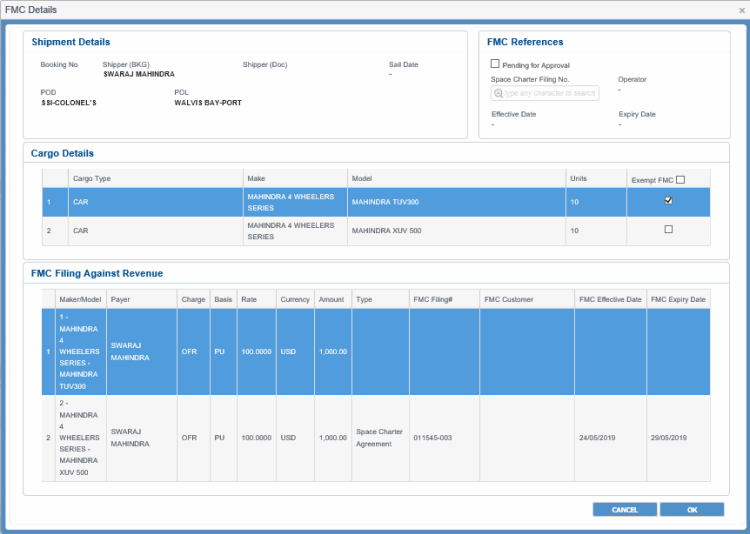
Button to provide the FMC Filing details for Bookings having Load Port or Discharge Port belonging to the port of US territories using the FMC DetailsFMC Details dialog box. It displays all cargo associated with current Booking and all revenues and their FMC information associated with current Booking.
You can enter FMC filing information for both Contractual and Supplementary charges as per certain conditionscertain conditions. To update the FMC details in a Booking, any of the following information must be provided in the FMC Details dialog box:
Or,
If any cargo is not selected as Exempt FMC, all revenues present in the Revenue Details panel for that particular cargo should have valid FMC filing numbers associated with them.
Notes:
Copy mode: All details are populated from the source Booking No. |
|||||||||||||||||||||||||||||||||||||||||||||||||||||||||||||||||||||||||||||||||||||||
|
CANCEL |
Button to close the Create/Update Booking (OPBKW02) screen and navigate to the Search Booking (OPBKW01) screen. If there is any change in the Booking, a warning message appears when you click this button asking you to confirm the cancellation. |
||||||||||||||||||||||||||||||||||||||||||||||||||||||||||||||||||||||||||||||||||||||
|
SAVE |
Button to save the changes you make in the Booking.
Create/Edit mode: When you click this button, Add Transaction LogAdd Transaction Log dialog box is displayed to specify the changes you made in the Booking, so that PCC.NET can save the log entry in the Booking log.
PCC.NET considers the booking to be Used Car Booking if commodity code for any associated Cargo falls within list of domain items defined in the Code Definition (ADCMW02) screen (domain=USED_CAR_CMD_DOMAIN), for example, N07. In rest of the cases, PCC.NET considers it as New Car Booking. Copy mode: When you click this button, a new Booking number is generated. Notes:
|
||||||||||||||||||||||||||||||||||||||||||||||||||||||||||||||||||||||||||||||||||||||

 toggles to
  , which allows you to save the updated record.
 icon appears adjacent to this field. The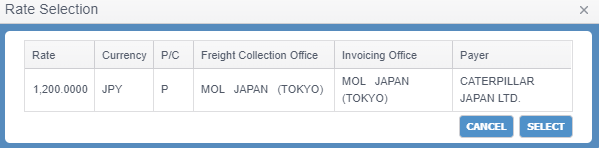
|
Related Topics |