Back Forward

Search Booking > View Booking

View Booking


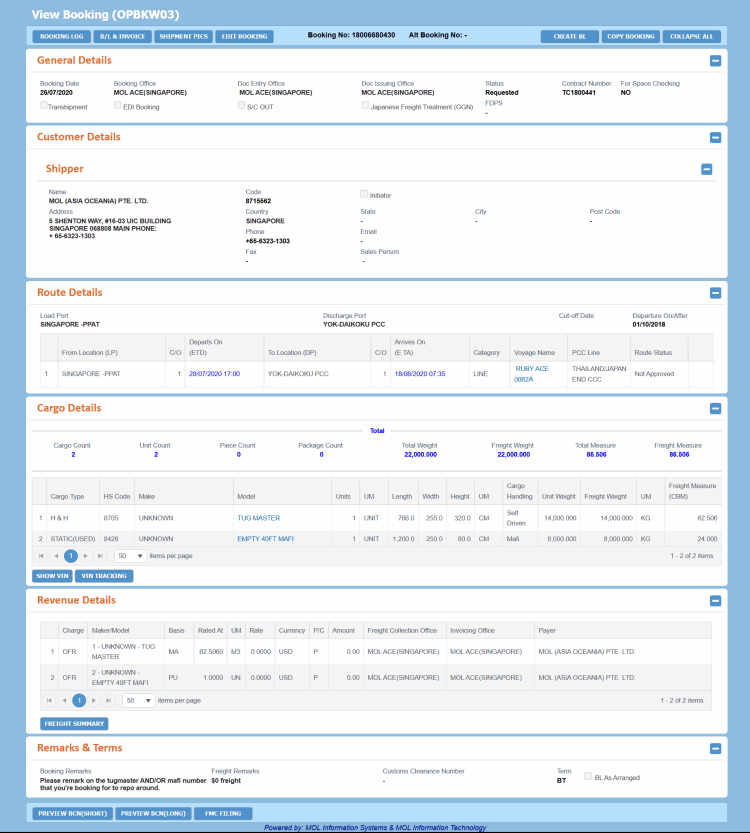
This screen is used to view the Booking information in details, such as Customer, Cargo, Revenue, Terms in read-only mode. You can also view Booking Log, BL Invoice, and VIN details, Feeder/PCL Cost, Freight Summary, FMC Filing associated with current Booking in view mode.

The View Booking (OPBKW03) screen can be accessed from Menu > Operational > Booking > Booking Search. Click Booking No. hyperlink on the Booking Search Details panel.
Ensure that you have the appropriate permissions to access the screen and perform the necessary tasks. Follow your local support procedures if you are unsure as to whether you have the correct permissions.

General Information

Screen-specific Components

  • Access DetailsAccess Details

    • To view a Booking, you need Search Booking system action with View Booking role.

    • To search and update a Booking, you need Search Booking system action with Create Booking role.

    To view Booking Revenue information, you need View Booking Revenue system action with View Booking Revenue or Create Booking role and delegation against the Loading port, Discharging Port and Freight Collection Office of the Booking. Otherwise the Freight information will appear as masked (*******).  

  • Points to RememberPoints to Remember

    Revenue Masking/Security in Booking

    PCC.NET retrieves all revenue charges for a particular Port pair and selected Make/Model in a Booking from the Contract.

    To view Booking Revenue information, you need View Booking Revenue system action with View Booking Revenue or Create Booking role and delegation against the Loading port, Discharging Port and Freight Collection Office of the Booking. Otherwise the Freight information will appear as masked a (*******).  


    Rights of a Privileged Booking user related to Revenue:

    • View currency-wise total Prepaid and total Collect charges.

    • Add Supplementary charges in Booking that are not registered in the Contract.

    • Edit Freight Collection Office, Invoicing Office and Payer information in Contractual charges that are retrieved from Contract.

    • Apply new rates from the latest revision of the Contract in Booking.

    • Delete duplicate charges with same charge codes when overlapping rates are populated from Contract.

    • Delete contractual charges those no longer exist within the latest revision of the Contract.

How do I?

FAQs

  • Search and View BookingsSearch and View Bookings

    To view a Booking, you need Search Booking system action with View Booking role. To edit the Booking, you must have the Create Booking role.

    To view Booking Revenue information, you need View Booking Revenue system action with View Booking Revenue or Create Booking role and delegation against the Loading port, Discharging Port and Freight Collection Office of the Booking. Otherwise the Freight information will appear as masked "*******).  

    1. Open the Search Booking (OPBKW01) screen.
    2. Enter the desired search criteria in the appropriate fields of the Search Criteria panel. You can perform search using three modes: General Search, Mother Vessel, and Feeder Vessel. For field descriptions of the search criteria, click here.
    3. Click SEARCH. Based on the given criteria, the matching Bookings are retrieved under Search Detail panel. On top of the panel, the criteria based on which the search has been performed is displayed.
    4. Click a Booking number to view details in the View Booking (OPBKW03) screen. For field descriptions of this screen, click here.
  • Export Data for MOLCAPSExport Data for MOLCAPS

    You must have the “View Booking” role and “Export Data to MOLCAPS” system action privilege to export data for MOLCAPS.

    1. Open the Search Booking (OPBKW01) screen.
    2. Enter vessel, voyage, and line in the Search Criteria panel, otherwise EXPORT DATA FOR MOLCAPS remain disabled.
    3. Click SEARCH. The Bookings with matching criteria are listed in the Search Details panel. Click here to view the field descriptions.
    4. Select all or some Bookings available within a single page.
    5. Click EXPORT DATA FOR MOLCAPS to initiate the file generation. A dialog box, Export Data for MOLCAPS and Send Mail, appears with your (logged-in user) e-mail address.
    6. You may change or add e-mail addresses and initiate the MOLCAPS file generation.
    7. Click SEND PCC.NET will send the generated MOLCAPS file as an attachment to the specified e-mail address(es). A single MOLCAPS export file per page is generated.

    MOLCAPS file gets generated as per the attached file format, but with an exception that Booking Number is not to be concatenated in MOLCAPS export file from Booking Search page, by default.

    PCC.NET does not include Bookings having status Declined, Canceled or Draft from the report output even if they are selected during generation.

  • Copy BookingCopy Booking

    To copy any existing Booking's complete information, you must have the “Create Booking” role and “Create Booking From Contract” system action privilege.

    1. Click Operational > Booking > Booking Search to open the Search Booking (OPBKW01) screen.
    2. Enter the desired search criteria in Search Criteria panel to find out the Booking you want to copy. Click here to view the field descriptions.
    3. Click SEARCH. The Booking numbers matching the search criteria are listed in the Search Details panel.
    4. In the Search Details panel you can copy an existing Booking detail to create a new Booking in Draft status. This can be done in one of the following ways:
      1. Click the Copy Booking option from the Gear icon adjacent to any Booking number whose details you want to copy. You are navigated to the Create/Update Booking (OPBKW02) screen displaying all Booking information of the initial source Booking.
      2. Click COPY BOOKING in the View Booking (OPBKW03) screen displayed on clicking a Booking number in the list of search results. You are navigated to the Create/Update Booking (OPBKW02) screen displaying all Booking information of the initial source Booking.

    Except VIN, all other Booking information of the initial source Booking No. is populated in the new Booking.

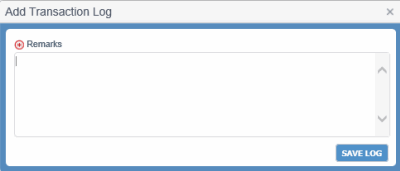
    1. In the Create/Update Booking (OPBKW02) screen, you can make the required modifications, and click SAVE. When you click this button, the Add Transaction LogAdd Transaction Log dialog box is displayed to specify the changes you made in the Booking, so that PCC.NET can save the log entry in the Booking log. You can view the log entry later by clicking BOOKING LOG in the Booking Header.

    A new Booking number is generated, once the Booking details are saved.


    Points to remember while updating a BookingPoints to remember while updating a Booking

    • You can change the Booking anytime. If you update Voyage or Route information in a Booking having Accepted or Reconciled status, the Booking leg status and Booking status are impacted. Logic details Logic details.

      For Line or PCL with voyage Transport Category:

      • If you update a Booking leg having voyage and PCC.NET finds that the previous and the updated voyages are managed by different Line Managers, the leg status becomes Not Approved from Approved, otherwise remains as Approved.

      For Feeder or PCL without Voyage Transport Category:

      • If you change the Booking leg that does not have any voyage to a Line/PCL leg category that has voyage, the leg status becomes Not Approved.

      • If user changes the ATD/ETD and ATA/ETA values of the feeder without changing the route leg category, the leg status will remain unchanged (Approved). If this leg falls under auto-approved Feeder Service category, and the leg status was Arranged earlier, it remains Arranged.

      In the above two scenarios, if the first leg (irrespective of Line/PCL/Feeder) of the route becomes Not Approved, PCC.NET also changes the Booking Status from Accepted to Requested. The  change in Booking status happens only for Accepted Bookings and will not apply if the Booking is in Reconciled status.


      E-mail notification is sent to Approvers on change of both Cargo and Route:

      Updated Information

      E-mail Recipient

      Route

      Approver of the particular Booking leg.

      Cargo

      All approvers of the Booking.

      Cargo and/or Route

      All approvers. The e-mail body will indicate what information (Cargo or Route) has been updated.

    • You can update Contract number only for Agreement with Brokers to Agreement with Broker Customer until the Booking becomes Requested. The updated Contract number should have the same Port pair and Make/Model combination that matches with the old Contract.

    • If you click REFRESH RATE FROM CONTRACT, PCC.NET changes Revenue based on Makes/Models that exist in the Booking with the rate in the latest revision of the Contract associated with those Makes/Models.

    • After Booking creation (even in Draft mode) if you make any changes in the Contract in the following fields, Booking is not refreshed:

      • Documentation Issuing Office in Contract Header pane

      • Freight Collection Ofc in Contract Revenue pane

      • Invoicing Ofc in Contract Revenue pane

      • Payer in Contract Revenue pane

      • Booking Remarks and Freight Remarks

    • You cannot update a Booking with a Cross Reference Customer if it has been created earlier with a non-Cross Reference Customer.

  • Preview BCNPreview BCN

    To view a Booking, you need Search Booking system action with View Booking role. To edit the Booking, you must have the Create Booking role.

    To view Booking Revenue information, you need View Booking Revenue system action with View Booking Revenue or Create Booking role and delegation against the Loading port, Discharging Port and Freight Collection Office of the Booking. Otherwise the Freight information will appear as masked "*******).  

    1. Open the Search Booking (OPBKW01) screen.
    2. Enter the desired search criteria in the appropriate fields of the Search Criteria panel. You can perform search using three modes: General Search, Mother Vessel, and Feeder Vessel. For field descriptions of the search criteria, click here.
    3. Click SEARCH. Based on the given criteria, the matching Bookings are retrieved under Search Detail panel. On top of the panel, the criteria based on which the search has been performed is displayed.
    4. Click a Booking number to view details in the View Booking (OPBKW03) screen. For field descriptions of this screen, click here.
    1. Click PREVIEW BCN (SHORT) or PREVIEW BCN (LONG) to preview the corresponding version of the Booking Confirmation Notice. You are navigated to the Generalized Report Submission (RPGRW01) screen with the Booking Number, particular BCN type, Delivery Mode as Preview and other attributes selected.
    2. Click SUBMIT.

Related Topics

  1. Introduction to PCC Booking
  2. Search Booking
  3. View Booking - Field Descriptions