|
|
|
-
 Search for a Feeder ServiceSearch for a Feeder Service Search for a Feeder ServiceSearch for a Feeder Service
You need to have
the View Voyage/Managing Voyage/Create Booking/View Booking
role and at least the View Feeder Service Master system
action to perform this activity.
- On the Search
Criteria panel, provide the name of the load port
and discharge port of the Feeder Service you want to retrieve,
in the Loading Port and Discharging Port fields respectively.
You can also specify other details associated with the
Feeder Service. Click here
for field descriptions.
- Click SEARCH.
The details of the Feeder Service are displayed in the
Feeder Services panel.
-
Modify the details of a Feeder ServiceModify the details of a Feeder Service
You need to have
the Managing Voyage role and the Update Feeder Service
Master system action to perform this activity.
- Provide the required search criteria
in the Search Criteria panel
to retrieve the Feeder Service record, for which you want
to modify the details. Click here
for field descriptions.
- Click SEARCH.
The details of the desired records are displayed in the
Feeder Services panel.
- Click
 corresponding
to the record you want to edit. The
Feeder Service record is displayed in Edit mode. corresponding
to the record you want to edit. The
Feeder Service record is displayed in Edit mode.
- Make
the required modifications. Click here for field descriptions.
- Click
 .
A confirmation message appears. .
A confirmation message appears.
While saving the record, PCC.NET verifies
whether any other Feeder Service exists with same Priority
for the respective Loading Port and Discharging Port.
If any duplicate Feeder Service exists with same Priority,
a warning message is displayed. Based on your confirmation,
PCC.NET updates the Priority of the Feeder Service as
per following logic:
-
Add a new Feeder Service recordAdd a new Feeder Service record
You need to have
the Managing Voyage role and the Update Feeder Service
Master system action to perform this activity.
- Expand the Feeder
Services panel.
- Click ADD on
the Feeder
Services panel.
A new blank row is added.
- Enter the Loading port
and Discharging port names along with the other required
details in the blank row. Click here for
field descriptions.
- Click .
A confirmation message appears.
While saving the record, PCC.NET verifies
whether any other Feeder Service exists with same Priority
for the respective Loading Port and Discharging Port.
If any Feeder Service exists with same Priority, a warning
message is displayed. Based on your confirmation, PCC.NET
updates the Priority of the Feeder Service as per following
logic:
-
Delete a Feeder Service recordDelete a Feeder Service record
You need to have the Managing Voyage role and the Update Feeder Service Master system action to perform this activity.
- Provide the required search criteria in the Search Criteria panel to retrieve the feeder service record that you want to delete. Click here for field descriptions.
- Click SEARCH. The details of the desired record are displayed in the Feeder Services panel.
- Click
 corresponding to the feeder service record that you want to delete. The record is deleted based on your confirmation provided there exists no active Booking using that Feeder as one of it’s Route leg. corresponding to the feeder service record that you want to delete. The record is deleted based on your confirmation provided there exists no active Booking using that Feeder as one of it’s Route leg.
You cannot re-activate a Feeder Service record once deleted.
|
|


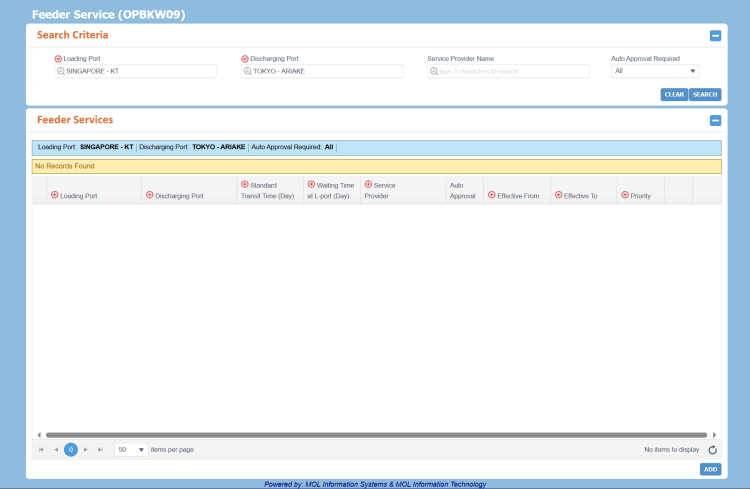 can be accessed from Menu > Operational > Booking > Feeder Service.