|
|
|
-
 Search and View FMC Document DetailsSearch and View FMC Document Details Search and View FMC Document DetailsSearch and View FMC Document Details
You need to have the View Booking role and the View FMC Filing Master system action to perform this activity.
- Select the type of FMC you want to search in the FMC Type field on the Search Criteria panel.
- You can also specify other details associated with the FMC document. Click here for field descriptions.
- Click SEARCH. The FMC Document details are displayed in the Search Details panel. Click here for field descriptions.
You can also click SEARCH without providing any search criteria. In that case, all the FMC Document records are displayed in the Search Details panel.
- Click the specific Filing Number link for which you want to view the FMC Document details. The View FMC Filing dialog box is displayed.
-
Add FMC Document DetailsAdd FMC Document Details
You need to have the Manage FMC Document role and the Edit FMC Filing Master system action to perform this activity.
- Expand the Search Details panel and click ADD FMC. The Add FMC Filing dialog box is displayed.
- Enter the FMC Document details, as required. Click here for field descriptions.
- Click SAVE to save the information.
The combination of FMC Type and FMC Filling Number must be unique among the active FMC document records.
-
Edit FMC Document DetailsEdit FMC Document Details
You need to have the Manage FMC Document role and the Edit FMC Filing Master system action to perform this activity.
- In the Search Criteria panel, select the type of FMC you want to search in the FMC Type field and enter other details for the FMC Document that you want to edit. Click here for field descriptions.
- Click SEARCH. The FMC Document details are displayed in the Search Details panel.
You can also click SEARCH without providing any search criteria. In that case, all the FMC Document records are displayed in the Search Details panel.
- Click
 corresponding to the FMC Document record that you want to edit. The Edit FMC Filing dialog box is displayed. corresponding to the FMC Document record that you want to edit. The Edit FMC Filing dialog box is displayed.
- Modify the FMC Document details, as required. Click here for field descriptions.
- Click SAVE to save the information.
-
Delete FMC Document DetailsDelete FMC Document Details
You need to have the Manage FMC Document role and the Edit FMC Filing Master system action to perform this activity.
- In the Search Criteria panel, select the type of FMC you want to search in the FMC Type field and enter other details for the FMC Document that you want to delete. Click here for field descriptions.
- Click SEARCH. The FMC Document details are displayed in the Search Details panel.
You can also click SEARCH without providing any search criteria. In that case, all the FMC Document records are displayed in the Search Details panel.
- Click
 corresponding to the FMC Document record that you want to delete. The FMC Document record is deleted based on your confirmation. corresponding to the FMC Document record that you want to delete. The FMC Document record is deleted based on your confirmation.
You cannot re-activate a FMC Document record, once deleted.
|
-
What are FMC Documents?What are FMC Documents?
The United States Federal Maritime Commission (FMC) is an independent federal agency, based in Washington, D.C., responsible for the regulation of ocean borne international transportation of the U.S. A document needs to be prepared for this commission for all ships whose route falls under the US territories. This document is known as the FMC Document.
-
Can you reactivate a deleted FMC document?Can you reactivate a deleted FMC document?
No, you cannot reactivate a deleted FMC document.
-
How can you associate a FMC document with a Booking?How can you associate a FMC document with a Booking?
You can associate a FMC Document record with a Booking from the Create/Update Booking (OPBKW02) screen, by clicking FMC FILING. On clicking this button, the FMC Details dialog box is displayed, where you can enter the FMC Filing information.
For more information, see Create/Update Booking (OPBKW02) screen.
-
Is FMC Information is defaulted from ContractIs FMC Information is defaulted from Contract?
FMC information can be added to a Contract having Origin/Destination in US territory, but is not mandatory. If available, the information is populated in the corresponding Booking during:
While creating Booking from Contract, PCC.NET retrieves and default FMC-related information for the newly-added cargoes in the Booking as per the following logic. Once defaulted from Contract, Booking user can change the FMC Filing type and FMC Number in Booking.
-
FMC information retrieved during creating a Booking from Contract
While creating a Booking, if FMC information is already entered in the corresponding Contract (having Origin/Destination in the US territory), that information gets automatically populated in the FMC Details dialog box of the corresponding Booking.
-
If the FMC information is entered at Make Model level of a Contract, the Exempt FMC check box gets selected in the Cargo Details panel of the FMC Details dialog box.
-
If the FMC information is entered at Revenue level of a Contract, the information gets populated in the FMC Filing Against Revenue panel of the FMC Details dialog box.
Notes:
-
If the FMC information entered in a Contract is an expired one, while creating a Booking from the Contract, PCC.NET displays an warning message ("600036-CON-Contract contains expired FMC information. Do you want to proceed with expired FMC?") asking user whether to apply expired FMC information in the Booking. You need to confirm in the message to apply the FMC details in that Booking.
-
During Booking creation PCC.NET checks if Space Charter Agreement Number entered in the Contract is not deleted from the FMC Document Details (OPBKW07) screen. If that Space Charter Agreement Number is deleted from FMC Document Details (OPBKW07) screen, PCC.NET ignores the Space Charter Agreement Number and creates the Booking without any FMC information.
-
While updating the FMC information in a Booking, if the FMC information is already entered in the Revenue level, and you try to select the Exempt FMC check box, PCC.NET displays an warning message,"There are already FMC Filing information entered with associated revenue. Do you want to remove them?". You need to confirm the deletion in the message.
-
While updating the FMC information in a Booking, if you clear the Exempt FMC check box and add FMC information against only one Revenue, while saving, PCC.NET displays an error message "300062-BKG-Required FMC filing details for cargo seq.1 and Revenue seq. 2".
FMC information retrieved during Refresh Rate from Contract after Rollover
-
If Rollover does not change First LP or Last DP, there is no impact on FMC details retrieved during Refresh Rate from Contract.
-
After Rollover from a non-US port to an US port, FMC details are retrieved and selected from Contract by checking the availability of FMC details hierarchically (that is, first Booking level, then Cargo level, and lastly Revenue level in the FMC Details dialog box).
-
After Rollover from an US port to another US port, existing FMC details are deleted first and the new details retrieved from Contract are applied by checking the availability of FMC details hierarchically.
FMC information retrieved during Refresh Rate from Contract (without Rollover)
-
If the Contract has FMC information at the Revenue level, during the Refresh Rate from Contract process, the same is selected against that Booking Revenue.
-
If Booking has Space Charter Agreement number in the FMC Reference pane of the FMC Details dialog box, Contract-specific FMC information is ignored.
FMC information retrieved during adding Cargo from Contract
Notes:
- During Add Cargo from Booking, PCC.NET checks if Space Charter Agreement Number is available in the FMC Reference pane of the FMC Details dialog box. If any Space Charter Agreement Number is entered in the Booking, FMC information does not get retrieved in the Booking.
- During Add Cargo from Contract, PCC.NET checks if Space Charter Agreement Number entered in the Contract is active in the FMC Document Details (OPBKW07) screen. If that Space Charter Agreement Number is deleted from FMC Document Details (OPBKW07) screen, PCC.NET ignores Space Charter Agreement Number.
- If the FMC information is an expired one with respect to the ETD of the first load port, PCC.NET displays warning message.
|


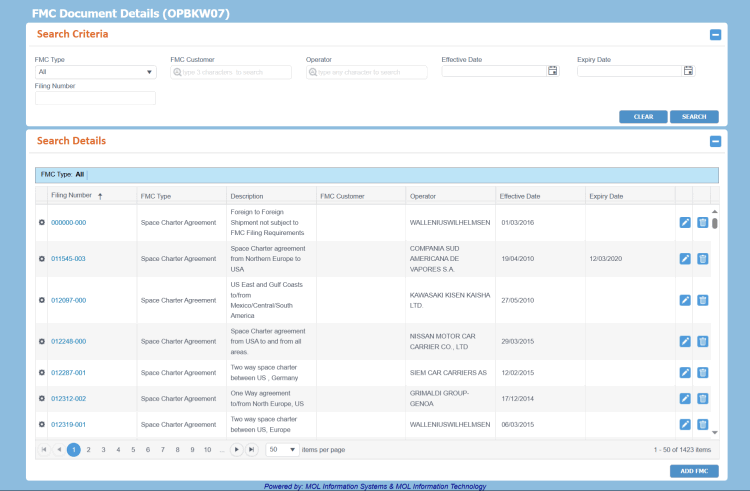 can be accessed from Menu > Operational > Booking > FMC Document Entry.