Create/Update Booking- Field Descriptions > Associate VIN dialog box
|
|
Create/Update Booking- Field Descriptions > Associate VIN dialog box |
The Associate VIN dialog box enables you assign VINs to the Booking. The dialog box is displayed on clicking VIN ASSOCIATION in the Cargo Details panel. The fields, links, and buttons available on the Associate VIN dialog box 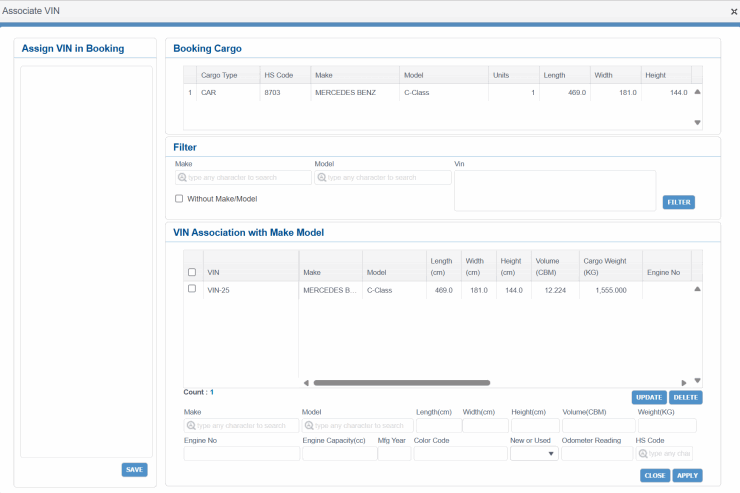 are described below. For a description of additional icons, buttons, fields and links appearing on this screen, see Common Interface Controls.
|
Field |
Description |
|
Assign VIN in Booking panel... Panel to enter the VINs associated with the Booking. You must enter at least one character for a VIN. Maximum limit is 17 characters. You should enter each VIN either in comma separated way or in separate lines. PCC.NET does not allow the entry of duplicate VIN for same Booking. |
|
|
Assign VIN in Booking |
Enter the VINs that are to be associated with the Booking. You can directly copy the VIN from any source (Notepad, Excel, E-mail, where the VINs are listed as comma (,) separated or one VIN per line basis). Notes:
|
|
SAVE |
Button to associate the VIN with the corresponding Booking. Notes:
|
|
Booking Cargo panel This panel displays the Cargo associated with the Booking. The Make, Model, and other attributes are displayed for individual cargo types. If you select a Cargo, the corresponding attributes are poupulated in the Bottom pane of the VIN Association with Make Model panel. |
|
|
sequence |
Sequence number of Booking Cargo. |
|
Cargo Type |
Type of Cargo in Booking. |
|
HS Code |
HS Code associated with a Booking Cargo. |
|
Make |
Name of the car manufacturer associated with the Booking Cargo. |
|
Model |
Model of the car(s) associated with the Booking Cargo. |
|
Units |
Number of cars in the Booking Cargo. |
|
Length |
Length of the cars associated with the Booking Cargo. |
|
Width |
Width of the cars associated with the Booking Cargo. |
|
Height |
Height of the cars associated with the Booking Cargo. |
|
Filter panel You can use this panel to set conditions and filter existing VIN attributes in the VIN Association with Make Model panel. |
|
|
Make |
Enter the Make to be filtered. This field has the Auto-Complete feature, which populates the relevant manufacturer names as you type. |
|
Model |
Enter Model to be filtered. This field has the Auto-Complete feature, which helps to populate the relevant Model number as you type. |
|
Vin |
Enter VIN no(s) to be filtered. You must enter each VIN in separate line, or VINs separated by commas, or both. |
|
Without Make/Model |
Option to filter VIN(s) either with or without a Make/Model. By default, the checkbox remains deselected. |
|
Buttons |
|
|
Filter |
Button to filter the data in the VIN Association with Make Model panel as per the specified criteria. |
|
VIN Association with Make Model panel In this panel, you can enter/update Make-Model details of the VIN. The bottom pane allows you to enter the Make-Model details of the VIN. While the top of the pane displays the associated records. |
|
|
Top pane... Notes:
|
|
|
<check box> |
Check box to select the records.
|
|
VIN |
Unique VIN associated with the queried Booking. Read-only |
|
Make |
Maker Name associated with corresponding VIN. Read-only |
|
Model |
Model name associated with corresponding VIN. Read-only |
|
Length |
Length of the vehicle. Unit of measurement is CM. Read-only |
|
Width |
Width of the vehicle. Unit of measurement is CM. Read-only |
|
Height |
Height of the vehicle. Unit of measurement is CM. Read-only |
|
Volume |
Volume of the vehicle. Unit of measurement is CBM. Read-only |
|
Cargo Weight |
Weight of the vehicle. Read-only |
|
Engine No |
Engine number of the vehicle. You can change the values, if required. |
|
Engine Capacity |
Engine capacity of the vehicle calculated in CC. Displayed up to 3 decimal points. You can change the value, if required. While modifying the value, ensure it is not negative. |
|
Mfg Year |
Manufacturing Year of the vehicle. You can change the value, if required. Ensure the manufacturing year is not greater than the current year. |
|
Color Code |
Color Code specification of the vehicle. You can change the value, if required. |
|
New or Used |
Condition of the vehicle (New, Used). This value can be modified by selecting either New or Used from the drop-down list. |
|
Odometer Reading |
Odometer reading of the vehicle. Displayed up to 3 decimal points. You can change the value, if required. Ensure the value is not negative. |
|
HS Code |
HS Commodity code. Read-only |
|
Count |
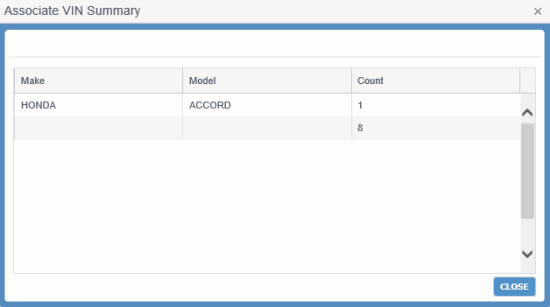
The total VIN count appears as a number hyperlink under the grid. Clicking this number displays the VINs associated with the Booking in a dialog box, Associate VIN SummaryAssociate VIN Summary. The VIN count appears Make-Model wise for the corresponding Booking. Count for the VINs which are not associated with any Make-Model are also displayed as a separate summary record.
|
| Buttons | |
|
UPDATE |
Button to save the changes in a VIN. |
|
DELETE |
Button to delete the selected rows of VIN association with Model-Make information. On deleting a VIN which was added via EDI (ASN/SI), PCC.NET de-links the corresponding Booking and B/L. |
|
Bottom pane... Notes:
|
|
|
Make |
Enter Make that is to be associated with selected VIN. This field has the Auto-Complete feature, which helps to populate the relevant Maker name as you type. If a Booking Cargo is selected, the associated Make is Auto-populated. Otherwise, the field remains blank. |
|
Model |
Enter Model that is to be associated with selected VIN. This field has the Auto-Complete feature, which helps to populate the relevant Model number as you type.
If a Booking Cargo is selected, the associated Model is Auto-populated. Otherwise, the field remains blank.
|
|
Length (cm) |
Enter length of the vehicle. Unit of measurement is cm always Auto-populated as you enter the Make and Model. You can modify later. You can enter only a positive non-zero value in this field. If a Booking Cargo is selected, the associated Length is Auto-populated. Otherwise, the field remains blank. |
|
Width (cm) |
Enter width of the vehicle. Unit of measurement is cm always Auto-populated as you enter the Make and Model. You can modify later. You can enter only a positive non-zero value in this field. If a Booking Cargo is selected, the associated Width is Auto-populated. Otherwise, the field remains blank. |
|
Height (cm) |
Enter the height of the vehicle. Unit of measurement is cm always Auto-populated as you enter the Make and Model. You can modify later. You can enter only a positive non-zero value in this field. If a Booking Cargo is selected, the associated Height is Auto-populated. Otherwise, the field remains blank. |
|
Volume (CBM) |
Enter the volume of the vehicle. It is Auto-populated as you enter the Make and Model and auto-calculated on change of Length-Width-Height values. PCC.NET derives the unit of measure for the volume based on the unit of measure of the entered Length-Width-Height values, and corresponding unit of measurements. Unit of measurement is CBM always. But, you can change the volume manually entering only a positive, non-zero value up to 3 decimal points. Notes:
|
|
Weight |
Enter weight of the vehicle. You can enter only a positive non-zero value in this field. The value is Auto-populated as you enter the Make and Model. You can modify later. Notes:
|
|
Engine No |
Enter the engine number of the vehicle. |
|
Engine Capacity |
Enter engine capacity of the vehicle in CC. You can enter a positive numeric value up to 3 decimal points. |
|
Mfg Year |
Enter manufacturing year of the vehicle. This cannot be future date. |
|
Color Code |
Enter color code specification of the vehicle. |
|
New or Used |
Select the condition of the vehicle (New, Used). You can keep this field as blank. |
|
Odometer Reading |
Enter Odometer reading of the vehicle. You can enter up to 3 decimal points. |
|
HS Code |
HS Commodity code as configured in PCC.NET. Auto-populated based on Model selection and can be edited if required. If a Booking Cargo is selected, the associated HS Code is Auto-populated. Otherwise, the field remains blank. |
|
Buttons |
|
|
CLOSE |
Button to close the dialog box. |
|
APPLY |
Button to associate the Make and Model with the selected VINs. When you update VINs with combination of PCC.NET and EDI Make/Model and click this button, PCC.NET displays an error message. |