Back Forward

Create Booking From Contract > View Contract

View Contract


PCC Cargo Contract is a long term agreement between MOL Sales and any Customer after a commitment is made by the Customer to ship the Cargo within a specified period of time. A PCC Booking can only be created on the basis of an active Contract acceptance by the Customer.

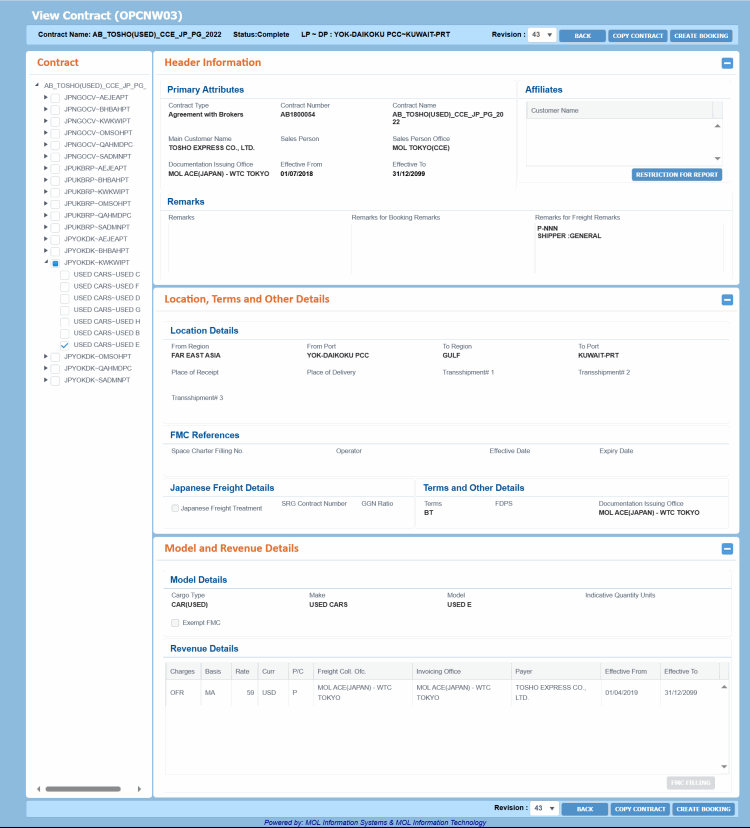
This screen enables you to view the details of a particular Contract that is selected in the Contract Search (OPCNW01) screen. You can also create a Booking from a completed Contract by navigating to the Create/Update Booking (OPBKW02) screen from here.

The View Contract (OPCNW03) screen can be accessed from the Create Booking From Contract (OPCNW02) screen by clicking the Contract No. hyperlink of the Contract that you intend to copy from the Contract Details panel.
Ensure that you have the appropriate permissions to access the screen and perform the necessary tasks. Follow your local support procedures if you are unsure as to whether you have the correct permissions.

General Information

Screen-specific Components

  • Access DetailsAccess Details

    The screen can be accessed by the Privileged users with View Contract role. Additionally, they need to be assigned the View Contract system action with the View Contract role to search and view information in this screen.

    Additionally,

    • to copy a Contract you need to have at least Manage Contract role and the Copy Contract system action.

    • to create a Booking from a Contract, you need to have Create Booking/View Contract role and the Create Booking From Contract system action.

How do I?

FAQs

  • View Contract Details from Search ResultsView Contract Details from Search Results

    1. Search the Contract in the Create Booking From Contract (OPCNW02) screen using relevant search criteria. For field descriptions of the panel, click here. The results are displayed in the Contract Details panel.
    2. Click on the Contract No. in the Contract Details panel you want to view. You navigate to the View Contract (OPCNW03) screen where the details of the particular Contract are displayed.
  • Create a Booking from a ContractCreate a Booking from a Contract

    Notes:

    • You can create a Booking only from the latest version of a Contract that is in Complete status.

    • You need to have the Create Booking and the Create Booking From Contract system action to perform this activity.

    1. In the Create Booking From Contract (OPCNW02) screen, search for the Contract (in Complete status) from which you intend to create a Booking.
    2. From the Contract Details panel, click the required Contract No. hyperlink. You are navigated to the View Contract (OPCNW03) screen.
    3. In the Contract panel (top-left corner of the screen), click any one LP-DP combination and select single or multiple Make/Models under that LP-DP combination by clicking the corresponding check boxes.

    Model and Revenue information appears only for a single selection of a make and model. If you select multiple Make/Models check boxes in the left pane, the Model and Revenue Details information in the right pane disappears. The Model Details header changes to Model Details (only selected models will be used to create booking) and Revenue Details header changes to Revenue Details (Revenues with selected models will be used to create a Booking).

    1. Click CREATE BOOKING. A dialog box Add Revenue for Selected Cargo appears with selected Make-Model(s) and associated Revenue details from the Contract.
    2. Enter number of units (No of Unit) for each Cargo and its UM in the Cargo panel of the dialog box.
    3. Select all or particular revenue details of each Make-Model and click CONFIRM. On confirmation, you are navigated to the Create/Update Booking (OPBKW01) screen with the details (such as Customer, Port Pair, Freight, Commodity) populated from the latest version of the selected Contract. For field descriptions click here.

    Notes:

    • CREATE BOOKING is enabled only for the latest revision of a completed Contract in the View Contract (OPCNW03) screen.
  • Can I edit Contracts in the View Contract screen?Can I edit Contracts in the View Contract screen?

    No, you cannot edit any contract information in the View Contract (OPCNW03) screen.

  • What is the format of a Contract number?What is the format of a Contract number?

    In PCC.NET, a Contract number has a 9 digit number. The format of a Contract number is TC/AB/AC/SG/QTYYNNNNN and it consists of three sections as mentioned below:

    • The first 2 characters belong to the type of Contract. These are identified by a 2 digit ID (i.e., TC/AB/AC/SG/QT).

      • Transport Contract are indicated with TC

      • Quotation are indicated with QT

      • Spot Rate Guidelines are indicated with SG

      • Agreement with Brokers are indicated with AB

      • Agreement with Broker Customers are indicated with AC

    • YY: Current Calendar Year based on system date on which the Contract is created. For example, 18 denotes: 2018.

    • NNNNN: Auto-generated five digit number. The sequence is generated for each Contract type and for each year.

  • I cannot view all LP-DP combination record available in a Contract. Why?I cannot view all LP-DP combination record available in a Contract. Why?

    You might have selected more than one make/model combination in the left pane. Once you select the Make/Model check boxes in the left pane, the Model and Revenue Details section information in the right pane disappears. The Model Details header changes to Model Details (Only selected models will be used to create booking) and Revenue Details header changes to Revenue Details (Revenues with selected models will be used to create booking).

  • Why same Contract is being retrieved multiple times?Why same Contract is being retrieved multiple times?

    The number of records retrieved under the Contract Details panel may vary based on the search criteria.

    For a Contract, each combination of From Port - To Port and Make Models are displayed as separate record under the Contract Details panel.

    A Contract can have multiple From Port - To Port combinations, and each From Port - To Port combination can have multiple Makes and Models.

    If a Contract has multiple From Port - To Port combinations, then that Contract number will appear multiple times in the search result. Similarly, if a Contract has multiple Makes and Models under a single From Port - To Port combination, then multiple rows are displayed in the Contract Details panel for each Make and Model.

  • How can I view the name of a Contract I searched?How can I view the name of a Contract I searched?

    You can view the name of the Contract in the Create Booking From Contract (OPCNW02) screen.

    For this, first search a Contract and then in the Contract Details panel, hover the mouse on the Contract No. field.


                                                                                                                                                                                                                 Return