Back Forward

View Contract (OPCNW03) > Create/Update Booking

Create/Update Booking


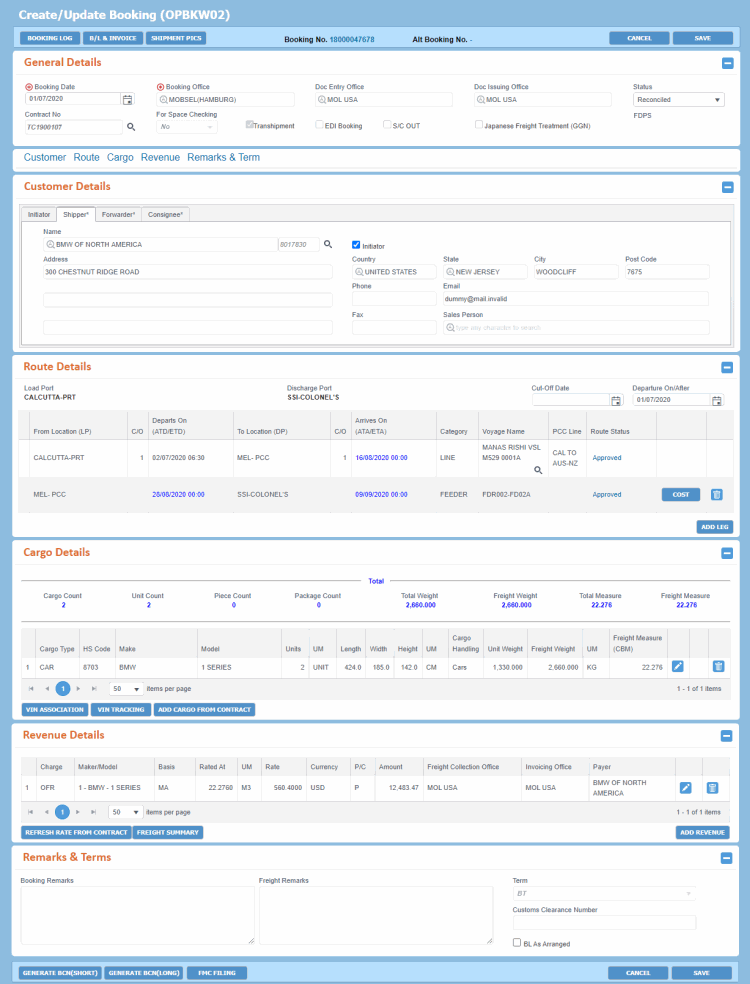
The Create/Update Booking (OPBKW02) screen is used to create and maintain the basic information of any PCC Booking. This screen is displayed when you create a new Booking from Contract, or when you are trying to update/copy the existing Booking details from Booking Search.

The process of creating PCC.NET Booking varies based on how a Booking requests is received: E-mail, Phone Call, Fax, or Electronic Data Interchange (EDI).

A complete and valid Contract is prerequisite to creation of any Booking. To directly register a Booking, you must create the Booking from the particular completed Contract of the Customer. Whereas, for a newly-received EDI Booking request that may require Contract information, you need to search the Booking, assign a Contract number to it and update indicative/other details with actual data.

You can also copy an existing Booking number displayed in the Search Booking (OPBKW01) screen to create a new Booking in Draft status.

The Copy Booking functionality is used in case of a Customer Requested booking only. The status of the corresponding Booking must be Requested, Accepted, or Reconciled.

Read more about types of BookingRead more about types of Booking

User-created Bookings

User-created Bookings can mainly be categorized into the following two types:

  • Customer-Requested: Customer-initiated Booking details are created for specific Customers with valid, complete and non-expired Contracts existing in PCC.NET.

  • Space Checking: Space Checking Booking details are forecasted based on historical business, assuming that the Booking for space checking will materialize into a Customer-Requested Booking. These are created in PCC.NET with minimum information on the basis of long termlong term Long-term Cargo Forecast: Cargo volume to be booked for MOL for maximum 1-3 months’ period in future based upon the information from customers or the result in the past. and short termshort term Short-term Cargo Forecast: Cargo volume to be booked for MOL for about 1 month period in future based upon the information from customers or the result in the past. cargo forecasts. Once Customers send the actual Booking request, the Booking details are converted to a Customer-Requested Booking. A Space Checking Booking helps Voyage Controllers to foresee the space allocation in a Vessel and optimize the available Vessel space to the fullest extent.

Notes:

  • Both types of Booking can be completed only from valid Contracts.
  • You can search for a Booking detail using the Search Booking (OPBKW01) screen.
  • During checking space utilization, PCC.NET considers both above the types of Booking for a specific Vessel and Voyage combination. This maximizes the Vessel space utilization and hence, profitability.


Click herehere to read more about the different statuses of the Customer-requested and Space Checking Bookings.

Customer-Requested Bookings:

  • Draft: Indicates the initial status of the Booking. It means that you have not provided all required information required for Booking creation.

  • Requested: Indicates all required information is available in the Booking and it is ready for Route leg approval. After you select this status, you cannot change it back to Draft.

  • Accepted: Indicates Bookings whose all Route legs have been approved and all the necessary checks are passed. PCC.NET changes the status to Accepted after all necessary checks are validated and all route legs of the Booking are approved. You can attach Model vessel to the Booking when the Booking is in this status. If required, you can provide extra information after the Booking is accepted. At this stage, you need to also send the Booking Confirmation Note to the Customer and Sales Person.

  • Declined: Bookings that are rejected by the Approver on behalf of MOL. A Booking may be declined for a number of reasons when it is in Requested status. If the Voyage Controller rejects any leg and you (as the Booking user) are unable to find any alternate route, you can change the Booking status to Declined. You need to send e-mail to the concerned users about the Booking being declined.

  • Cancelled: Indicates Bookings that are cancelled by customer to terminate the Booking request. In case of a Customer-requested Booking, you need to send e-mail to the concerned users about the Booking cancellation. For a Space Checking Booking, PCC.NET does not send e-mails.

  • Reconciled: After creation of the respective B/L in Complete status, you can perform the Mass Reconciliation process to make the Booking Reconciled. Reconciliation between Booking and B/L is done based on their Units of Cargo associated with the concerned Port.

Space Checking Bookings:

  • Draft: Indicates that all information required for Booking creation is not yet entered in the Booking.

  • For Space Checking: Indicates that the data entry is complete for the Space Checking Booking.

  • Cancelled: Indicates that the Voyage Controller has cancelled the Booking.

After you convert Space Checking Booking to a Customer-requested Booking, the status of the Booking follows the behavior of the Customer Requested Booking.

Some Bookings in PCC.NET may involve a third party carrier (for example, NYK Lines):

  • Space Charter (S/C) In BookingSpace Charter (S/C) In Booking

    In such Bookings, MOL requests a third party Carrier to take its cargo on MOL’s behalf. In this scenario, MOL space charters to a third party vessel. All the necessary Bookings and B/Ls are created for S/C IN.

    S/C IN Bookings have the following features:

    • During Booking creation, S/C IN voyage schedule should be present in PCC.NET. When Booking user selects the particular schedule in the Booking route, PCC.NET internally will mark this Booking as S/C IN.

    • Space checking is not required for corresponding Line leg.

    • Voyage Controller/Area Manager with appropriate role and delegation can approve the legs.

  • Space Charter (S/C) Out BookingSpace Charter (S/C) Out Booking

    Third party Carriers often request MOL to accept its cargo on its behalf. In such a scenario, the third party shipping company space charters out to a MOL vessel. All the necessary Bookings and B/Ls need to be created for S/C IN cases.

    S/C Out Bookings have the following features:

    • The third party customers are marked as S/C Out in the Customer (RFCSW01) screen. A Booking is treated as S/C Out Booking when the corresponding S/C Out check box of the Booking Shipper is selected.

    • S/C Out Booking can only be created from a valid Contract.

    • S/C Out has to be considered for space utilization purpose, Manifest preparation and Accounts Receivables purpose.

    • Space checking will be needed for corresponding Line leg. Voyage Controller/Area Manager with appropriate role and delegation can approve the legs.

EDI Bookings:

Booking requests received via Electronic Data Interchange (EDI), go through the following process:

Read about Booking Requests through EDI - Process Initiation

The Create/Update Booking (OPBKW02) screen can be accessed from:

You can also access the View Contract (OPCNW03) screen from the Contract Search (OPCNW02) screen in the Contract module.

Copy Booking option is available for Customer-requested Booking only. The status of the corresponding Booking must be Requested, Accepted, or Reconciled.

The COPY BOOKING button is enabled for Customer-requested Booking numbers in Requested, Accepted, or Reconciled status only.

Ensure that you have the appropriate permissions to access the screen and perform the necessary tasks. Follow your local support procedures if you are unsure as to whether you have the correct permissions.

General Information

Screen-specific Components

  • Access DetailsAccess Details

    You can create a Booking only from a Complete Contract.

    • You need to have the View Contract/Create Booking role and the Create Booking From Contract system action to perform this activity.

    • To create Booking and update Booking, after a port has got Doc Locked for a voyage, you need Privileged Booking User Role and Booking Creation for Supplementary B/L system action.

    You can copy a Booking from a Customer-Requested Booking in Requested, Accepted,     or Reconciled state only.

    • You need to have the Create Booking role and the Create Booking From Contract system action to perform this activity.

  • Points to RememberPoints to Remember

    Conditions to Create a Booking/Copy Booking

    • You can create a Booking only through a valid Contract that is Non-Expired and Accepted by a Customer.

    • ETD of the First Load Port (PCL or Line) should be between contract Effective From and Effective To date.

    • You can use Copy Booking function to create a new Booking in Draft status, only if the existing Booking number is a Customer-requested booking in Requested, Accepted or Reconciled status.

    • Booking Panel-wise conditions:

    • CustomerCustomer

    • RouteRoute

    • CargoCargo

    • RevenueRevenue

    Points to remember while updating a Booking:

    • You can change the Booking anytime. If you update Voyage or Route information in a Booking having Accepted or Reconciled status, the Booking leg status and Booking status are impacted. Logic details Logic details.

      For Line or PCL with voyage Transport Category:

      • If you update a Booking leg having voyage and PCC.NET finds that the previous and the updated voyages are managed by different Line Managers, the leg status becomes Not Approved from Approved, otherwise remains as Approved.

      For Feeder or PCL without Voyage Transport Category:

      • If you change the Booking leg that does not have any voyage to a Line/PCL leg category that has voyage, the leg status becomes Not Approved.

      • If user changes the ATD/ETD and ATA/ETA values of the feeder without changing the route leg category, the leg status will remain unchanged (Approved). If this leg falls under auto-approved Feeder Service category, and the leg status was Arranged earlier, it remains Arranged.

      In the above two scenarios, if the first leg (irrespective of Line/PCL/Feeder) of the route becomes Not Approved, PCC.NET also changes the Booking Status from Accepted to Requested. The  change in Booking status happens only for Accepted Bookings and will not apply if the Booking is in Reconciled status.


      E-mail notification is sent to Approvers on change of both Cargo and Route:

      Updated Information

      E-mail Recipient

      Route

      Approver of the particular Booking leg.

      Cargo

      All approvers of the Booking.

      Cargo and/or Route

      All approvers. The e-mail body will indicate what information (Cargo or Route) has been updated.

    • You can update Contract number only for Agreement with Brokers to Agreement with Broker Customer until the Booking becomes Requested. The updated Contract number should have the same Port pair and Make/Model combination that matches with the old Contract.

    • If you click REFRESH RATE FROM CONTRACT, PCC.NET changes Revenue based on Makes/Models that exist in the Booking with the rate in the latest revision of the Contract associated with those Makes/Models.

    • After Booking creation (even in Draft mode) if you make any changes in the Contract in the following fields, Booking is not refreshed:

      • Documentation Issuing Office in Contract Header pane

      • Freight Collection Ofc in Contract Revenue pane

      • Invoicing Ofc in Contract Revenue pane

      • Payer in Contract Revenue pane

      • Booking Remarks and Freight Remarks

    • You cannot update a Booking with a Cross Reference Customer if it has been created earlier with a non-Cross Reference Customer.

    Warning for Duplicate Booking

    Duplicate Booking check is done during following status changes when a similar kind of Booking exists in Requested, Accepted, and Reconciled status:

    • Draft to Requested: When you complete entering all Booking information and try to change the Booking status by clicking SAVE.

    • Accepted to Requested: For example, when you change Cargo, Voyage or Route information in a Booking in Accepted status.

    • Requested to Requested: For example, when you change Booking data keeping its status unchanged to Requested.

    It checks for duplicate Bookings based on following Booking parameters:

    • LP-DP

    • Make/Model

    • Units (along with Unit of Measurement)

    • All Customers (Initiator, Shipper, Forwarder and Consignee)

    When PCC.NET finds duplicate Bookings, it displays a warning message with the option to proceed on your confirmation.

    Change of Contract Number

    • During Booking creation in Booking Header, Contract number field is available only for EDI Booking and for switching Contract with Brokers type to Contract with Broker Customers.

    • If an EDI booking is in Accepted status and the associated Contract Number is changed for that Booking, the status of that Booking will be changed to Requested once again.

    Different Stages of a Booking’s Life Cycle

    • A Booking goes through different stages, starting as a Draft until it is Complete and Reconciled with B/L. The status of a Booking changes based on the information entered and user discretion. Booking statuses also vary based on the Booking type. Read moreRead more.

      For Customer-Requested Bookings:

      • Draft: Indicates the initial status of the Booking. It means that you have not provided all required information required for Booking creation.

      • Requested: Indicates all required information is available in the Booking and it is ready for Route leg approval. After you select this status, you cannot change it back to Draft.

      • Accepted: Indicates Bookings whose all Route legs have been approved and all the necessary checks are passed. PCC.NET changes the status to Accepted after all necessary checks are validated and all route legs of the Booking are approved. You can attach Model vessel to the Booking when the Booking is in this status. If required, you can provide extra information after the Booking is accepted. At this stage, you need to also send the Booking Confirmation Note to the Customer and Sales Person.

      • Declined: Bookings that are rejected by the Approver on behalf of MOL. A Booking may be declined for a number of reasons when it is in Requested status. If the Voyage Controller rejects any leg and you (as the Booking user) are unable to find any alternate route, you can change the Booking status to Declined. You need to send e-mail to the concerned users about the Booking being declined.

      • Cancelled: Indicates Bookings that are cancelled by customer to terminate the Booking request. In case of a Customer-requested Booking, you need to send e-mail to the concerned users about the Booking cancellation. For a Space Checking Booking, PCC.NET does not send e-mails.

      • Reconciled: After creation of the respective B/L in Complete status, you can perform the Mass Reconciliation process to make the Booking Reconciled. Reconciliation between Booking and B/L is done based on their Units of Cargo associated with the concerned Port.


      For Space Checking Bookings:

      • Draft: Indicates that all information required for Booking creation is not yet entered in the Booking.

      • For Space Checking: Indicates that the data entry is complete for the Space Checking Booking.

      • Cancelled: Indicates that the Voyage Controller has cancelled the Booking.

      After you convert Space Checking Booking to a Customer-requested Booking, the status of the Booking follows the behavior of the Customer Requested Booking.

    Booking Requests through EDI - Process Initiation

  • Mandatory information to save a Booking in its different stages

How do I?

FAQs

  • Edit a BookingEdit a Booking

    To edit a Booking, you must have the Create Booking role and Update Booking system action privilege.

    1. Click Operational > Booking > Booking Search to open the Search Booking (OPBKW01) screen.
    2. Enter the desired search criteria in Search Criteria panel to find out the Booking you want to modify. You can perform search using three modes: General Search, Mother Vessel, and Feeder Vessel. Click here to view the field descriptions.
    3. Click SEARCH. The Bookings with matching criteria are listed in the Search Details panel.
    4. Click the Edit option from the Gear icon corresponding to the Booking that you want to modify. You are navigated to the Create/Update Booking (OPBKW02) screen displaying the Booking details if you have the corresponding access privileges.
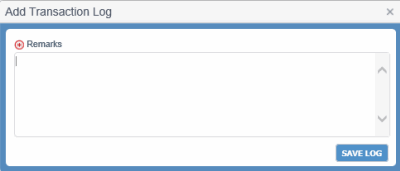
    5. In the Create/Update Booking (OPBKW02) screen, make the required modification in the screen and click SAVE to save the changes. When you click this button, Add Transaction LogAdd Transaction Log dialog box opens for you to specify the changes you made in the Booking, so that PCC.NET can save the log entry in the Booking log. You can view the log entry later by clicking the BOOKING LOG in the Booking Header.

    Bookings received through EDI may not contain the Contract information. You must edit the Booking to update the Contract information. Or, you can select a Contract based upon the current selection of the Customer, LP-DP and selected Cargo information present within the Cargo Detail grid.

    Booking Requests through EDI - Process Initiation

  • Convert a Space Checking Booking to Customer-Requested BookingConvert a Space Checking Booking to Customer-Requested Booking

    To convert a Space Checking Booking to Customer Requested Booking:

    1. Follow either the steps mentioned in the Create a Booking or Edit a Booking sections, to open the Booking whose status you want to change.
    2. Change the value in the For Space Checking drop-down list in the Booking Header to No.
    3. Click SAVE.
  • Approve the Route of a Booking:

    • LINE category legLINE category leg

      To approve a LINE Booking route, you need Approve Line Booking system action and proper delegation of PCC Line with Approve Booking (LINE) role.

      1. Click Operational > Booking > Booking Search to open the Search Booking screen.
      2. Enter the desired search criteria in Search Criteria panel to find out the Booking you want to modify. You can perform search using three modes: General Search, Mother Vessel, and Feeder Vessel. Click here to view the field descriptions of the Search Booking screen.
      3. Click SEARCH. The Bookings with matching criteria are listed in the Search Details panel.
      4. Click the Edit option from the Gear icon corresponding to the Booking that you want to modify. You are navigated to the Create/Update Booking (OPBKW02) screen displaying the Booking details if you have the corresponding access privileges.
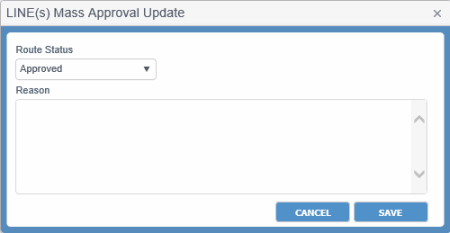
      5. In the Create/Update Booking (OPBKW02) screen, click the Route Status hyperlink in the Route Details panel. The LINE(S) Mass Approval Update LINE(S) Mass Approval Update dialog box appears.

        Field

        Description

        Route Status

        Status values for the Line or PCL route leg approval are:

        • Approved

        • Not Approved

        • Rejected

        Reason

        Reason for rejecting the route approval request. It should be provided if status gets rejected. You can enter maximum of 4000 characters.

        If you open this dialog box to update a record, Reason gets populated with previously saved reason. For multiple records, it remains blank. On saving, Reason is saved against all selected records.

        Buttons

        CANCEL

        Button to exit the dialog box without saving your updates.

        SAVE

        Button to save the route leg status based on selected Route Status.

      6. Update the status and click SAVE.

      Notes:

      • During approving a Booking, if a port present in the Booking route is deleted for a Voyage, PCC.NET displays an error message asking you to change the Route.


      • The Booking status automatically becomes Accepted if all route legs get approved and all Booking validations are passed. Similarly, if all legs are approved for a particular Booking and then the route status of the 'first' leg changes from Approved to Not Approved or Rejected, PCC.NET updates the Booking status back to Requested from Accepted. This scenario does not affect the Booking status which is reconciled.
      • If a Booking is in Reconciled status and it’s Discharge Port (DP) falls under US territory, PCC.NET checks for the availability of FMC documentation during Route Leg approval for that Booking. In absence of FMC documentation, route leg approval is not possible and it shows error for FMC.
      • If all Bookings selected for Route Leg approval are in Requested Status and one/more Bookings have their Discharge Port (DP) falling under US territory without FMC Filing information, a warning message appears informing that FMC filing is not yet done for those Requested Bookings and will ask your agreement whether to proceed further for Leg Approval or not. On your approval, PCC.NET will approve the legs, but keep all those Bookings in Requested status for which FMC documentation is not available. If you disagree to proceed, however, the selected route legs will not be approved.
    • PCL category legPCL category leg

      To approve a PCL Booking route, you need Approve PCL Booking Route system action with Approve Booking (PCL, Feeder) role.

      1. Click Operational > Booking > Booking Search to open the Search Booking screen.
      2. Enter the desired search criteria in Search Criteria panel to find out the Booking you want to modify. You can perform search using three modes: General Search, Mother Vessel, and Feeder Vessel. Click here to view the field descriptions of the Search Booking screen.
      3. Click SEARCH. The Bookings with matching criteria are listed in the Search Details panel.
      4. Click the Edit option from the Gear icon corresponding to the Booking that you want to modify. You are navigated to the Create/Update Booking (OPBKW02) screen displaying the Booking details if you have the corresponding access privileges.
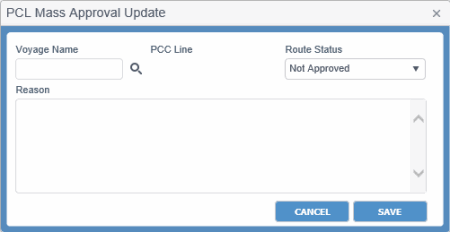
      5. In the Create/Update Booking (OPBKW02) screen, click the Route Status hyperlink in the Route Details panel. The Mass Approval Update for PCL appears. Display of this dialog box differs for the PCL (with Voyage) or LinePCL (with Voyage) or Line category and PCL (without Voyage)PCL (without Voyage) category.

        Field

        Description

        Route Status

        Status values for the Line or PCL route leg approval are:

        • Approved

        • Not Approved

        • Rejected

        Reason

        Reason for rejecting the route approval request. It should be provided if status gets rejected. You can enter maximum of 4000 characters.

        If you open this dialog box to update a record, Reason gets populated with previously saved reason. For multiple records, it remains blank. On saving, Reason is saved against all selected records.

        Buttons

        CANCEL

        Button to exit the dialog box without saving your updates.

        SAVE

        Button to save the route leg status based on selected Route Status.


        Field

        Description

        Voyage Name

        Voyage Number. This value can be selected for PCL category when voyage schedule for PCL is not available. On selection of proper PCL Voyage, corresponding PCC Line is populated.

        PCC Line

        PCC Line of the voyage. Read-only.

        Route Status

        Status of the approval for route leg:

        • Approved

        • Not Approved

        • Rejected

        Reason

        Reason for rejecting the route approval request. It should be provided if status gets rejected. You can enter maximum of 4000 characters.

        If you open this dialog box to update a record, Reason gets populated with previously saved reason. For multiple records, it remains blank. On saving, Reason is saved against all selected records.

        Buttons

        CANCEL

        Button to exit the dialog box without saving your updates.

        SAVE

        Button to save the route leg status based on selected Route Status.


      1. Update Booking's approval of Route Status to Approved after checking space in the intended/actual vessel.
      2. Click SAVE. On saving, PCC.NET checks whether PCL schedule is already registered or not. If not registered, an error message appears.

      Notes:


      • If you select Bookings that do not have Voyage schedule, you can request for registering an intended Voyage schedule and updating PCL schedule from the LINE(s) & PCL Mass Approval screen. If the schedule has been created, you can search the schedule by selecting the Voyage Name. Once you select the Voyage, the corresponding PCC Line is populated automatically.


      • If ETA of the PCL is later than the ETD of the next leg of the Booking, you cannot update PCL voyage, ETA and ETD using the dialog box.

      • The Booking status automatically becomes Accepted if all route legs get approved and all Booking validations are passed. Similarly, if all legs are approved for a particular Booking and then the route status of the 'first' leg changes from Approved to Not Approved or Rejected, PCC.NET updates the Booking status back to Requested from Accepted. This scenario does not affect the Booking status which is reconciled.
      • If a Booking is in Reconciled status and it’s Discharge Port (DP) falls under US territory, PCC.NET checks for the availability of FMC documentation during Route Leg approval for that Booking. In absence of FMC documentation, route leg approval is not possible and it shows error for FMC.
      • If all Bookings selected for Route Leg approval are in Requested Status and one/more Bookings have their Discharge Port (DP) falling under US territory without FMC Filing information, a warning message appears informing that FMC filing is not yet done for those Requested Bookings and will ask your agreement whether to proceed further for Leg Approval or not. On your approval, PCC.NET will approve the legs, but keep all those Bookings in Requested status for which FMC documentation is not available. If you disagree to proceed, however, the selected route legs will not be approved.
    • Feeder legFeeder leg

      To approve a Feeder Booking route, you need the Approve Feeder Booking Route system action and proper delegation of Geographical/Location Hierarchy with the Approve Booking (PCL, Feeder) role.

      1. Click Operational > Booking > Booking Search to open the Search Booking screen.
      2. Enter the desired search criteria in Search Criteria panel to find out the Booking you want to modify. You can perform search using three modes: General Search, Mother Vessel, and Feeder Vessel. Click here to view the field descriptions of the Search Booking screen.
      3. Click SEARCH. The Bookings with matching criteria are listed in the Search Details panel.
      4. Click the Edit option from the Gear icon corresponding to the Booking that you want to modify. You are navigated to the Create/Update Booking (OPBKW02) screen displaying the Booking details if you have the corresponding access privileges.
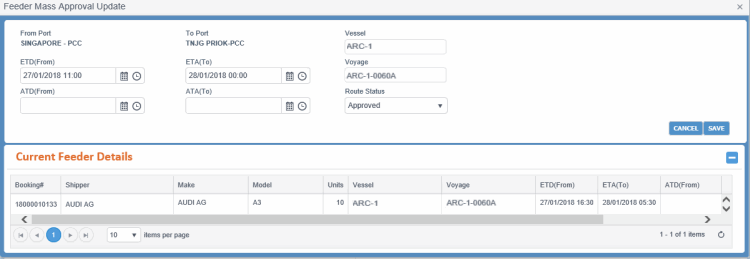
      5. In the Create/Update Booking (OPBKW02) screen, click the Route Status hyperlink in the Route Details panel. The Feeder Mass Approval UpdateFeeder Mass Approval Update dialog box appears.

        Field

        Description

        Feeder Mass Approval Update...

        From Port, To Port

        The PCC ports of departure and arrival. Read-only.

        Vessel

        Vessel to perform this leg of the journey. Read-only.

        ETD (From)

        Expected Time of Departure of vessel at From Port.

        ETD is auto-populated from the Booking.

        ETA (To)

        Expected Time of Arrival of vessel at To Port. You can change this date if required using Calendar icon.

        If PCC.NET finds a registered feeder for the "From Port" to "To Port" location and the entered ETD, ETA is auto-populated as per that registered Feeder Service Schedule. The ETA is also calculated based on the Transit Time mentioned in the Feeder Service.

        Vessel

        Vessel to perform this leg of the journey.

        Voyage

        Voyage Number. You can enter up to 5 characters.

        Vessel and Voyage are free text fields. You can enter any Feeder Vessel, Truck or Burge or any other transporter when such transportation service is used for the Feeder leg.

        ATD (From)

        Actual Time of Departure of vessel at From Port. You can use the Calendar icon to select the date.

        ATA (To)

        Actual Time of Arrival of vessel at To Port. You can use the Calendar icon to select the date.

        Route Status

        Status of the approval for route leg:

        • Not Approved

        • Approved

        • Arranged

        • Rejected

        Normally, during approval Feeder Transport Mode details may not be available, the Area Manager can simply approve the leg and come back later to provide these details and select the status as Arranged.

        Buttons

        SAVE

        Button to save the route leg status based on selected Route Status.

        CANCEL

        Button to exit the dialog box without saving your updates.

        Current Feeder Details

        Booking#

        Booking Number for which you want to approve the feeder details.

        Shipper

        Name of the associated shipper customer type.

        Make

        Maker of the cargo present in the Booking.

        Model

        Model name of the cargo present in the Booking.

        Units

        Number of cargo units present in the Booking.

        Vessel

        Vessel to perform this leg of the journey.

        Voyage

        Voyage Number.

        ETD (From)

        Expected Time of Departure of vessel at From Port.

        ETA (To)

        Expected Time of Arrival of vessel at To Port.

        ATD (From)

        Actual Time of Departure of vessel at From Port.

        ATA (To)

        Actual Time of Arrival of vessel at To Port.

        Route Status

        Current approval status of the route leg.


      1. Select the Route Status of the feeder leg as Approved or Arranged.
      • You can approve the feeder leg for which approval is required first and arrange the feeder afterwards. Normally, during approval Feeder Transport Mode details may not be available, you can simply approve the leg and come back later to provide these details and select the status as Arranged. After arranging the feeder, update information about Feeder Vessel, Truck or Burge or any other transporter when such transportation service is used for the Feeder leg.

      • You can update ETA and ETD irrespective of whether approval is required or not for feeders. ETD is auto-populated from the Booking. If PCC.NET finds a registered feeder for the "From Port" to "To Port" location and the entered ETD, ETA is auto-populated as per that registered Feeder Service Schedule. The ETA is also calculated based on the Transit Time mentioned in the Feeder Service.

      1. Click SAVE.
  • Change status of a BookingChange status of a Booking

    To change the status of the Booking:

    1. Follow either the steps mentioned in the Create a Booking or Edit a Booking sections, to open the Booking whose status you want to change.
    2. Change the status in the Status drop-down list in the Booking header and click SAVE.

    Notes:

    • Click herehere to know how the values in the drop-down list changes based on the present status of the Booking for each of the following Booking types.

      Booking Type

      Current Status

      Values Available for Selection


      Space Checking

      Draft

      • Draft
      • For Space Checking
      • Cancelled

      For Space Checking

      • For Space Checking
      • Cancelled

      Customer Requested

      Draft


      • Draft
      • Requested
      • Cancelled

      Requested

      • Requested
      • Accepted
      • Declined
      • Cancelled

      Accepted

      • Accepted
      • Cancelled

      Reconciled

      • Reconciled
      • Cancelled
    • If you change the status of a Booking to Cancelled or Declined, you must specify the appropriate reason in the Cancel Booking or Decline Booking dialog box, respectively.
  • Add/View Booking logAdd/View Booking log

    To view Booking log, you must have the Create Booking role and View Booking system action privilege.

    Add Log

    1. Click SAVE to save a Booking. The Add Transaction Log dialog box opens.
    2. Enter the details of the change in the Remarks field and click SAVE LOG. If validation errors are not encountered, PCC.NET saves the transaction log information, which you can view by clicking the BOOKING LOG in the Booking header.

    View Log

    1. Click BOOKING LOG in the Booking header to view both manual and auto-generated log entries of the corresponding booking using the Booking Log dialog box to view.

    Click here to know more about BOOKING LOG.

  • Generate BCNGenerate BCN

    You can e-mail, print or download the report on request when a Booking is Requested, Accepted or Reconciled.

    To generate the Booking Confirmation Notice (BCN):

    1. Click Operational > Booking > Booking Search to open the Search Booking screen.
    2. Enter the desired search criteria in Search Criteria panel to find out the booking you want to modify. Click here to view the field descriptions.
    3. Click SEARCH. The Bookings with matching criteria are listed in the Search Details panel.
    4. Click the Edit option from the Gear icon corresponding to the Booking that you want to modify. You are navigated to the Create/Update Booking (OPBKW02) screen displaying the Booking details.
    5. Click GENERATE BCN (LONG) or GENERATE BCN (SHORT) based on your requirement. You are navigated to the Generalized Report Submission front-end.

    The Long version of BCN is meant for Atlantic region, whereas the short one is for Asia Pacific region.

    1. In the Report Header panel, select only report Delivery Mode and its corresponding information.
    2. In the Parameters & Subscriptions panel, select either Vessel/Voyage/Customer combination (for multiple BCNs) or Booking number for single BCN or voyage name.
    3. Click SUBMIT. The report is generated and e-mailed/printed/downloaded based on the delivery mode selected.
  • View and update FMC detailsView and update FMC details

    To view FMC information a Booking, you must have the Create Booking role and View Booking system action privilege.

    FMC filing is applicable for those Bookings for which Cargo is either exported from the US territories or imported to US territories.

    1. Open a Booking in the Create/Update Booking (OPBKW02) screen.
    2. Click FMC FILING to view FMC details of the corresponding Booking from the FMC Details pop-up. Click here to view field descriptions of FMC FILING of the pop-up.

    To update the FMC details in a Booking, any of the following information must be provided in the FMC Details dialog box:

    1. To indicate that FMC filing is not yet complete for the Booking and postpone the filing, select the Pending for Approval check box in the FMC References pane.
    2. If the above step is not feasible, provide either of the following information at Port-pair/Cargo/Revenue level:
    1. Enter either the Space Charter Filing No. for the Port-pair in the FMC References pane.

                    Or,

    1. Select Exempt FMC check box for all cargoes of the current Bookings in the Cargo Details panel.

    If any cargo is not selected as Exempt FMC, all revenues present in the Revenue Details panel for that particular cargo should have valid FMC filing numbers associated with them.

  • View VIN informationView VIN information

    You need to have the Create Booking or View Booking without Revenue role with VIN Tracking system action to perform this activity.

    1. Open a Booking in the Create/Update Booking (OPBKW02) screen.
    2. Click VIN TRACKING to view tracking information of the current Booking.
  • How to upload Cargo Details to PCC.NET in Macro-Enabled File

  • What information is populated from Contract while creating a Booking from it?What information is populated from Contract while creating a Booking from it?

    Majority of the information in Booking is populated from Contract. But you can add or modify the information.

    • Customer
      • PCC.NET automatically retrieves the main Customer associated with the Contract and will populate Shipper information. You can also add additional customer details to a Booking.
    • Route
      • LP/DP values are retrieved from the Contract. Departure On/After is defaulted to the current system date.
    • Cargo
      • Initially commodity information is retrieved from Contract. After initial generation of Booking, you can add cargo in Booking from the Contract.
    • Revenue
      • During Contract creation both Contractual and Supplementary charges can be added in Contract. During Booking creation all revenue charges for a particular port pair and selected Make/Model of a Contract are populated in Booking Revenue. In Booking, you can add only supplementary charges, those are already not registered in the associated Contract.

    What FMC Information gets defaulted from Contract (if availabe)What FMC Information gets defaulted from Contract (if availabe)?

    FMC information can be added to a Contract having Origin/Destination in US territory, but is not mandatory. If available, the information is populated in the corresponding Booking during:

    • Create Booking from Contract

    • Add Cargo from Contract

    • Add Revenue in Booking by Refresh Rate From Contract

    While creating Booking from Contract, PCC.NET retrieves and default FMC-related information for the newly-added cargoes in the Booking as per the following logic. Once defaulted from Contract, Booking user can change the FMC Filing type and FMC Number in Booking. FMC information is eventually defaulted from Booking in B/L.

    • FMC information retrieved during creating a Booking from Contract

      While creating a Booking, if FMC information is already entered in the corresponding Contract (having Origin/Destination in the US territory), that information gets automatically populated in the FMC Details dialog box of the corresponding Booking.

      • If the FMC information is entered at Port-pair level of a Contract, the information gets populated in the FMC References pane of the FMC Details dialog box.

      • If the FMC information is entered at Make Model level of a Contract, the Exempt FMC check box gets selected in the Cargo Details panel of the FMC Details dialog box.

      • If the FMC information is entered at Revenue level of a Contract, the information gets populated in the FMC Filing Against Revenue panel of the FMC Details dialog box.

      Notes:

      • If the FMC information entered in a Contract is an expired one, while creating a Booking from the Contract, PCC.NET displays an warning message ("600036-CON-Contract contains expired FMC information. Do you want to proceed with expired FMC?") asking user whether to apply expired FMC information in the Booking. You need to confirm in the message to apply the FMC details in that Booking.

      • During Booking creation PCC.NET checks if Space Charter Agreement Number entered in the Contract is not deleted from the FMC Document Details (OPBKW07) screen. If that Space Charter Agreement Number is deleted from FMC Document Details (OPBKW07) screen, PCC.NET ignores the Space Charter Agreement Number and creates the Booking without any FMC information.

      • While updating the FMC information in a Booking, if the FMC information is already entered in the Revenue level, and you try to select the Exempt FMC check box, PCC.NET displays an warning message,"There are already FMC Filing information entered with associated revenue. Do you want to remove them?". You need to confirm the deletion in the message.

      • While updating the FMC information in a Booking, if you clear the Exempt FMC check box and add FMC information against only one Revenue, while saving, PCC.NET displays an error message "300062-BKG-Required FMC filing details for cargo seq.1 and Revenue seq. 2".

      FMC information retrieved during Refresh Rate from Contract after Rollover

      • If Rollover does not change First LP or Last DP, there is no impact on FMC details retrieved during Refresh Rate from Contract.

      • After Rollover from a non-US port to an US port, FMC details are retrieved and selected from Contract by checking the availability of FMC details hierarchically (that is, first Booking level, then Cargo level, and lastly Revenue level in the FMC Details dialog box).

      • After Rollover from an US port to another US port, existing FMC details are deleted first and the new details retrieved from Contract are applied by checking the availability of FMC details hierarchically.

      FMC information retrieved during Refresh Rate from Contract (without Rollover)

      • If the Contract has FMC information at the Revenue level, during the Refresh Rate from Contract process, the same is selected against that Booking Revenue.

      • If Booking has Space Charter Agreement number in the FMC Reference pane of the FMC Details dialog box, Contract-specific FMC information is ignored.

      FMC information retrieved during adding Cargo from Contract

      • If the Contract has FMC information at the port-pair level, FMC information present for the newly-added cargos in the Contract does not get displayed in the Booking.

      • If the Contract has FMC information at the Cargo or Revenue level, FMC information gets retrieved in the Booking.

      Notes:

      • During Add Cargo from Booking, PCC.NET checks if Space Charter Agreement Number is available in the FMC Reference pane of the FMC Details dialog box. If any Space Charter Agreement Number is entered in the Booking, FMC information does not get retrieved in the Booking.
      • During Add Cargo from Contract, PCC.NET checks if Space Charter Agreement Number entered in the Contract is active in the FMC Document Details (OPBKW07) screen. If that Space Charter Agreement Number is deleted from FMC Document Details (OPBKW07) screen, PCC.NET ignores Space Charter Agreement Number.
      • If the FMC information is an expired one with respect to the ETD of the first load port, PCC.NET displays warning message.
  • What are the different types of Contract from which a Booking can be created?What are the different types of Contract from which a Booking can be created?

    • Transport Contract - An agreement made between MOL and its  specific Customer for a relatively long period of time i.e. validity period is 1 year or more. To support finished vehicle or other break bulk transport, when MOL signs multi-year contracts with various car manufacturers (for example, Honda, Toyota, Nissan) for the movement of vehicles from one Country to another, it is considered as Transport Contract.

    • Quotation - A Contract made between MOL and its specific Customer for a relatively short period of time. Quotations are generally created when no Transport Contract exists with the Customer and some special rates are negotiated which is different from Rate mentioned in Spot Rate Guidelines.

    • Spot Rate Guidelines - This type of Contract is used mainly for General Tariff and Spot Booking, for one time shipment of a Customer. During creation of SRG Contract, no Customer is specified.

    • Agreement with Brokers - A Contract made between MOL and its Brokers who forwards a shipment on behalf of different Shippers. This type of Contract is made mainly for used cars. During creation of this type of Contract, the name of the actual Shipper is not known. Thus the rate is applicable for that specific Broker only.

    • Agreement with Broker Customers - This type of Contract is subsequent to the Agreement with Brokers  type. The actual Customer information is only known when a S/I is received. This type of Contract has the rates for various Customers even if the MOL has received the business through Brokers. The rate specified in this type of Contract for the specific Customer is eventually used for B/L rating.

  • Who are the different Booking Customers?Who are the different Booking Customers?

    Different Booking Customers

    • Initiator: The customer who actually initiates the Booking of a cargo for shipment to the final destination.

    • Shipper: The customer who sends a shipment after entering into a Contract with MOL, that is, the person or company who is usually the supplier or owner of the cargo shipped.

    • Forwarder: The Forwarder performs the same function as a Shipper, however, he does it on behalf of a number of Shippers. Precisely, the Forwarder is a person or company who organizes shipments for individuals or corporations to transport cargo from the manufacturer or producer to the final point of distribution.

    • Consignee: The Consignee is the Customer to whom MOL is supposed to deliver the cargo at the destination. He is the person or company who is legally allowed to receive the cargo. Most of the times, the Consignee is the buyer of the cargo. He could also be the agent nominated by the buyer or the buyer’s bank.

    Initiator or Shipper is required for saving a Booking with status as Requested or Accepted.

  • What minimum information is required to save a Booking in its different stages?

  • How is a Booking Request initiated through EDI?

  • What are the conditions to accept a Booking?

  • Can I save a duplicate Booking?Can I save a duplicate Booking?

    Yes, you can. When PCC.NET finds a duplicate Booking, it displays a warning message with the option to proceed further with your confirmation.

  • When and what does PCC.NET check for duplicate Bookings?When and what does PCC.NET check for duplicate Bookings?

    Duplicate Booking check is done during following status changes when a similar kind of Booking exists in Requested, Accepted, and Reconciled status:

    • Draft to Requested: When you complete entering all Booking information and try to change the Booking status by clicking SAVE.

    • Accepted to Requested: For example, when you change Cargo, Voyage or Route information in a Booking in Accepted status.

    • Requested to Requested: For example, when you change Booking data keeping its status unchanged to Requested.

    It checks for duplicate Bookings based on following Booking parameters:

    • LP-DP

    • Make/Model

    • Units (along with Unit of Measurement)

    • All Customers (Initiator, Shipper, Forwarder and Consignee)

    When PCC.NET finds duplicate Bookings, it displays a warning message with the option to proceed on your confirmation.

  • Why can't I see the Booking Revenue as it appears "*******"?Why can't I see the Booking Revenue as it appears "*******"?

    Revenue Masking/Security in Booking

    Revenue information in Booking can be accessed by privileged users who have been assigned the appropriate role, system action and delegation. PCC.NET retrieves all revenue charges for a particular Port pair and selected Make/Model in a Booking from the Contract. A privileged Booking user is able to add new charges and update existing revenue information. When a user who does not have any role delegation against the Loading port, Discharging Port or Freight Collection Office of the Booking revenue item, views the Booking, the Freight information will be masked as "*******".  

    Rights of a Privileged Booking user related to Revenue:

    • View currency-wise total Prepaid and total Collect charges.

    • Add Supplementary charges in Booking that are not registered in the Contract

    • Edit Freight Collection Office, Invoicing Office and Payer information in Contractual charges that are retrieved from Contract.

    • Apply new rates from the Contract in Booking.

    • Delete duplicate charges with same charge codes when overlapping rates are populated from Contract.

  • Logic to change the Payment Method (Prepaid or Collect) against all charges retrieved in Booking from Contract.Logic to change the Payment Method (Prepaid or Collect) against all charges retrieved in Booking from Contract.

    You can change the Payment Method (Prepaid or Collect) of all the charges retrieved in Booking from Contract. PCC.NET validates the Payment Method (Prepaid or Collect), Rate and Freight Collection Office values selected in the Booking against the same values present in the latest revision of the Contract, and accordingly allows you to update any or specific Payment Method (Prepaid or Collect) value in Booking against a Charge.

    Following is the logic of the above validation done during saving the revenue information in Booking:

    Conditions when you can update any Payment Method (P/C) in Booking against a Charge:

    You can update the payment mode (Prepaid/Collect) of a charge in a Booking which may differ from that defined in the associated Contract, if:

    • The Freight Collection Office is not specified in the Booking, or the specified Charge and its Freight Collection Office do not exist in the latest revision of the Contract.

    • The Charge and its Freight Collection Office selected in the Booking is specified in the latest revision of the Contract and the charge is defined with single Payment Method (either Prepaid or Collect) in Contract.

    Condition when you can update only a specific Payment Method (P/C) as per Contract in Booking against a Charge:

    You must update the particular payment mode (Prepaid/Collect) of a charge in a Booking as defined in the associated Contract, if:

    • The Charge and its Freight Collection Office selected in the Booking exists in the latest revision of the Contract and that Charge is defined with both the Payment Methods (Prepaid or Collect) in Contract.

    Notes:

    • In each case, PCC.Net makes sure that the selected Rate in Booking matches with the Make/Model, Charge, Basis, Freight Collection Office and Payment Method of the Contract’s latest revision.
    • The Revenue payment method (P/C) values are defaulted from the Contract during creation of the Revenue for the first time in Booking. While refreshing Rate from Contract in Booking, PCC.NET neither checks if the (P/C) value has been changed in Contract, nor replaces that updated value from Contract.


MoreMore

  • In what scenarios are automatic e-mails sent from PCC.NET regarding Booking (other than BCN)?In what scenarios are automatic e-mails sent from PCC.NET regarding Booking (other than BCN)?

    Change In Booking Route (LINE) after Booking is accepted.

      • Scenario: If Booking user changes the LINE leg of the Booking route after Booking is accepted.

      • Recipient: Voyage controller

    Change In Booking Route (PCL) after Booking is accepted.

      • Scenario: If Booking user changes the PCL leg of the Booking route after Booking is accepted.

      • Recipient: Area Manager

    Booking Cancellation notification

      • Scenario: If the Booking Customer/Approver cancels/declines the Booking after Booking is accepted or reconciled.

      • Recipient: Sales Person of the Booking's Contract, Voyage Controller/Area Manager who approved the Booking Route (LINE/PCL).

    Booking Confirmation Note

  • What is S/C In or S/C Out Booking?What is S/C In or S/C Out Booking?

    • Space Charter (S/C) In BookingSpace Charter (S/C) In Booking

      In such Bookings, MOL requests a third party Carrier to take its cargo on MOL’s behalf. In this scenario, MOL space charters to a third party vessel. All the necessary Bookings and B/Ls are created for S/C IN.

      S/C IN Bookings have the following features:

      • During Booking creation, S/C IN voyage schedule should be present in PCC.NET. When Booking user selects the particular schedule in the Booking route, PCC.NET internally will mark this Booking as S/C IN.

      • Space checking is not required for corresponding Line leg.

      • Voyage Controller/Area Manager with appropriate role and delegation can approve the legs.

    • Space Charter (S/C) Out BookingSpace Charter (S/C) Out Booking

      Third party Carriers often request MOL to accept its cargo on its behalf. In such a scenario, the third party shipping company space charters out to a MOL vessel. All the necessary Bookings and B/Ls need to be created for S/C IN cases.

      S/C Out Bookings have the following features:

      • The third party customers are marked as S/C Out in the Customer (RFCSW01) screen. A Booking is treated as S/C Out Booking when the corresponding S/C Out check box of the Booking Shipper is selected.

      • S/C Out Booking can only be created from a valid Contract.

      • S/C Out has to be considered for space utilization purpose, Manifest preparation and Accounts Receivables purpose.

      • Space checking will be needed for corresponding Line leg. Voyage Controller/Area Manager with appropriate role and delegation can approve the legs.

  • What are the different types of Booking Routes?What are the different types of Booking Routes?

    Following are the different transport modes that a Booking user can select for Booking Route creation:

    • LINELINE

      For LINE leg, you can create route by providing Load Port/Discharge Port and Voyage information.

      Restrictions and Validations for LINE

      • Route for LINE transport mode can be created both with intended and firmed voyage.

      • There must be at least one Line in route.

      • Voyage name is required for LINE. It may be intended or firmed voyage.

      •  Only Voyages with Complete status will be used for Booking route creation.

    • Pre Carriage for Line or PCLPre Carriage for Line or PCL

      If voyage schedule for PCL is present during Booking creation, you can create route by providing Load Port/Discharge Port and Voyage information.

      Else, Voyage name is not required and you can only enter the category as PCL and approximate ETA/ETD. You can also enter the associated PCL costs.

    • FeederFeeder

      You can mark the leg as feeder irrespective of different transport modes used as feeder like Burge, Truck and so on. For Feeder, you can create route with Load Port/Discharge Port. Voyage name is not required. You must mention Departure on/After date before route creation. This date is eventually used for selecting the ETD of the first Booking Route.

  • Who approves the Booking Routes?Who approves the Booking Routes?

    Area Manager approves Feeder transport mode of Booking Route. Whereas, Voyage Controller approves LINE transport mode and Area Manager approves PCL transport mode of Booking Route.

    Following are the specific roles and delegation set up that are required to perform the tasks:

    • To approve LINE Booking leg, you need the Approve Line Booking Route system action and proper delegation of PCC Line with Approve Booking (LINE) role.

    • To approve PCL Booking route, you need the Approve PCL Booking Route system action with Approve Booking (PCL, Feeder) role.

    • To approve Feeder Booking route, you need the Approve Feeder Booking Route system action and proper delegation of Geographical/Location Hierarchy with the Approve Booking (PCL, Feeder) role.


  • How does PCC.NET find connecting Voyages for a Vessel?How does PCC.NET find connecting Voyages for a Vessel?

    PCC.NET finds the connecting Voyages for a Vessel according to the following conditions:

    • The Voyages are in Complete status and are of either LINE category and LINE Voyage Type, or, PCL Category and PCL Voyage Type.

    • Voyages have a port call which has the Load Port (LP) in the Route Details panel and the port is marked as a Load Port.

    • The Load Port (LP) is not doc locked for the selected voyage. However, this condition can be overruled by users with Privileged Booking User Role and Booking Creation for Supplementary B/L system action.

    • Voyages have a port call which has the Discharge Port (DP) in the Route Details panel and the port is marked as a Discharge Port.

    • ATA/ETA of the previous Leg is before or on the ATD/ETD of the port call of the Line/PCL voyage.

  • Can you create or update a voyage from Dock Locked Load Port?Can you create or update a voyage from Dock Locked Load Port?

    Only users with Privileged Booking User Role and Booking Creation for Supplementary B/L system action can create Booking and update Booking after a port has got Doc Locked for a voyage.

  • When does PCC.NET create Booking log automatically?When does PCC.NET create Booking log automatically?

    PCC.NET enters an automatic log in case of the following:

    • Initial Booking creation

    • Change in Booking status

    • Any change in Customer details

    • Any change in Rate

    • Any Cargo Added/Removed/Modified

    • BCN Report generation

  • How to enter/amend ETD for feeder leg in Booking route?How to enter/amend ETD for feeder leg in Booking route?

    • If Feeder leg is present in the first leg of the Booking route or no Feeder Schedule exists for the entered feeder leg:
      • You must enter the probable ETD and ETA for a feeder schedule in the Booking. ATD and ATA will be updated during the feeder leg approval and will get reflected in the associated Booking Route after updating.
    • If Feeder leg is registered in the Feeder Service (OPBKW09) screen and it is not the first leg of Booking route:
      • At the time of creating the feeder leg, PCC.NET automatically calculates the probable ETD (sum of ATA/ETA of the previous leg and the waiting time) and ETA (sum of ATD/ETD of the feeder leg and the transit time) for that Feeder Schedule based on waiting time and transit time specified in Feeder Service (OPBKW09) screen.
      • You can also enter the ETD; PCC.NET, generates the probable ETA based on transit time specified in Feeder Service (OPBKW09) screen.

  • How to enter applicable charges in Booking?How to enter applicable charges in Booking?

    1. In the Revenue Details panel, select the Charge, Maker/Model, Basis (as PT) and Currency.
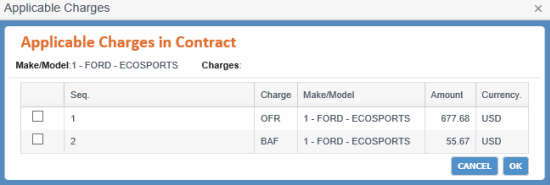
    2. Click in the Rated At field . The Applicable Charges in ContractApplicable Charges in Contract dialog box appears.

    • By clicking adjacent to the Rated At column, you can view/select the other charges as the applicable charges of the current Booking revenue on which percentage (PT) basis will be applied in the Applicable Charges in Contract dialog box. In case of Contractual PT Basis charges, PCC.NET displays the Contract-specific applicable charges for that PT basis charge from latest revision of Contract against the same Make/Model as that of the PT basis charge in the Header of the dialog box.
    • If a charge with Basis as Percentage (PT) exists in a Contract, while creating Booking from that Contract, a revenue record is created for that charge with selected dependent applicable charges and Rate value as percentage mentioned in the Contract.
    • Initially, the Rated At value field remains as zero since cargo units are not available, once cargo units become available it gets auto calculated based on the cargo units and dependent applicable charges.
    • PCC.NET calculates the Rated At value based on the selected dependent/applicable charges. In this case, you are allowed to adjust the Rated At value to any desired value. PCC.NET considers values up to 4 digits after decimal point and also will round off Rated At value up to 4 digits after decimal point. PCC.NET shows the saved values up to 4 digits after decimal point.
    • While saving the Booking, PCC.NET validates whether you have selected applicable charge(s) for the PT basis charge or not.
    1. Click OK after updating/selecting the check box against the corresponding Charge(s) displayed in the dialog box.
  • When can I file FMC for a Booking?When can I file FMC for a Booking?

    Pending for Approval type indicates that FMC filing has been processed but not completed. For such FMC Type, PCC.NET allows you to request, accept and reconcile the corresponding Booking but does not allow to change status of B/L to Ready for Iss/Inv.


  • What FMC information can I update in a BookingWhat FMC information can I update in a Booking?

    To update the FMC details in a Booking, any of the following information must be provided in the FMC Details dialog box:

    1. To indicate that FMC filing is not yet complete for the Booking and postpone the filing, select the Pending for Approval check box in the FMC References pane.
    2. If the above step is not feasible, provide either of the following information at Port-pair/Cargo/Revenue level:
    1. Enter either the Space Charter Filing No. for the Port-pair in the FMC References pane.

                    Or,

    1. Select Exempt FMC check box for all cargoes of the current Bookings in the Cargo Details panel.

    If any cargo is not selected as Exempt FMC, all revenues present in the Revenue Details panel for that particular cargo should have valid FMC filing numbers associated with them.

Return