- Access DetailsAccess Details
The following role types are needed to be assigned to different users for performing the following functions:
|
Function
|
Role Type
|
System Action
|
|
Search Booking information
|
View Booking
|
Search Booking
|
|
View B/Ls
|
Navigate B/L View
|
|
View Invoices
|
View Invoice
|
|
Export data for MOLCAPS
|
Export Data to MOLCAPS
|
|
Edit a Booking
|
Create Booking
|
Update Booking
|
|
Copy Booking
|
Create Booking From Contract
|
|
Re-activate Bookings
|
Re-activate Booking
|
|
Convert a Space Checking Booking to Customer-Requested Booking
|
Update Booking
|
|
Cancel or decline single Booking
|
Single Booking Cancel/Decline
|
|
Cancel or decline Mass Bookings
|
Mass Booking Manage
|
Mass Cancellation/Decline of Bookings
|
|
Perform Mass Booking rollover
|
Mass Booking Rollover
|
|
Reconcile a Booking with B/L
|
Mass Reconcile Booking
|
|
Cancel or decline Mass Bookings
|
Privileged Booking User
|
Mass Cancellation/Decline of Bookings
|
|
Create a B/L from the Booking
|
Create B/L
|
Create BL From Booking
|
- Points to RememberPoints to Remember
Revenue Masking/Security in Booking
PCC.NET retrieves all revenue charges for a particular Port pair and selected Make/Model in a Booking from the Contract.
To view Booking Revenue information, you need View Booking Revenue system action with View Booking Revenue or Create Booking role and delegation against the Loading port, Discharging Port and Freight Collection Office of the Booking. Otherwise the Freight information will appear as masked a (*******).
Rights of a Privileged Booking user related to Revenue:
-
View currency-wise total Prepaid and total Collect charges.
-
Add Supplementary charges in Booking that are not registered in the Contract.
-
Edit Freight Collection Office, Invoicing Office and Payer information in Contractual charges that are retrieved from Contract.
-
Apply new rates from the latest revision of the Contract in Booking.
-
Delete duplicate charges with same charge codes when overlapping rates are populated from Contract.
-
Delete contractual charges those no longer exist within the latest revision of the Contract.
Booking Cancellation
We can cancel a Booking any status but decline only Customer-Requested Bookings that are in Requested status. Booking cancellation or decline is possible only when no associated active Bill of Lading exists against that Booking.
Points to Remember Before You Perform Rollover of Bookings
-
You can change the first Port of Loading of a Booking, provided there is no doc locked B/L associated with it.
-
Rollover is possible at any Booking status other than Cancelled and Declined.
-
Rollover can be done for both Intended and Firmed voyages. But changing from Intended Vessel, Voyage, and Line to Firmed Vessel, Voyage, and Line is not considered as Rollover.
-
If the rollover set contains multiple Booking numbers and there is a Feeder/PCL (without voyage) leg, you must update the Departs On (ETD) and Arrives On (ETA) values corresponding to the Feeder leg. Also, after the Rollover, you have to approve the Feeder legs for each Booking.
-
Change of cost/currency is not considered as Booking rollover. If the rollover set contains multiple Booking numbers and Feeder/PCL leg is present, the corresponding Feeder/PCL Currency and Cost will have values as blank. If required, you can enter the Currency and Cost. Values present for Currency and Cost will be applied to all Booking's Feeder/PCL legs (present in the set) after the rollover.
-
After the route is revised, re-approval is required for those legs which have been changed. So, if rollover is performed against a Booking whose status is Accepted, the status automatically changes to Requested. Rollover does not impact any other Booking status.
-
Certain eventsevents related to VIN association with the Booking are soft-deleted after rollover.
-
If first leg Vessel and Voyage of a Booking is rolled over, the Assign Booking event associated with the earlier Vessel and Voyage gets soft deleted and a new Assign Booking event with the new Vessel and Voyage gets added for that Booking. Also, the Remarks column of this VIN event be updated for reference of Booking rollover.
-
If Vessel and Voyage of any Leg is changed, the Load/Discharge VIN events for the earlier Vessel and Voyage get soft deleted.
-
If To Location (Discharge Port) of any leg is rolled over to a new port, the corresponding Load/Discharge VIN events of the earlier port gets soft-deleted.
-
If any Booking leg is deleted during rollover, Load and Discharge VIN events of the corresponding ports are soft deleted.
-
To update Booking, after a port has got Doc Locked for a Voyage, you need Privileged Booking User role and Booking Creation for Supplementary B/L system action.
Impact of Change in Last Discharge Port during Rollover in PCC.NET:
If you change the first or last Discharge Port, the corresponding link between Contract and Booking gets broken. At that time, changing rating in Contract is not applied to the current Booking, that is, REFRESH RATE FROM CONTRACT does not work until modification of the Port pair in Contract. As a result, while changing the last Discharge Port, during rollover, PCC.NET works as per the following logic:
-
During Rollover with the changed first Load port (LP), PCC.NET checks for the Doc Lock status for the existing first Load port present in the Route Details (Now) panel. If the current port has already been Doc Locked for any B/L associated with the Bookings present in the set, PCC will not allow you to proceed with the rollover. Else, PCC.NET will accept any valid location as the first load port and allow you to submit the rollover.
-
During Rollover with the changed last Discharge Port (DP), PCC.NET accepts any valid location as the last Discharge Port.
-
During actual Mass Rollover, following happens in PCC.NET:
-
PCC.NET does not check whether the changed port pair (LP-DP) exists in the same Contract number or not, hence there might be a mismatch, which should be resolved after rollover using SAVE or REFRESH RATE FROM CONTRACT for the corresponding Booking.
-
PCC.NET changes the Booking Status Accepted back to Requested after Rollover. More on Booking statusMore on Booking status.
-
Draft, For Space Checking or Requested status: Rollover does not change the Booking status, hence it remains as it is.
-
Accepted status: Rollover changes the Booking status to Requested.
-
Reconciled status: Rollover does not change Booking status, hence it remains as Reconciled.
Details on FMC filing requirement for changing the last DP from Non-US to US territory during RolloverDetails on FMC filing requirement for changing the last DP from Non-US to US territory during Rollover
-
During actual Mass Rollover, PCC.NET does not validate FMC data.
-
During Mass Rollover, if a Booking was in Accepted/Reconciled status and last DP changed from US to Non-US territory, the previously entered FMC details remain within PCC.NET but is of no use.
-
During Mass Rollover, if a Booking was in Accepted status and the last DP changed from non-US to US territory, after Rollover, it changes to Requested. Henceforth when you try to change the Booking Status from Requested to Accepted, PCC.NET validates the presence of FMC Documentation within the Booking. If missing, a warning message appears during leg approval, informing that FMC filing is not yet done for the Booking and asks your agreement whether to proceed or not. If you confirm, PCC.NET approves the leg, but keeps the Booking in Requested status for which FMC documentation is not available. If you disagree to proceed, the selected route leg is not approved.
-
During Mass Rollover, if a Booking was in Reconciled status and the last DP changes from non-US to US, rollover does not check for the availability of FMC documentation. Rather, PCC.NET checks its availability during Route Leg approval for that Booking. In absence of FMC documentation, Route Leg approval is denied.
-
If Rollover does not change First LP or Last DP, there is no impact on FMC details retrieved during Refresh Rate from Contract.
Refreshing Rate from Contract after Rollover - Retrieving FMC informationRefreshing Rate from Contract after Rollover - Retrieving FMC information
-
After Rollover from a non-US port to an US port, FMC details are retrieved and selected from Contract by checking the availability of FMC details hierarchically (that is, first Booking level, then Cargo level, and lastly Revenue level in the FMC Details dialog box).
-
After Rollover from an US port to another US port, existing FMC details are deleted first and the new details retrieved from Contract are applied by checking the availability of FMC details hierarchically.
- PCC.NET updates the Booking Route as following:
- Only the changed leg gets updated.
- Rows which are not changed remain unchanged.
- Rows which have changed are updated from Route Details (Now) to Route Details (Should).
- While updating, previous row is deleted and new row is created.
- Route Status gets updated as Not approved for those leg(s) which were changed. An e-mail notification is sent to the Approver for approving the leg which was changed.
- PCC.NET retains the Booking Customer, Cargo, Revenue information unaltered.
-
After Rollover, previous Rate becomes invalid and PCC.NET does not match Revenue information automatically. Hence, you must manually click REFRESH RATE FROM CONTRACT in the Booking to sync the Revenue information of Booking with Contract. All the previously associated charges get deleted in this process and new charges associated with the Booking Cargo are inserted. However, this does not impact the Supplementary charges (which were manually added in Booking); those remain unchanged.
- After successful Rollover of the Booking if you click SAVE, PCC.NET first checks whether the changed port pair (LP-DP) exists within the same Contract Number or not:
- If the Port Pair does not exist:
- If the Port Pair exists:
- After successful Rollover of the Booking, if you click REFRESH RATE FROM CONTRACT, PCC.NET first checks whether changed port pair (LP-DP) exists within the same Contract number or not:
- If the Port Pair does not exist:
- If the Port Pair exists:
-
PCC.NET updates the Booking with the changed Port pair (LP-DP) IDs so that it becomes in sync with the Contract in that respect.
-
Then PCC.NET checks the following three validations. In case, any of these validations fails, PCC.NET asks you to add the same set of Make, Model within the new LP-DP under the Contract and quit the Refresh Rate operation. You can update the same within the Contract and come back and perform Refresh Rate again.
-
Whether this new Port pair contains same set of Make/Models present with the Booking.
-
If it is a generic Make/Model and not replaced by actual Make/Model.
-
If it is a generic Make/Model and replaced with actual Make/Model, PCC.NET checks whether the new Port pair contains the same set of generic Make/Models which were referenced into the Booking before replacement with actual Make/Model.
-
Perform Refresh Rate operation. The Cargo, as well as Revenue information, are refreshed and become in sync with respect to the new Port pair (deleting the previous revenue information). But, Supplementary charges (charges manually added in Booking) do not get deleted and remain unchanged.
B/L Operation after Booking Rollover:
- After a successful Booking rollover, PCC.NET automatically rolls over the related B/Ls without any user intervention. Consequently, a Booking log mentioning the B/L rollover gets created. If, however, the B/L rollover process fails even after a successful Booking rollover, Documentation users must initiate the B/L rollover. In this case, the Bill of Lading user needs to save the Bill of Lading or click ROLLOVER, following which the rolled-over route is inherited from the Booking to the Bill of Lading.
- During B/L Rollover, B/L does not check for any discrepancy between its Revenue Information with Contract's Revenue information.
- You must manually check the Revenue information in B/L and correct the same accordingly. This implies, if you perform REFRESH RATE FROM CONTRACT in B/L, PCC.NET may restrict you to update the B/L Revenue information if Revenue of the rolled over LP-DP combination does not exist in the corresponding Contract. In order to keep the Revenue information updated in the B/L, you must first update the new LP-DP combination and Revenue information in the associated Contract.
- During Doc lock or Test Doc lock, if PCC.NET finds any discrepancy between B/L Revenue and Contract Revenue, you are warned and advised to correct the discrepancy. But, the process of Dock lock does not stop for the particular Vessel, Voyage, and LP combination.
Who will receive e-mail notification when an accepted Booking is rolled over?
- An e-mail is sent to intimate the respective Voyage Controller/Area Manager (who last updated the Booking leg during approval) about the rollover of a Booking in Accepted status.
- If the export side port is doc locked during rollover impacting a Line or PCL leg, an additional e-mail is sent to the recipients registered in PCC.NET against the Discharge Port (DP) of the old leg. For Feeder leg, if the preceding Mother Vessel’s export leg is doc locked, the e-mail notification is sent to recipients registered against the Feeder leg’s DP. If no e-mail recipient is registered in PCC.NET against a DP, the email is sent to a default recipient registered irrespective of the DP.
The e-mail recipients are registered in the Subscription/Distribution Maintenance (SPEMW03) screen.
- Messages - possible reasons and corrective actions
|
|
-
Search and View a BookingSearch and View a Booking
You must have View
Booking role and Search
Booking system action privilege to search Booking
information.
Freight information is not displayed
in absence of appropriate role type.
-
If you have the View
Booking Revenue
or Create
Booking role type
with the View
Booking Revenue
system action but not the required delegation
set up against the Loading Port, Discharging Port
and Freight Collection Office, you can view Revenue
Details panel but freight information will appear
masked as “***”.
- Open the Search Booking (OPBKW01) screen.
- Enter the desired search criteria in the appropriate fields of the Search Criteria panel. You can perform search using three modes: General Search, Mother Vessel, and Feeder Vessel. For field descriptions of the search criteria, click here.
- Click SEARCH. Based on the given criteria, the matching Bookings are retrieved under Search Detail panel. On top of the panel, the criteria based on which the search has been performed is displayed.
- Click a Booking number to view details in the View Booking (OPBKW03) screen. For field descriptions of this screen, click here.
-
Export to ExcelExport to Excel
- Open the Search
Booking (OPBKW01) screen.
- Enter the desired search criteria
in Search Criteria panel
to find out the Booking you want to modify. Click here to view
the field descriptions of the Search Booking screen.
- Click SEARCH.
The Bookings with matching criteria are listed in the
Search Details panel.
- Click EXPORT
TO EXCEL to download the entire search result into
an excel file. A pop-up appears asking you to select either
of the following options before you generate the Booking:
-
Include Length, Width,
Height, Weight and Measure in Export: Option
to include display the particular details.
- Save the file in the desired destination.
-
Perform following actions on a single Booking from the search result (using the Gear icon): icon):
-
Edit a BookingEdit a Booking
To edit a Booking's complete information,
you must have the Create Booking
role and Update Booking
system action privilege.
To update a Booking without accessing
its revenue information, you need the Update
Booking Doc Entry Office role type along with Update Booking Without Revenue
system action and delegation as Doc Entry Office. You
can only edit a Booking having the delegation of the same
Doc Entry Office mentioned in the particular Booking.
You can modify all other information, including its cargo,
such as cargo units; revenue amount will change accordingly
without being visible to you. Doc Entry Office will remain
as read-only to you.
- Click Operational > Booking > Booking Search to open the Search Booking (OPBKW01) screen.
- Enter the desired search criteria in Search Criteria panel to find out the Booking you want to modify. You can perform search using three modes: General Search, Mother Vessel, and Feeder Vessel. Click here to view the field descriptions.
- Click SEARCH. The Bookings with matching criteria are listed in the Search Details panel.
- Click the Edit option from the Gear icon corresponding to the Booking that you want to modify. You are navigated to the Create/Update Booking (OPBKW02) screen displaying the Booking details if you have the corresponding access privileges.
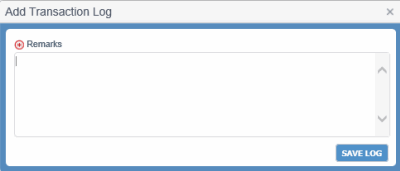
- In the Create/Update Booking (OPBKW02) screen, make the required modification in the screen and click SAVE to save the changes. When you click this button, Add Transaction LogAdd Transaction Log dialog box opens for you to specify the changes you made in the Booking, so that PCC.NET can save the log entry in the Booking log. You can view the log entry later by clicking the BOOKING LOG in the Booking Header.
Bookings received through EDI may not contain the Contract information. You must edit the Booking to update the Contract information. Or, you can select a Contract based upon the current selection of the Customer, LP-DP and selected Cargo information present within the Cargo Detail grid.
Booking Requests through EDI - Process Initiation
Points
to remember while updating a BookingPoints
to remember while updating a Booking
-
Copy BookingCopy Booking
To copy any existing Booking's complete information, you must have the Create Booking role and Create Booking From Contract system action privilege.
- Click Operational > Booking > Booking Search to open the Search Booking (OPBKW01) screen.
- Enter the desired search criteria in Search Criteria panel to find out the Booking you want to copy. Click here to view the field descriptions.
- Click SEARCH. The Booking numbers matching the search criteria are listed in the Search Details panel.
- In the Search Details panel you can copy an existing Booking detail to create a new Booking in Draft status. This can be done in one of the following ways:
- Click the Copy Booking option from the Gear icon adjacent to any Booking number whose details you want to copy. You are navigated to the Create/Update Booking (OPBKW02) screen displaying all Booking information of the initial source Booking.
- Click COPY BOOKING in the View Booking (OPBKW03) screen displayed on clicking a Booking number in the list of search results. You are navigated to the Create/Update Booking (OPBKW02) screen displaying all Booking information of the initial source Booking.
Except VIN, all other Booking information of the initial source Booking No. is populated in the new Booking.
- In the Create/Update Booking (OPBKW02) screen, you can make the required modifications, and click SAVE. When you click this button, the Add Transaction LogAdd Transaction Log dialog box is displayed to specify the changes you made in the Booking, so that PCC.NET can save the log entry in the Booking log. You can view the log entry later by clicking BOOKING LOG in the Booking Header.
A new Booking number is generated, once the Booking details are saved.
Points to remember while updating a BookingPoints to remember while updating a Booking
-
You can change the Booking anytime. If you update Voyage or Route information in a Booking having Accepted or Reconciled status, the Booking leg status and Booking status are impacted. Logic details Logic details.
For Line or PCL with voyage Transport Category:
-
If you update
a Booking leg having voyage and PCC.NET finds that the previous
and the updated voyages are managed by different Line Managers,
the leg status becomes Not Approved from Approved, otherwise
remains as Approved.
For Feeder or PCL without Voyage Transport Category:
-
If you change
the Booking leg that does not have any voyage to a Line/PCL
leg category that has voyage, the leg status becomes Not Approved.
-
If user changes
the ATD/ETD and ATA/ETA values of the feeder without changing
the route leg category, the leg status will remain unchanged
(Approved). If this leg falls
under auto-approved Feeder Service category, and the leg status
was Arranged earlier, it remains
Arranged.
In the above two scenarios, if the first leg (irrespective of
Line/PCL/Feeder) of the route becomes Not
Approved, PCC.NET also changes the Booking
Status from Accepted to
Requested. The change in
Booking status happens only for Accepted
Bookings and will not apply if the Booking is in Reconciled
status.
E-mail notification is sent to Approvers on change of both Cargo
and Route:
|
Updated Information
|
E-mail
Recipient
|
|
Route
|
Approver
of the particular Booking leg.
|
|
Cargo
|
All
approvers of the Booking.
|
|
Cargo and/or
Route
|
All
approvers. The e-mail body will indicate what information
(Cargo or Route) has been updated.
|
-
You can update Contract number only for Agreement with Brokers to Agreement with Broker Customer until the Booking becomes Requested. The updated Contract number should have the same Port pair and Make/Model combination that matches with the old Contract.
-
If you click REFRESH RATE FROM CONTRACT, PCC.NET changes Revenue based on Makes/Models that exist in the Booking with the rate in the latest revision of the Contract associated with those Makes/Models.
-
After Booking creation (even in Draft mode) if you make any changes in the Contract in the following fields, Booking is not refreshed:
-
Documentation Issuing Office in Contract Header pane
-
Freight Collection Ofc in Contract Revenue pane
-
Invoicing Ofc in Contract Revenue pane
-
Payer in Contract Revenue pane
-
Booking Remarks and Freight Remarks
-
You cannot update a Booking with a Cross Reference Customer if it has been created earlier with a non-Cross Reference Customer.
-
Cancel a BookingCancel a Booking
Booking cancellation can be performed on request from the customer for whom the Booking was created.
To cancel a single Booking, you must have the Create Booking role and Single Booking Cancel/Decline system action privilege.
By default, e-mail ID of the logged-in user is populated against each Booking in the Email Recipient for Customers panel.
You can add person in Email Recipient for MOL Internal panel only for Bookings which are in Accepted or in Reconciled status.
- Open the Search Booking (OPBKW01) screen.
- Enter the desired search criteria in Search Criteria panel to find out the Booking you want to decline. Click here to view the field descriptions.
- Click SEARCH. The Bookings with matching criteria are listed in the Search Details panel.
- Click the Cancel option from the Gear icon corresponding to the Booking that you want to cancel. The Cancel Booking dialog box appears.
- Select the reason for cancelling the Booking.
- Enter your remarks about the cancellation.
- Set up the e-mail addresses of the customers and MOL internal users to be informed about the cancelled Booking in the Email Recipient for Customers panel and Email Recipient for MOL Internal panel, respectively.
- You can add recipients to the list for the Booking.
By default, e-mail ID of the logged-in user is populated against each Booking in the Email Recipient for Customers panel.
You can add person in Email Recipient for MOL Internal panel only for Bookings which are in Accepted or in Reconciled status.
-
Cancel the Booking using either of the following options:
Cancellation of Booking is not allowed if an associated valid B/L is present.
-
Reactivate a BookingReactivate a Booking
Any cancelled/declined Booking can
be reactivated.
You must have the Create
Booking role and Re-activate
Booking system action privilege to do this.
- Open the Search
Booking (OPBKW01) screen.
- Enter the desired search criteria
in Search Criteria panel
to find out the Cancelled
or Declined Booking you
want to reactivate.
- Click SEARCH.
The Bookings with matching criteria are listed in the
Search Details panel.
- Click the Reactivate
option from the Gear icon corresponding
to the Booking that you want to reactivate. A message
appears asking whether you want to reactivate the Booking.
- Click YES
to confirm. The Booking changes to Draft
status.
-
View B/LView B/L
You must have View
Booking without Revenue or Create Booking role
and Navigate B/L View system
action privilege to view B/Ls.
- Open the Search
Booking (OPBKW01) screen.
- Enter the desired search criteria
in Search Criteria panel
to find out the Booking you want whose
B/Ls you want to view.
- Click SEARCH.
The Bookings with matching criteria are listed in the
Search Details panel. Click
here
to view the field descriptions.
- Click the View
B/L option from the Gear icon
corresponding to the Booking whose B/Ls you want to view.
The BL
ListBL
List pop-up appears showing the list
of B/Ls associated with the Booking you have selected.
This option is available if
B/L exists against the Booking.
- Click the B/L number hyperlink in
the pop-up to view it by navigating to the View
Bill of Lading (OPBLW02) screen.
-
View InvoiceView Invoice
You
must have View Booking or Create
Booking role and
Navigate View Invoice system action privilege to
view Invoices.
- Open the Search
Booking (OPBKW01) screen.
- Enter the desired search criteria
in Search Criteria panel
whose Invoices you
want to view.
- Click SEARCH.
The Bookings with matching criteria are listed in the
Search Details panel.
- Click the View
Invoice option from the Gear
icon corresponding to the Booking whose invoices you want
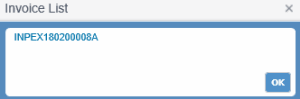
to view. The Invoice ListInvoice List
pop-up appears showing the list of invoices associated
with the Booking you have selected.
This option is available if
invoices exist against the Booking (and its B/L).
- Click the Invoice number hyperlink
in the pop-up to view it by navigating to the View
Invoice (OPARW04) screen.
-
View Shipment PICsView Shipment PICs
You must have View Booking
or Create Booking role to view the Shipment
PICs.
- Open the Search
Booking (OPBKW01) screen.
- Enter the desired search criteria
in Search Criteria panel
whose Invoices you
want to view.
- Click SEARCH.
The Bookings with matching criteria are listed in the
Search Details panel.
- Click the Shipment
PICs option from the Gear
icon corresponding to the Booking whose invoices you want
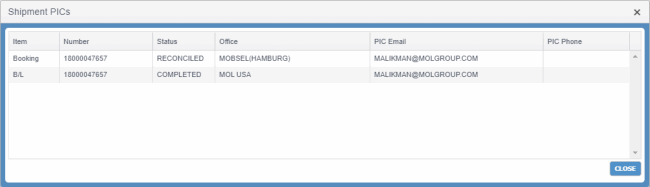
to view. The Shipment PICsShipment PICs
pop-up appears, displaying the details of PICs associated
to the Bookings having active B/Ls.
This option is available in
case of active B/Ls only.
-
Perform following actions on a single Booking from the search result (using the respective button):
-
Perform actions on Booking details at mass level from search result (using the Action drop-down list options):
|
-
What is the difference between a canceled and declined Booking?What is the difference between a canceled and declined Booking?
A Booking is cancelled when the customer wants to terminate
a Booking request.
On the other hand, declined Bookings are those which
are rejected by MOL. This is applicable only for the Customer Requested Booking type. A
Booking may be declined for a number of reasons. For example,
If Voyage Controller rejects any Booking route and the
Booking user finds there is no alternative route, he/she
will update the Booking Status as Declined and intimate
the concerned users.
Cancellation or decline of a Booking is not allowed
if an associated valid B/L exists.
-
Can I cancel/decline any Booking anytime?Can I cancel/decline any Booking anytime?
You can cancel a Booking in any status but decline only
Customer-Requested Bookings that are in Requested
status. Booking cancellation or decline is possible only
when there are no associated active Bill of Ladings against
that Booking.
-
What if a Customer-Requested Booking was initially approved and accepted but for some reason needs to be declined after that?What if a Customer-Requested Booking was initially approved and accepted but for some reason needs to be declined after that?
A Booking becomes Accepted
once its Route is approved. Approval denotes that Space
Checking is already done. But if the user still wants
to decline, he has to first modify the cargo details or
route status so that the Booking status changes back to
Requested. Then, decline
the Booking.
-
When can I create a B/L from Booking?When can I create a B/L from Booking?
To create a B/L, the status of the corresponding Booking
must be Accepted or Reconciled and the first leg
Voyage must be Firmed.
-
When can I access or use the Copy Booking functionality?When can I access or use the Copy Booking functionality?
The Copy Booking functionality is used in case of a Customer Requested booking only. The status of the corresponding Booking must be Requested, Accepted, or Reconciled.
-
When can I reconcile a Booking?When can I reconcile a Booking?
Reconciliation can be done for an Accepted Booking when at least one B/L has been created from that Booking. The total number of units in Booking and B/L must also be same.
-
Can I Rollover a Booking in Accepted status?Can I Rollover a Booking in Accepted status?
Yes, you can. If you perform mass rollover for a Booking with status Accepted, the status automatically changes to Requested status. For any other Booking status, status remains unchanged.
Rollover cannot be performed for Bookings with Draft, Space Checking, Cancelled and Declined status.
-
Will PCC.NET validate FMC data during Booking Rollover?Will PCC.NET validate FMC data during Booking Rollover?
During actual Mass Rollover, PCC.NET will not validate FMC data. If a Booking was in Accepted or Reconciled status and the last Discharge Port is changed from US to Non-US territory, the previously-entered FMC details will remain in PCC.NET but will be of no use.
If the last Discharge Port is changed from Non-US to US territory, FMC filing will be required for the Booking to be Accepted.
-
When there is Mass Rollover of Booking details, will the corresponding B/Ls be automatically rolled?When there is Mass Rollover of Booking details, will the corresponding B/Ls be automatically rolled?
After a successful Booking rollover, PCC.NET automatically rolls over the related B/Ls without any user intervention. Consequently, a Booking log mentioning the B/L rollover gets created. If, however, the B/L rollover process fails even after a successful Booking rollover, Documentation users must initiate the B/L rollover. In this case, the Bill of Lading user needs to save the Bill of Lading or click ROLLOVER, following which the rolled-over route is inherited from the Booking to the Bill of Lading.
-
How can I track the status of the Booking Rollover made? How long does it take to successfully apply the changes of Booking RolloverHow can I track the status of the Booking Rollover made? How long does it take to successfully apply the changes of Booking Rollover?
You can track the status of the rollover job with the Job Number displayed after you submit the rollover. You can click on the Job Number and navigate to the Job Monitoring - Online (SYJMW01) screen.
To view the status of Booking rollover in the Job Monitoring screen, Monitoring Job role and View Job Monitoring system action privilege are required.
PCC.NET initiates the Rollover job process instantly when the user clicks ROLLOVER.
Once the status changes to Success, the mass rollover changes gets applied to all the applicable Bookings.
You cannot create another rollover with same criteria until the rollover is Complete.
|


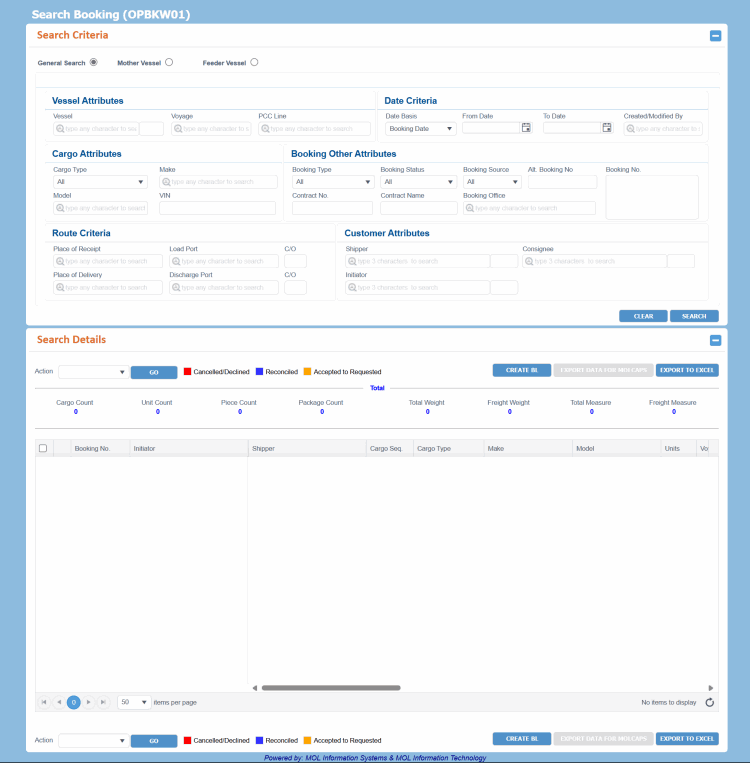 can be accessed from Menu > Operational > Booking > Booking Search.