|
|
Search Booking > Field Descriptions |


Search Booking - Field Descriptions
The fields, links, and buttons available on the Search Booking (OPBKW01) screen 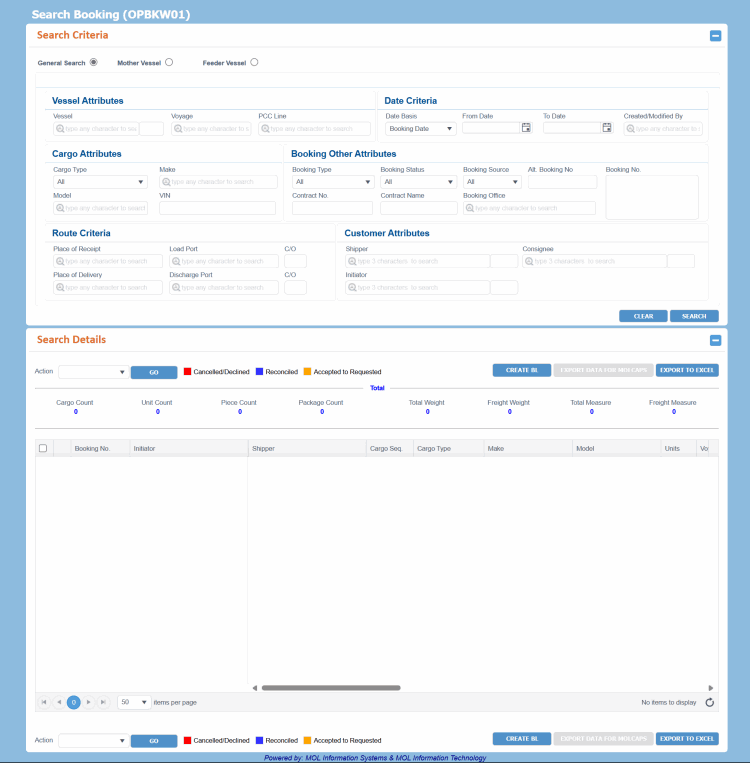 are described below.
For a description of additional icons, buttons, fields and links appearing on this screen, see Common Interface Controls.
|
Field |
Description |
||||||||||||||||||||||||||||||||||||||||||||||||||||||||||||||||||||||||||||
|
Search Criteria panel: You can search by Vessel attributes, Booking Date criteria, Booking user who created/last updated Booking, Cargo attributes, Booking Type, Status, Booking number, Status, Maker, VIN, Booking office, Contract number/name, Booking Source, Alternate Booking No., Route and Customer etc. Based on the given criteria, the matching Bookings are retrieved in the Search Detail panel. You can perform search using three modes: General Search, Mother Vessel, and Feeder Vessel. Notes:
|
|||||||||||||||||||||||||||||||||||||||||||||||||||||||||||||||||||||||||||||
|
General Search |
This is the default search mode using which you can search Bookings by Vessel attributes, Booking date, and other Booking attributes like Booking Number, Status, Maker, VIN, Booking Office, Route and Customer, and so on.
Read more about its Search CriteriaSearch Criteria.
|
||||||||||||||||||||||||||||||||||||||||||||||||||||||||||||||||||||||||||||
|
Mother Vessel |
By this search mode, you can search Bookings by Mother Vessel and Voyage attributes along with their Location, Load or Discharge Types. PCC.NET opens this screen in this particular mode when you navigate from Voyage Schedule (VYVYW06) screen. It is mandatory to enter Vessel, Voyage and PCC Line in this mode. Read more about its Search CriteriaSearch Criteria
|
||||||||||||||||||||||||||||||||||||||||||||||||||||||||||||||||||||||||||||
|
Feeder Vessel |
By this search mode, you can search Bookings by Feeder attributes and few other attributes like next connecting Mother Vessel, Place of Receipt, Place of Delivery etc. It is mandatory to enter either Load Port or Discharge Port and its date range (From Date and To Date) in this mode. Feeder Vessel and Voyage details are populated based on either or both these values. Mass Rollover mass action remains restricted in this mode until you enter Next Connecting Vessel and Voyage information. Read more about its Search CriteriaSearch Criteria
|
||||||||||||||||||||||||||||||||||||||||||||||||||||||||||||||||||||||||||||
|
Search Details: Bookings matching your search criteria are retrieved in this panel:
Notes:
|
|||||||||||||||||||||||||||||||||||||||||||||||||||||||||||||||||||||||||||||
|
Action |
You must have the Mass Booking manage role and Mass Booking Rollover system action privilege to rollover Bookings.
You must have Mass Booking manage role and Mass Cancel/Decline Booking system action privilege to cancel Bookings.
You must have Mass Booking manage role and Mass Cancel/Decline Booking system action privilege to decline Bookings.
You must have the Mass Booking manage role and Mass Reconcile Booking system action privilege to reconcile Bookings. |
||||||||||||||||||||||||||||||||||||||||||||||||||||||||||||||||||||||||||||
|
GO |
Button to execute the current Action after checking the corresponding validations. |
||||||||||||||||||||||||||||||||||||||||||||||||||||||||||||||||||||||||||||
|
Buttons |
|||||||||||||||||||||||||||||||||||||||||||||||||||||||||||||||||||||||||||||
 icon to select the date.
|
CREATE BL |
Button to create the Bill of Lading for the selected Booking. You are navigated to the Create/Modify Bill of Lading (OPBLW03) screen.
You must have the Create B/L role and Create BL From Booking system action privilege to create a B/L from the Booking. |
||||||||||||||
|
EXPORT DATA FOR MOLCAPS |
Button to export Booking information for space utilization checking. Voyage Controller can send the exported Booking data to MOLCAPS. Clicking the button opens the Export Data for MOLCAPS and Send MailExport Data for MOLCAPS and Send Mail dialog box. By default, the logged-on user's e-mail ID is populated in it. You can edit/delete it or add other e-mail addresses and send the e-mail.
The Booking data (of both Booking types) is generated in a pre-defined .xls file and sent to MOLCAPS for space checking. Notes:
You must have the View Booking role and Export Data to MOLCAPS system action privilege to export data for MOLCAPS. |
||||||||||||||
|
EXPORT TO EXCEL |
Button to download the entire search result into an excel file. A pop-up appears asking you to select either of the following options before you generate the Booking:
Both the options will remain selected by default. |
||||||||||||||

|
Total |
On search, PCC.NET displays the cargo summary containing Total cargo count and Total cargo counts against UMs - Unit, Piece and Package, respectively along with Total Weight, Total Freight Weight, Total Measure and Total Freight Measure, against the entire search result. The Total cargo count displayed does not include the cargo units of cancelled/declined Bookings retrieved unless you specifically search with the Cancelled or Declined Booking Status selected. |
||||||||||||||||||||||||||||||||||||||||||||||||||||||||||
|
|
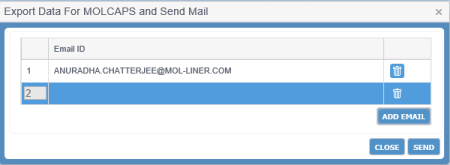
Gear icon to access a menu of actions that you can perform on the corresponding record. Depending on the Booking type and status, the optionsoptions will change:
To edit a Booking, you must have the Create Booking role and Update Booking system action privilege. Points to remember while updating a BookingPoints to remember while updating a Booking
To copy from an existing Booking, you must have the Create Booking role and Create Booking From Contract system action privilege.
To cancel a single Booking, you must have the Create Booking role and Single Booking Cancel/Decline system action privilege.
A Booking may be declined for a number of reasons. For example, if Voyage Controller rejects any Booking route and the Booking user finds there is no alternative route, he/she will update the Booking Status to Declined and send declined information to the customer. To decline a single Booking, you must have the Create Booking role and Single Booking Cancel/Decline system action privilege.
To reactivate a Booking, you must have the Create Booking role and Re-activate Booking system action privilege.
To view a B/L, you must have the Create Booking role and Navigate B/L View system action privilege.
To view an invoice, you must have the Create Booking role and Navigate Invoice View system action privilege.
|
||||||||||||||||||||||||||||||||||||||||||||||||||||||||||
|
Search Result panel |
|||||||||||||||||||||||||||||||||||||||||||||||||||||||||||
|
Select All (Check box) |
The topmost check box allows you select all Bookings in the Search Result panel and perform different actions at mass level. |
||||||||||||||||||||||||||||||||||||||||||||||||||||||||||
|
Booking No. |
PCC Booking Number. You can click the Booking number hyperlink to navigate to the View Booking (OPBKW03) screen, which opens the Booking in read-only mode. To view Booking Revenue information, you need View Booking Revenue system action with View Booking Revenue or Create Booking role and delegation against the Loading port, Discharging Port and Freight Collection Office of the Booking. Otherwise the Freight information will appear as masked "*******). |
||||||||||||||||||||||||||||||||||||||||||||||||||||||||||
|
Initiator |
Customer Name of the associated customer who has been marked as initiator. |
||||||||||||||||||||||||||||||||||||||||||||||||||||||||||
|
Shipper |
Customer Name of the shipper who owns the cargo. |
||||||||||||||||||||||||||||||||||||||||||||||||||||||||||
|
Cargo Seq. |
Booking cargo sequence number. |
||||||||||||||||||||||||||||||||||||||||||||||||||||||||||
|
Cargo Type |
Type of the Cargo:
|
||||||||||||||||||||||||||||||||||||||||||||||||||||||||||
|
Make |
Make associated with the corresponding Booking based on the cargo sequence. |
||||||||||||||||||||||||||||||||||||||||||||||||||||||||||
|
Model |
Car model number for the PCC Cargo associated with the corresponding Booking based on the cargo sequence. |
||||||||||||||||||||||||||||||||||||||||||||||||||||||||||
|
Units |
Number of units of PCC Cargo. |
||||||||||||||||||||||||||||||||||||||||||||||||||||||||||
|
Voyage Name |
Name of the Vessel and Voyage. You can click the Voyage name hyperlink to view the voyage schedule details in read-only mode. |
||||||||||||||||||||||||||||||||||||||||||||||||||||||||||
|
Route status |
Status of the route. |
||||||||||||||||||||||||||||||||||||||||||||||||||||||||||
|
Port of Loading |
7-character PCC port where loading will be carried out. |
||||||||||||||||||||||||||||||||||||||||||||||||||||||||||
|
C/O |
Calling order of Port of Loading. |
||||||||||||||||||||||||||||||||||||||||||||||||||||||||||
|
ATD/ETD |
Actual/Estimated time of departure from the Port of Loading. The field displays ATD if ATD is present, otherwise ETD. |
||||||||||||||||||||||||||||||||||||||||||||||||||||||||||
|
Port of Discharge |
7-character PCC port where discharging will be carried out. |
||||||||||||||||||||||||||||||||||||||||||||||||||||||||||
|
C/O |
Calling Order at the Port of Discharge. |
||||||||||||||||||||||||||||||||||||||||||||||||||||||||||
|
ATA/ETA |
Actual/Estimated time of arrival at the Port of Discharge. |
||||||||||||||||||||||||||||||||||||||||||||||||||||||||||
|
BL# |
B/L number corresponding to the Booking. You can click the B/L number hyperlink to navigate to the View Bill of Lading (OPBLW02) screen, which opens the B/L details in read-only mode. |
||||||||||||||||||||||||||||||||||||||||||||||||||||||||||
|
Invoice# |
Invoice number corresponding to the Booking and B/L. You can click the Invoice number hyperlink to navigate to the View Invoice (OPARW04) screen, which opens the invoice details in read-only mode. You must have View Booking role and View Invoice system action privilege to view Invoices. |
||||||||||||||||||||||||||||||||||||||||||||||||||||||||||
|
Status |
Status of the Booking. Customer-Requested Bookings:
Space Checking Bookings:
After you convert Space Checking Booking to a Customer-requested Booking, the status of the Booking follows the behavior of the Customer Requested Booking.
|
||||||||||||||||||||||||||||||||||||||||||||||||||||||||||
|
T/S? |
Indicates if the Booking has Transshipment. |
||||||||||||||||||||||||||||||||||||||||||||||||||||||||||
|
Booking Type |
Booking Type (Customer Requested or Space Checking). |
||||||||||||||||||||||||||||||||||||||||||||||||||||||||||
You must have the Mass Booking manage role and Mass Booking Rollover system action privilege to rollover Bookings.
You must have Mass Booking manage role and Mass Cancel/Decline Booking system action privilege to cancel Bookings.
You must have Mass Booking manage role and Mass Cancel/Decline Booking system action privilege to decline Bookings.
You must have the Mass Booking manage role and Mass Reconcile Booking system action privilege to reconcile Bookings.
|
|||||||||||||||||||||||||||||||||||||||||||||||||||||||||||
|
GO |
Button to execute the current Action after checking the corresponding validations. |
||||||||||||||||||||||||||||||||||||||||||||||||||||||||||
|
Cancelled/ Reconciled/ Accepted to Requested |
|
||||||||||||||||||||||||||||||||||||||||||||||||||||||||||
|
Buttons |
|||||||||||||||||||||||||||||||||||||||||||||||||||||||||||

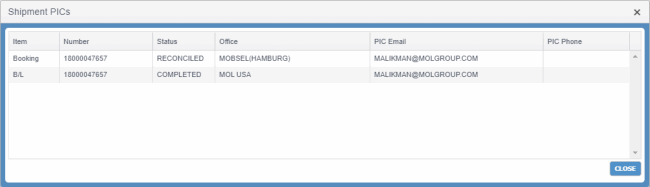
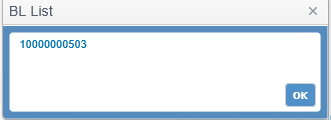
|
CREATE BL |
Button to create the Bill of Lading for the selected Booking. You are navigated to the Create/Modify Bill of Lading (OPBLW03) screen.
You must have the Create B/L role and Create BL From Booking system action privilege to create a B/L from the Booking. |
||||||||||||||
|
EXPORT DATA FOR MOLCAPS |
Button to export Booking information for space utilization checking. Voyage Controller can send the exported Booking data to MOLCAPS. Clicking the button opens the Export Data for MOLCAPS and Send MailExport Data for MOLCAPS and Send Mail dialog box. By default, the logged-on user's e-mail ID is populated in it. You can edit/delete it or add other e-mail addresses and send the e-mail.
The Booking data (of both Booking types) is generated in a pre-defined .xls file and sent to MOLCAPS for space checking. Notes:
You must have the View Booking role and Export Data to MOLCAPS system action privilege to export data for MOLCAPS. |
||||||||||||||
|
EXPORT TO EXCEL |
Button to download the entire search result into an excel file. A pop-up appears asking you to select either of the following options before you generate the Booking:
Both the options will remain selected by default. |
||||||||||||||
|
Related Topics |