

Common Interface Controls
|
|
Common Interface Controls |
PCC.NET screens have various icons and buttons which are common to all the screens. This topic describes how to use them. Click the links below for details.
|
|
The screen resolution should be set to a minimum of 1360 x 768 pixels (or as near as your computer allows) to allow PCC.NET screens to fit within the horizontal space of the window. If the screen resolution is less than 1360 x 768 pixels, the screen may not fit within the window and a horizontal scroll bar will be displayed at the bottom to scroll through the screen.
To set the screen resolution on computers running the Windows© 10 or 11 Operating Systems:
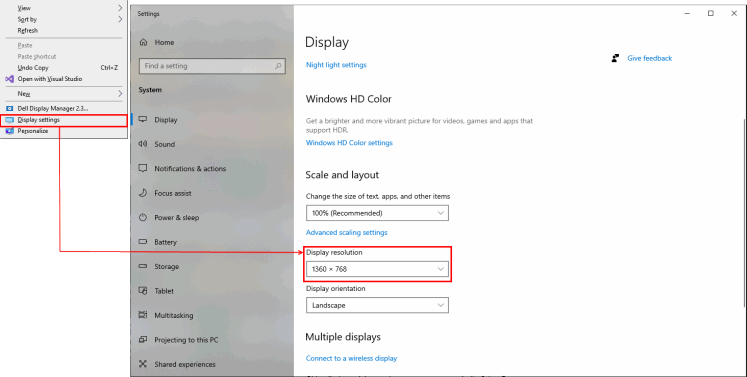 option from the drop-down list.
The user details of the active user are displayed at the top-right of a PCC.NET screen. These include:
User name
Geographic location of current agent
User Office Code
Click the Help icon at the far right to open the online help for a screen.
The Agent Selection link allows you to switch between the agents that may be configured for your account.
To switch from one agent to another:
 at the top-right of the screen. The Agent Selection pop-up
 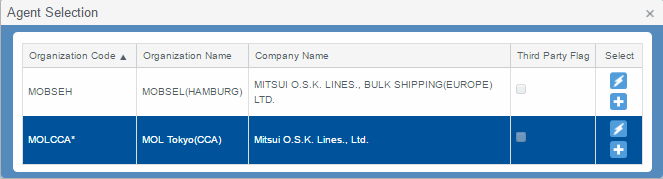 appears.
If you are assigned to a single agent, the Agent ID option is disabled.
Your default ID is denoted by an asterisk (*) in the Organization Code column.
The Quick Action icons provide quick access to frequently used actions.
Other icons or buttons may be available on PCC.NET screens that function in the same way.
|
|
Expands a panel. |
|
|
Collapses a panel. |
|
|
Edits a record. |
|
|
Deletes a record. |
|
|
Cancels entries. |
|
|
Performs a specific action. |
|
|
Saves the given information. |
|
|
Shows the related Auto-Complete LOV that matches the text entered. |
|
|
Calendar or Calendar/Clock. Click the calendar to select a date. A Calendar/Clock icon is displayed if the field requires both a date and time. Click the clock to select a time. |
The Auto-Complete LOV feature offers suggestions to familiar letter combinations.
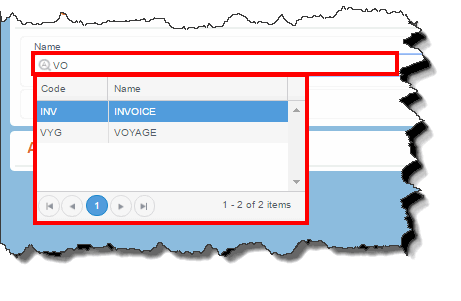 .
.The Calendar is used to select an appropriate date. By default, the calendar of current month is displayed and the current day remains highlighted. You can use this calendar to select any particular date by changing the month and year:
Click or to view/select date of previous or next month, respectively. The calendar header displays month and year in Month YYYY format.
Click the calendar header (Month YYYY) to view calendar of any particular month of a year. The calendar header changes to year in (YYYY) format. In such case, only the months (from January to December) are displayed. The current month remains highlighted 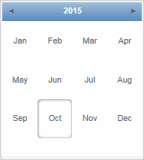 . Click the desired month to view/select date.
Click the calendar header (YYYY) to view calendar of any particular year. The calendar header changes to a range of 12 years in (YYYY - YYYY) format. In such case, only the years (range of 12 consecutive years) are displayed. The current year remains highlighted 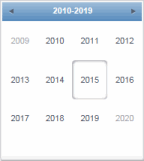 . Click the desired year, and then a month to view/select a date.
PCC.NET applications can display two types of messages:
Confirmation messages 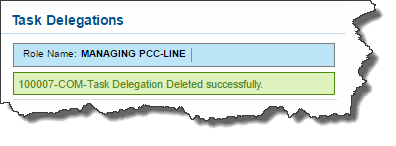 display at the top of a panel as green text in a green banner.
Error messages 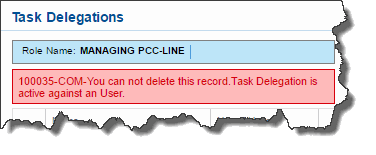 display at the top of a panel as red text in a red banner.
When search results  display on more than one page, page navigation buttons displayed below the search results can be used to navigate through the pages.
The navigation buttons also appear in the simple LOV and Auto-Complete LOV dialog boxes.
|
|
Go back to the first page |
|
|
Go to the previous page |
|
|
Display the next 10 pages |
|
|
Go to the selected page |
|
|
Display the previous 10 pages |
|
|
Go to the next page |
|
|
Go forward to the last page |
|
|
Record Counter |
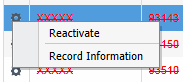
Click the Gear  icon
icon 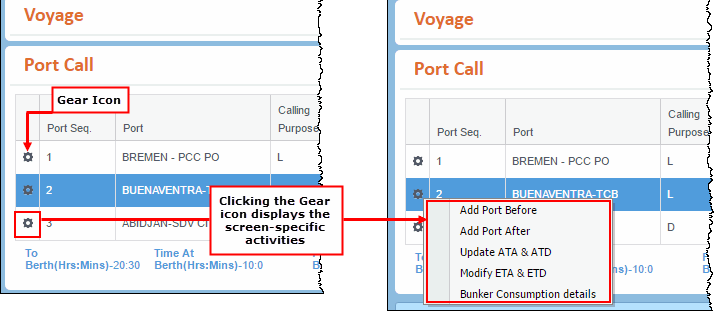 displayed to the left of a record in the search result panel to access the actions that can be performed on the record. Common options include:
Delete or ReactivateDelete or Reactivate
The Delete option displays a warning message asking you to confirm the deletion. Upon confirmation, the selected record is soft-deleted.
The Reactivate option is displayeddisplayed only for the soft-deleted records. When selected, the respective record is reactivated.
While adding a new record, if you try to add an item which was deleted previously, a confirmation message appears on reactivating the deleted record. Click OK to proceed.
Record InformationRecord Information
The Record Information option displays the date and time during which the respective record was created and last updated.

Actions can:
be restricted by access rights and will appear disabled
contain more screen-specific options
vary depending on the state of the record. For example, when first creating a record, the options are Save and Cancel and once the record is saved, they are replaced with Edit and Delete.
By default, search results are sorted in the first column in ascending order - either alphabetically or numerically depending on the data type. The sort order can be changed by clicking any column heading.
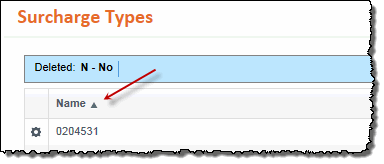
The sort action is as follows:
Click a column heading to sort the list in ascending order. An UP arrow  displays in the column header indicating the sort order.
Click the column heading again to sort the list in reverse (descending) order. A DOWN arrow  displays in the column header indicating the sort order.
Click a third time to remove any sorting and return to the original display order. No arrow displays in the column header.
There are a number of different types of fields used in PCC.NET. They can be described as follows:
Required - A value must be entered in fields denoted by to perform an action.
Hyperlink - A field value denoted by blue underscore text that will redirect you to a screen, dialog box, or pop-up providing additional detail when clicked.
Disabled - A field is unavailable when it is dependent on the value entered in another field or due to a role type restriction.


 or
or 


