|
 
|
Create Booking From Contract
|
Create Booking From Contract
All PCC Bookings are controlled through a Contract, be it a Transport Contract, Agreement with Brokers, Agreement with Broker Customers, Spot Rate Guideline or Quotation. Booking with MOL will be impossible without any one of these types of Contract.
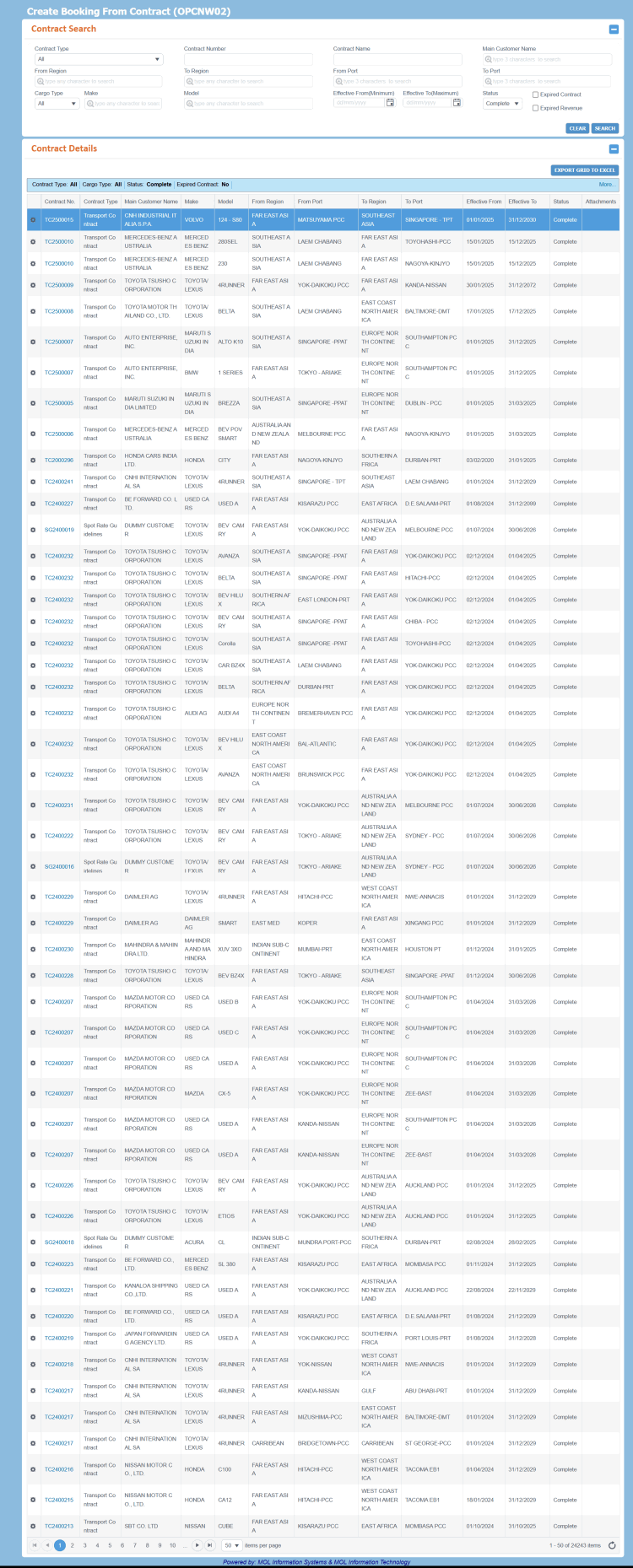
The Create Booking From Contract (OPCNW02) screen allows you to search any Contract in Complete status and create a Booking from it. You can select search criteria like Contract Type, Contract Number/Name, Main Customer, Origin and Destination details, and so forth. Accordingly, based on the given criteria, PCC.NET retrieves the list of Contracts. You can click the Contract number to view its information by navigating to the View Contract (OPCNW03) screen, select Origin and Destination port pair combination and the required Make, Model to eventually create a Booking by navigating to the Create/Update Booking (OPBKW02) screen.
The number of records retrieved in this screen may vary based on the Search Criteria. If multiple ‘From Port - To Port’ combinations exist for a Contract, that Contract number appears multiple times in the Search Result. Also, if a Contract has multiple Makes and Models under one ‘From Port - To Port’, multiple records will appear in the Contract Search Result.
The Create Booking From Contract (OPCNW02) screen  can be accessed from Menu > Operational > Booking > Booking Creation From Contract.
Ensure that you have the appropriate permissions to access the screen and perform the necessary tasks. Follow your local support procedures if you are unsure as to whether you have the correct permissions.
|
General Information
|
Screen-specific Components
|
|
|
|
|
How do I?
|
FAQs
|
-
Search a Contract and View Contract DetailSearch a Contract and View Contract Detail
You need to have at least the View Contract role and the Search Contract and View Contract system actions to perform this activity.
- Enter the desired search criteria in the appropriate fields of the Contract Search panel. For field descriptions of the Contract Search panel, click here.
Notes:
-
To create a Booking from Contract, you need to select the Contract Status as Complete.
-
Selecting the Expired Contract check box in the Contract Search panel fetches only the inactive Contracts.
- Click SEARCH. Based on the given criteria, the matching Contracts are retrieved under the Contract Details panel. On top of the panel, the criteria based on which the search has been performed is displayed.
The number of records retrieved may vary based on the search criteria.
For a Contract, each combination of From Port - To Port and Make Models are displayed as separate record under the Contract Details panel.
A Contract can have multiple From Port - To Port combinations, and each From Port - To Port combination can have multiple Makes and Models.
If a Contract has multiple From Port - To Port combinations, then that Contract number will appear multiple times in the search result. Similarly, if a Contract has multiple Makes and Models under a single From Port - To Port combination, then multiple rows are displayed in the Contract Details panel for each Make and Model.
- In the Contract Result panel, click the Contract No. to view details of the respective Contract in the View Contract (OPCNW03) screen.
For field descriptions of the Contract Result panel, click here.
-
Create a Booking from a Contract
-
Download and view a Contract attachmentDownload and view a Contract attachment
You need to have at least the View Contract role and the Search Contract system action to perform this activity.
- In the Create Booking From Contract (OPCNW02) screen, enter appropriate search criteria in the Contract Search group box and click SEARCH. Based on the given search criteria, existing Contracts are retrieved in the Contract Details group box.
- The number of the files attached with the retrieved Contract are displayed in the Attachments column of the Contract Details group box.
- Click the hyperlink in the Attachments column to view the files attached in the Upload Attachment dialog box. The File name displays as a hyperlink in the Summary panel.
- Download the file related to this Contract by clicking the file name.
|
|
 can be accessed from Menu > Operational > Booking > Booking Creation From Contract.