FMC Document Details > Field Descriptions
|
|
FMC Document Details > Field Descriptions |
The fields, links, and buttons available on the FMC Document Details (OPBKW07) screen 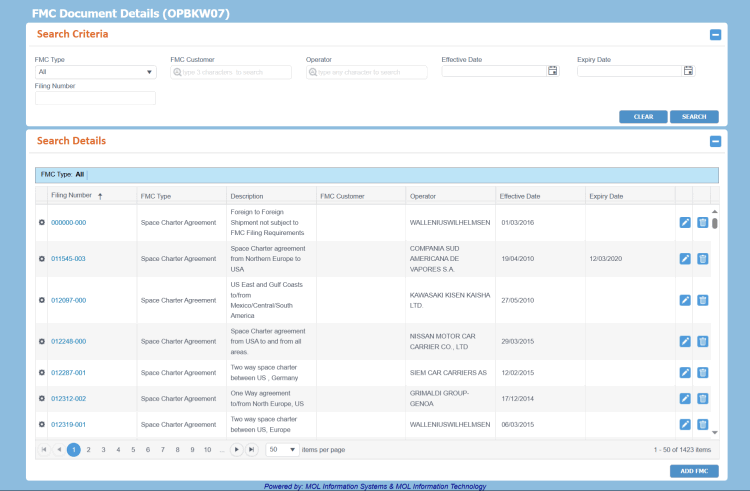 are described below.
For a description of additional icons, buttons, fields and links appearing on this screen, see Common Interface Controls.
|
Field |
Description |
||||||||||||||||||
|
Initially, this panel is displayed as expanded to enter search criteria. Once the search is performed and the search results are displayed, the panel collapses. You can also click SEARCH without entering any search criteria. |
|||||||||||||||||||
|
FMC Type |
Drop-down list to select the type of FMC you are searching for. The available options are:
The drop-down list values are defined in the Code Definition (ADCMW02) screen (domain= FMC_TYPE, for development usage only, by PCC.NET Administrative users). |
||||||||||||||||||
|
FMC Customer |
Name of the customer associated with the FMC Document. This field has the Auto-Complete feature, which helps you to populate the relevant customer name as you start typing at least three characters of the same. |
||||||||||||||||||
|
Operator |
Name of the vessel operator for the vessel associated with the FMC Document. This field has the Auto-Complete feature, which helps you to populate the relevant operator name as you start typing. |
||||||||||||||||||
|
Effective Date |
Click the Calendar |
||||||||||||||||||
|
Expiry Date |
Click the Calendar |
||||||||||||||||||
|
Filing Number |
Type the filing number for the FMC Document that you want to search. PCC.NET allows partial search on the Filing Number. This means, if you enter only part of the number and click SEARCH, PCC.NET displays results based on the entered value. |
||||||||||||||||||
|
Buttons |
|||||||||||||||||||
|
SEARCH |
Button to search for FMC Document details. To search and view information in this screen, you must have any of the Create Booking, View Booking Without Revenue Information, and System Administrator roles along with the View FMC Filing Master system action. |
||||||||||||||||||
|
CLEAR |
Button to clear all search criteria and refresh the pane. |
||||||||||||||||||
|
Notes:
|
|||||||||||||||||||
|
|
Icon to access a menu of actions that you can perform on the corresponding record. The following action is available: Record Information: Option to display the information about the record in the Record Information pop-up, that is, the users who have created and last updated the record and the corresponding time stamps. |
||||||||||||||||||
|
Filing Number |
The filing number for the FMC Document. This number is hyperlinked, which when clicked displays the View FMC Filing pop-up. |
||||||||||||||||||
|
FMC Type |
Types of FMC Filing. The following are the available FMC Filing types:
|
||||||||||||||||||
|
Description |
Description of the FMC Document to describe each filing so that it can be recognized easily. You can enter a maximum of 1000 characters in this field. |
||||||||||||||||||
|
FMC Customer |
Name of the customer associated with the FMC Document. |
||||||||||||||||||
|
Operator |
Name of the vessel operator for the vessel associated with the FMC Document. |
||||||||||||||||||
|
Effective Date |
Date from when the FMC Document filing is effective. |
||||||||||||||||||
|
Expiry Date |
Date when the FMC Document filing will expire. |
||||||||||||||||||
|
Buttons |
|||||||||||||||||||
|
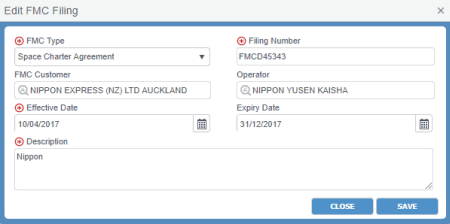
Button to modify the details of the FMC Document record. As you click this button, the Edit FMC FilingEdit FMC Filing dialog box appears, where you can modify the details.
|
|||||||||||||||||||
|
|
Button to delete the corresponding FMC Document record based on your confirmation. |
||||||||||||||||||
|
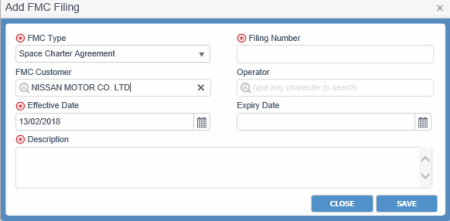
Button to add a new FMC Document record. As you click this button, the Add FMC FilingAdd FMC Filing dialog box appears, where you can add the new FMC Document details.
To add, edit, and delete information in this screen, you must have any of the Manage FMC Documents, and System Administrator roles along with the Edit FMC Filing Master system action. |
|||||||||||||||||||
|
Related Topics |
 icon to select the date from when the FMC Document filing is effective.