Back Forward

Search Booking > Set Mass Rollover

Set Mass Rollover


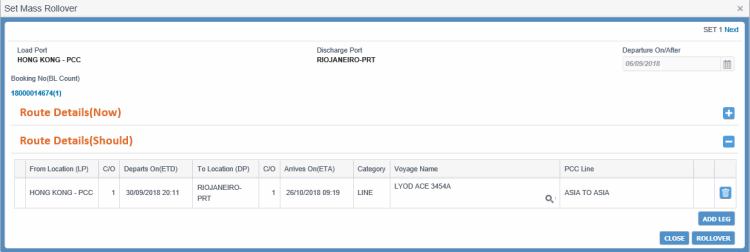
Booking Rollover may happen due to operational reasons or customer requests. The Set Mass Rollover dialog box enables you to perform rollover for a set of Bookings from one Vessel and Voyage to another Vessel and Voyage or by Change of Destination. You can change the following information in the Booking route using this dialog box:

Different types of rollover that you can perform:

The Set Mass Rollover dialog box can be accessed from Menu > Booking Search >  Mass Rollover. To open this dialog box, you must search with at least Vessel/Voyage/Line.

Ensure that you have the appropriate permissions to access the screen and perform the necessary tasks. Follow your local support procedures if you are unsure as to whether you have the correct permissions.

General Information

Screen-specific Components

  • Points to RememberPoints to Remember

    Points to Remember Before You Perform Rollover of Bookings

    • You can change the first Port of Loading of a Booking, provided there is no doc locked B/L associated with it.

    • Rollover is possible at any Booking status other than Cancelled and Declined.

    • Rollover can be done for both Intended and Firmed voyages. But changing from Intended Vessel, Voyage, and Line to Firmed Vessel, Voyage, and Line is not considered as Rollover.

    • If the rollover set contains multiple Booking numbers and there is a Feeder/PCL (without voyage) leg, you must update the Departs On (ETD) and Arrives On (ETA) values corresponding to the Feeder leg. Also, after the Rollover, you have to approve the Feeder legs for each Booking.

    • Change of cost/currency is not considered as Booking rollover. If the rollover set contains multiple Booking numbers and Feeder/PCL leg is present, the corresponding Feeder/PCL Currency and Cost will have values as blank. If required, you can enter the Currency and Cost. Values present for Currency and Cost will be applied to all Booking's Feeder/PCL legs (present in the set) after the rollover.

    • After the route is revised, re-approval is required for those legs which have been changed. So, if rollover is performed against a Booking whose status is Accepted, the status automatically changes to Requested. Rollover does not impact any other Booking status.

    • Certain eventsevents related to VIN association with the Booking are soft-deleted after rollover.

      • If first leg Vessel and Voyage of a Booking is rolled over, the Assign Booking event associated with the earlier Vessel and Voyage gets soft deleted and a new Assign Booking event with the new Vessel and Voyage gets added for that Booking. Also, the Remarks column of this VIN event be updated for reference of Booking rollover.

      • If Vessel and Voyage of any Leg is changed, the Load/Discharge VIN events for the earlier Vessel and Voyage get soft deleted.

      • If To Location (Discharge Port) of any leg is rolled over to a new port, the corresponding Load/Discharge VIN events of the earlier port gets soft-deleted.

      • If any Booking leg is deleted during rollover, Load and Discharge VIN events of the corresponding ports are soft deleted.

    • To update Booking, after a port has got Doc Locked for a Voyage, you need Privileged Booking User role and Booking Creation for Supplementary B/L system action.

    Impact of Change in Last Discharge Port during Rollover in PCC.NET:

    If you change the first or last Discharge Port, the corresponding link between Contract and Booking gets broken. At that time, changing rating in Contract is not applied to the current Booking, that is, REFRESH RATE FROM CONTRACT does not work until modification of the Port pair in Contract. As a result, while changing the last Discharge Port, during rollover, PCC.NET works as per the following logic:

    • During Rollover with the changed first Load port (LP), PCC.NET checks for the Doc Lock status for the existing first Load port present in the Route Details (Now) panel. If the current port has already been Doc Locked for any B/L associated with the Bookings present in the set, PCC will not allow you to proceed with the rollover. Else, PCC.NET will accept any valid location as the first load port and allow you to submit the rollover.

    • During Rollover with the changed last Discharge Port (DP), PCC.NET accepts any valid location as the last Discharge Port.

    • During actual Mass Rollover, following happens in PCC.NET:

      • PCC.NET does not check whether the changed port pair (LP-DP) exists in the same Contract number or not, hence there might be a mismatch, which should be resolved after rollover using SAVE or REFRESH RATE FROM CONTRACT for the corresponding Booking.

      • PCC.NET changes the Booking Status Accepted back to Requested after Rollover. More on Booking statusMore on Booking status.

        • Draft, For Space Checking or Requested status: Rollover does not change the Booking status, hence it remains as it is.

        • Accepted status: Rollover changes the Booking status to Requested.

        • Reconciled status: Rollover does not change Booking status, hence it remains as Reconciled.

    Details on FMC filing requirement for changing the last DP from Non-US to US territory during RolloverDetails on FMC filing requirement for changing the last DP from Non-US to US territory during Rollover

    • During actual Mass Rollover, PCC.NET does not validate FMC data.

    • During Mass Rollover, if a Booking was in Accepted/Reconciled status and last DP changed from US to Non-US territory, the previously entered FMC details remain within PCC.NET but is of no use.

    • During Mass Rollover, if a Booking was in Accepted status and the last DP changed from non-US to US territory, after Rollover, it changes to Requested. Henceforth when you try to change the Booking Status from Requested to Accepted, PCC.NET validates the presence of FMC Documentation within the Booking. If missing, a warning message appears during leg approval, informing that FMC filing is not yet done for the Booking and asks your agreement whether to proceed or not. If you confirm, PCC.NET approves the leg, but keeps the Booking in Requested status for which FMC documentation is not available. If you disagree to proceed, the selected route leg is not approved.

    • During Mass Rollover, if a Booking was in Reconciled status and the last DP changes from non-US to US, rollover does not check for the availability of FMC documentation. Rather, PCC.NET checks its availability during Route Leg approval for that Booking. In absence of FMC documentation, Route Leg approval is denied.

    • If Rollover does not change First LP or Last DP, there is no impact on FMC details retrieved during Refresh Rate from Contract.

    Refreshing Rate from Contract after Rollover - Retrieving FMC informationRefreshing Rate from Contract after Rollover - Retrieving FMC information

    • After Rollover from a non-US port to an US port, FMC details are retrieved and selected from Contract by checking the availability of FMC details hierarchically (that is, first Booking level, then Cargo level, and lastly Revenue level in the FMC Details dialog box).

    • After Rollover from an US port to another US port, existing FMC details are deleted first and the new details retrieved from Contract are applied by checking the availability of FMC details hierarchically.

    • PCC.NET updates the Booking Route as following:
      • Only the changed leg gets updated.
      • Rows which are not changed remain unchanged.
      • Rows which have changed are updated from Route Details (Now) to Route Details (Should).
      • While updating, previous row is deleted and new row is created.
      • Route Status gets updated as Not approved for those leg(s) which were changed. An e-mail notification is sent to the Approver for approving the leg which was changed.
      • PCC.NET retains the Booking Customer, Cargo, Revenue information unaltered.
    • After Rollover, previous Rate becomes invalid and PCC.NET does not match Revenue information automatically. Hence, you must manually click REFRESH RATE FROM CONTRACT in the Booking to sync the Revenue information of Booking with Contract. All the previously associated charges get deleted in this process and new charges associated with the Booking Cargo are inserted. However, this does not impact the Supplementary charges (which were manually added in Booking); those remain unchanged.

    • After successful Rollover of the Booking if you click SAVE, PCC.NET first checks whether the changed port pair (LP-DP) exists within the same Contract Number or not:
      • If the Port Pair does not exist:
        • PCC.NET asks to add the changed LP-DP in the Contract and quit refreshing Rates from the Contract for the time being. You can add the LP-DP in the Contract, and then come back to refresh the Rates and save the Rollover.

      • If the Port Pair exists:
        • PCC.NET updates the Booking with the changed Port Pair (LP-DP) so that the Booking syncs with the Contract and if there is mismatch of Booking Cargo and Revenue information with respect to the previous and current LP-DPs, PCC.NET asks you to refresh rate from Contract.

    • After successful Rollover of the Booking, if you click REFRESH RATE FROM CONTRACT, PCC.NET first checks whether changed port pair (LP-DP) exists within the same Contract number or not:
      • If the Port Pair does not exist:
        • PCC.NET asks for adding the changed LP-DP within the Contract and quit Refresh Rate operation. You can then add the LP-DP in Contract and come back.

      • If the Port Pair exists:
        • PCC.NET updates the Booking with the changed Port pair (LP-DP) IDs so that it becomes in sync with the Contract in that respect.

        • Then PCC.NET checks the following three validations. In case, any of these validations fails, PCC.NET asks you to add the same set of Make, Model within the new LP-DP under the Contract and quit the Refresh Rate operation. You can update the same within the Contract and come back and perform Refresh Rate again.

          • Whether this new Port pair contains same set of Make/Models present with the Booking.

          • If it is a generic Make/Model and not replaced by actual Make/Model.

          • If it is a generic Make/Model and replaced with actual Make/Model, PCC.NET checks whether the new Port pair contains the same set of generic Make/Models which were referenced into the Booking before replacement with actual Make/Model.

    • Perform Refresh Rate operation. The Cargo, as well as Revenue information, are refreshed and become in sync with respect to the new Port pair (deleting the previous revenue information). But, Supplementary charges (charges manually added in Booking) do not get deleted and remain unchanged.

    B/L Operation after Booking Rollover:

    • After a successful Booking rollover, PCC.NET automatically rolls over the related B/Ls without any user intervention. Consequently, a Booking log mentioning the B/L rollover gets created. If, however, the B/L rollover process fails even after a successful Booking rollover, Documentation users must initiate the B/L rollover. In this case, the Bill of Lading user needs to save the Bill of Lading or click ROLLOVER, following which the rolled-over route is inherited from the Booking to the Bill of Lading.
    • During B/L Rollover, B/L does not check for any discrepancy between its Revenue Information with Contract's Revenue information.
    • You must manually check the Revenue information in B/L and correct the same accordingly. This implies, if you perform REFRESH RATE FROM CONTRACT in B/L, PCC.NET may restrict you to update the B/L Revenue information if Revenue of the rolled over LP-DP combination does not exist in the corresponding Contract. In order to keep the Revenue information updated in the B/L, you must first update the new LP-DP combination and Revenue information in the associated Contract.
    • During Doc lock or Test Doc lock, if PCC.NET finds any discrepancy between B/L Revenue and Contract Revenue, you are warned and advised to correct the discrepancy. But, the process of Dock lock does not stop for the particular Vessel, Voyage, and LP combination.

    Who will receive e-mail notification when an accepted Booking is rolled over?

    • An e-mail is sent to intimate the respective Voyage Controller/Area Manager (who last updated the Booking leg during approval) about the rollover of a Booking in Accepted status.
    • If the export side port is doc locked during rollover impacting a Line or PCL leg, an additional e-mail is sent to the recipients registered in PCC.NET against the Discharge Port (DP) of the old leg. For Feeder leg, if the preceding Mother Vessel’s export leg is doc locked, the e-mail notification is sent to recipients registered against the Feeder leg’s DP. If no e-mail recipient is registered in PCC.NET against a DP, the email is sent to a default recipient registered irrespective of the DP.

    The e-mail recipients are registered in the Subscription/Distribution Maintenance (SPEMW03) screen.

How do I?

FAQs

  • Mass rollover BookingsMass rollover Bookings

    1. Open the Search Booking (OPBKW01) screen.
    2. Enter the desired search criteria in Search Criteria panel to find out the Bookings you want to Mass Rollover. Click here to view the field descriptions of the Search Booking (OPBKW01) screen.

    Notes:

    • You must enter at least Vessel, Voyage and Line to perform Mass Rollover.
    • If you have selected the Feeder Vessel mode of search, Mass Rollover mass action remains restricted until you enter the Next Connecting Vessel and Voyage information.

    1. Click SEARCH. The Bookings with matching criteria are listed in the Search Details panel.
    2. Select the Bookings for which you want to change the Booking route and perform mass rollover.
    3. Select Mass Rollover from Action drop-down list.
    4. Click GO. The Set Mass Rollover dialog box appears.
    5. Modify the route details.
    • Depending on the selection of Vessel and Voyage details in the Search Result panel, PCC.NET groups the Bookings into different sets having identical routes.
      • To determine a set of Bookings having same distinct route, PCC.NET considers Place of Receipt, Load Port, Load Port Call, Vessel, Voyage, Line, Discharge Port, Discharge Port Call, Place of Delivery.

      • Any feeder leg in between the Place of Receipt and Place of Delivery also considers to be part of this distinct route.

    • After opening, first Bookings set appear in the Booking No. (BL Count) field. Distinct route details are displayed under Route Details (Now) and Route Details (Should) panes. The Route Details (Now) panel shows the current route details in read-only mode.

    • In Route Details (Should) panel, you can revise the route that will be applicable to current set of Bookings. Different types of rollover that can be performedDifferent types of rollover that can be performed.

      • Rollover of vessel legs (for LINE/PCL/Feeder category).

      • Rollover by deleting legs (for LINE/PCL/Feeder category)

      • Rollover by changing First Load Port (LP)

      • Rollover by changing Final Discharge Port (DP)

    1. Click ROLLOVER to apply the changes to the current set of Bookings. On successful submission, a rollover job process is created and a message appears with a Job Number for tracking and monitoring purpose of the rollover status. You can click on the Job Number and navigate to the Job Monitoring - Online (SYJMW01) screen. To view the status of Booking Rollover in the Job Monitoring screen, Monitoring Job role and View Job Monitoring system action privilege are required. PCC.NET initiates the Rollover job process instantly when you click ROLLOVER. Once the status changes to Success, the Mass Rollover changes will apply to all the applicable Bookings. You cannot create another rollover with same criteria until the rollover is Complete
    2. Click NEXT or PREVIOUS to perform rollover for next or previous set of Bookings.


    Points to remember during Mass rollover.Points to remember during Mass rollover.

    Points to Remember Before You Perform Rollover of Bookings

    • You can change the first Port of Loading of a Booking, provided there is no doc locked B/L associated with it.

    • Rollover is possible at any Booking status other than Cancelled and Declined.

    • Rollover can be done for both Intended and Firmed voyages. But changing from Intended Vessel, Voyage, and Line to Firmed Vessel, Voyage, and Line is not considered as Rollover.

    • If the rollover set contains multiple Booking numbers and there is a Feeder/PCL (without voyage) leg, you must update the Departs On (ETD) and Arrives On (ETA) values corresponding to the Feeder leg. Also, after the Rollover, you have to approve the Feeder legs for each Booking.

    • Change of cost/currency is not considered as Booking rollover. If the rollover set contains multiple Booking numbers and Feeder/PCL leg is present, the corresponding Feeder/PCL Currency and Cost will have values as blank. If required, you can enter the Currency and Cost. Values present for Currency and Cost will be applied to all Booking's Feeder/PCL legs (present in the set) after the rollover.

    • After the route is revised, re-approval is required for those legs which have been changed. So, if rollover is performed against a Booking whose status is Accepted, the status automatically changes to Requested. Rollover does not impact any other Booking status.

    • Certain eventsevents related to VIN association with the Booking are soft-deleted after rollover.

      • If first leg Vessel and Voyage of a Booking is rolled over, the Assign Booking event associated with the earlier Vessel and Voyage gets soft deleted and a new Assign Booking event with the new Vessel and Voyage gets added for that Booking. Also, the Remarks column of this VIN event be updated for reference of Booking rollover.

      • If Vessel and Voyage of any Leg is changed, the Load/Discharge VIN events for the earlier Vessel and Voyage get soft deleted.

      • If To Location (Discharge Port) of any leg is rolled over to a new port, the corresponding Load/Discharge VIN events of the earlier port gets soft-deleted.

      • If any Booking leg is deleted during rollover, Load and Discharge VIN events of the corresponding ports are soft deleted.

    • To update Booking, after a port has got Doc Locked for a Voyage, you need Privileged Booking User role and Booking Creation for Supplementary B/L system action.

    Impact of Change in Last Discharge Port during Rollover in PCC.NET:

    If you change the first or last Discharge Port, the corresponding link between Contract and Booking gets broken. At that time, changing rating in Contract is not applied to the current Booking, that is, REFRESH RATE FROM CONTRACT does not work until modification of the Port pair in Contract. As a result, while changing the last Discharge Port, during rollover, PCC.NET works as per the following logic:

    • During Rollover with the changed first Load port (LP), PCC.NET checks for the Doc Lock status for the existing first Load port present in the Route Details (Now) panel. If the current port has already been Doc Locked for any B/L associated with the Bookings present in the set, PCC will not allow you to proceed with the rollover. Else, PCC.NET will accept any valid location as the first load port and allow you to submit the rollover.

    • During Rollover with the changed last Discharge Port (DP), PCC.NET accepts any valid location as the last Discharge Port.

    • During actual Mass Rollover, following happens in PCC.NET:

      • PCC.NET does not check whether the changed port pair (LP-DP) exists in the same Contract number or not, hence there might be a mismatch, which should be resolved after rollover using SAVE or REFRESH RATE FROM CONTRACT for the corresponding Booking.

      • PCC.NET changes the Booking Status Accepted back to Requested after Rollover. More on Booking statusMore on Booking status.

        • Draft, For Space Checking or Requested status: Rollover does not change the Booking status, hence it remains as it is.

        • Accepted status: Rollover changes the Booking status to Requested.

        • Reconciled status: Rollover does not change Booking status, hence it remains as Reconciled.

    Details on FMC filing requirement for changing the last DP from Non-US to US territory during RolloverDetails on FMC filing requirement for changing the last DP from Non-US to US territory during Rollover

    • During actual Mass Rollover, PCC.NET does not validate FMC data.

    • During Mass Rollover, if a Booking was in Accepted/Reconciled status and last DP changed from US to Non-US territory, the previously entered FMC details remain within PCC.NET but is of no use.

    • During Mass Rollover, if a Booking was in Accepted status and the last DP changed from non-US to US territory, after Rollover, it changes to Requested. Henceforth when you try to change the Booking Status from Requested to Accepted, PCC.NET validates the presence of FMC Documentation within the Booking. If missing, a warning message appears during leg approval, informing that FMC filing is not yet done for the Booking and asks your agreement whether to proceed or not. If you confirm, PCC.NET approves the leg, but keeps the Booking in Requested status for which FMC documentation is not available. If you disagree to proceed, the selected route leg is not approved.

    • During Mass Rollover, if a Booking was in Reconciled status and the last DP changes from non-US to US, rollover does not check for the availability of FMC documentation. Rather, PCC.NET checks its availability during Route Leg approval for that Booking. In absence of FMC documentation, Route Leg approval is denied.

    • If Rollover does not change First LP or Last DP, there is no impact on FMC details retrieved during Refresh Rate from Contract.

    Refreshing Rate from Contract after Rollover - Retrieving FMC informationRefreshing Rate from Contract after Rollover - Retrieving FMC information

    • After Rollover from a non-US port to an US port, FMC details are retrieved and selected from Contract by checking the availability of FMC details hierarchically (that is, first Booking level, then Cargo level, and lastly Revenue level in the FMC Details dialog box).

    • After Rollover from an US port to another US port, existing FMC details are deleted first and the new details retrieved from Contract are applied by checking the availability of FMC details hierarchically.

    • PCC.NET updates the Booking Route as following:
      • Only the changed leg gets updated.
      • Rows which are not changed remain unchanged.
      • Rows which have changed are updated from Route Details (Now) to Route Details (Should).
      • While updating, previous row is deleted and new row is created.
      • Route Status gets updated as Not approved for those leg(s) which were changed. An e-mail notification is sent to the Approver for approving the leg which was changed.
      • PCC.NET retains the Booking Customer, Cargo, Revenue information unaltered.
    • After Rollover, previous Rate becomes invalid and PCC.NET does not match Revenue information automatically. Hence, you must manually click REFRESH RATE FROM CONTRACT in the Booking to sync the Revenue information of Booking with Contract. All the previously associated charges get deleted in this process and new charges associated with the Booking Cargo are inserted. However, this does not impact the Supplementary charges (which were manually added in Booking); those remain unchanged.

    • After successful Rollover of the Booking if you click SAVE, PCC.NET first checks whether the changed port pair (LP-DP) exists within the same Contract Number or not:
      • If the Port Pair does not exist:
        • PCC.NET asks to add the changed LP-DP in the Contract and quit refreshing Rates from the Contract for the time being. You can add the LP-DP in the Contract, and then come back to refresh the Rates and save the Rollover.

      • If the Port Pair exists:
        • PCC.NET updates the Booking with the changed Port Pair (LP-DP) so that the Booking syncs with the Contract and if there is mismatch of Booking Cargo and Revenue information with respect to the previous and current LP-DPs, PCC.NET asks you to refresh rate from Contract.

    • After successful Rollover of the Booking, if you click REFRESH RATE FROM CONTRACT, PCC.NET first checks whether changed port pair (LP-DP) exists within the same Contract number or not:
      • If the Port Pair does not exist:
        • PCC.NET asks for adding the changed LP-DP within the Contract and quit Refresh Rate operation. You can then add the LP-DP in Contract and come back.

      • If the Port Pair exists:
        • PCC.NET updates the Booking with the changed Port pair (LP-DP) IDs so that it becomes in sync with the Contract in that respect.

        • Then PCC.NET checks the following three validations. In case, any of these validations fails, PCC.NET asks you to add the same set of Make, Model within the new LP-DP under the Contract and quit the Refresh Rate operation. You can update the same within the Contract and come back and perform Refresh Rate again.

          • Whether this new Port pair contains same set of Make/Models present with the Booking.

          • If it is a generic Make/Model and not replaced by actual Make/Model.

          • If it is a generic Make/Model and replaced with actual Make/Model, PCC.NET checks whether the new Port pair contains the same set of generic Make/Models which were referenced into the Booking before replacement with actual Make/Model.

    • Perform Refresh Rate operation. The Cargo, as well as Revenue information, are refreshed and become in sync with respect to the new Port pair (deleting the previous revenue information). But, Supplementary charges (charges manually added in Booking) do not get deleted and remain unchanged.

    B/L Operation after Booking Rollover:

    • After a successful Booking rollover, PCC.NET automatically rolls over the related B/Ls without any user intervention. Consequently, a Booking log mentioning the B/L rollover gets created. If, however, the B/L rollover process fails even after a successful Booking rollover, Documentation users must initiate the B/L rollover. In this case, the Bill of Lading user needs to save the Bill of Lading or click ROLLOVER, following which the rolled-over route is inherited from the Booking to the Bill of Lading.
    • During B/L Rollover, B/L does not check for any discrepancy between its Revenue Information with Contract's Revenue information.
    • You must manually check the Revenue information in B/L and correct the same accordingly. This implies, if you perform REFRESH RATE FROM CONTRACT in B/L, PCC.NET may restrict you to update the B/L Revenue information if Revenue of the rolled over LP-DP combination does not exist in the corresponding Contract. In order to keep the Revenue information updated in the B/L, you must first update the new LP-DP combination and Revenue information in the associated Contract.
    • During Doc lock or Test Doc lock, if PCC.NET finds any discrepancy between B/L Revenue and Contract Revenue, you are warned and advised to correct the discrepancy. But, the process of Dock lock does not stop for the particular Vessel, Voyage, and LP combination.

    Who will receive e-mail notification when an accepted Booking is rolled over?

    • An e-mail is sent to intimate the respective Voyage Controller/Area Manager (who last updated the Booking leg during approval) about the rollover of a Booking in Accepted status.
    • If the export side port is doc locked during rollover impacting a Line or PCL leg, an additional e-mail is sent to the recipients registered in PCC.NET against the Discharge Port (DP) of the old leg. For Feeder leg, if the preceding Mother Vessel’s export leg is doc locked, the e-mail notification is sent to recipients registered against the Feeder leg’s DP. If no e-mail recipient is registered in PCC.NET against a DP, the email is sent to a default recipient registered irrespective of the DP.

    The e-mail recipients are registered in the Subscription/Distribution Maintenance (SPEMW03) screen.

Return