|
 
|
Tranship/Feeder Connection Check
|
Tranship/Feeder Connection Check
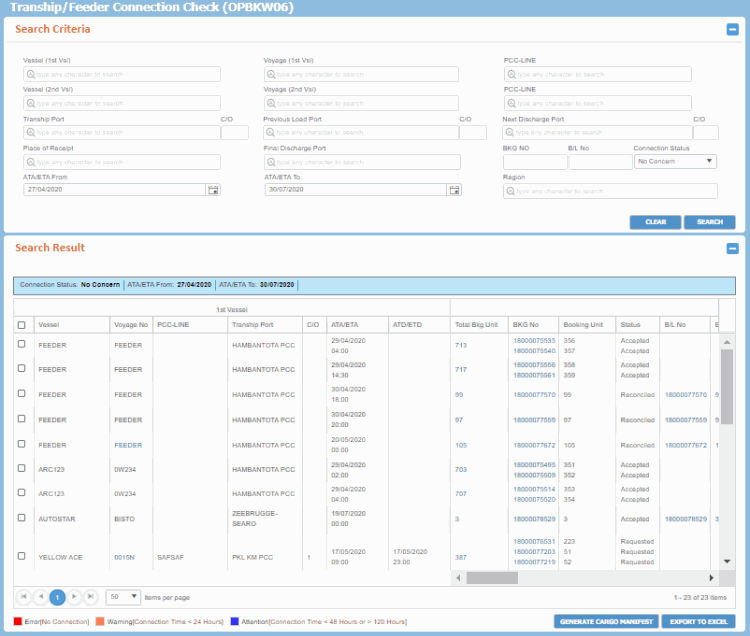
A Voyage Operator needs to check if transshipment is being carried out as per schedule. If the transshipment connection is missed, the Sales and Customer Service is required to be informed at the earliest. The Tranship/Feeder Connection Check (OPBKW06) screen enables you to calculate the connection time gap between the first transshipment vessel and the second vessel in the transshipment port.
At least, one search criteria is necessary to perform search in this screen. While searching results for Transshipment Connection, PCC.NET considers only the Requested, Accepted and Reconciled Bookings.
The Tranship/Feeder Connection Check (OPBKW06) screen  can be accessed from Menu > Operational > Booking > Tranship/Feeder Connection Check.
Ensure that you have the appropriate permissions to access the screen and perform the necessary tasks. Follow your local support procedures if you are unsure as to whether you have the correct permissions.
|
General Information
|
Screen-specific Components
|
|
|
|
|
How do I?
|
FAQs
|
-
 Search and view schedule at transshipment portSearch and view schedule at transshipment port Search and view schedule at transshipment portSearch and view schedule at transshipment port
To search for Connections and export
the Search Result, you must have either Create Booking or View Booking role with View Tranship/Feeder Connection System Action privilege.
- Open the Tranship/Feeder
Connection Check (OPBKW06) screen.
- Enter at least one of the search
criteria in the appropriate fields of the Search
Criteria panel. For field descriptions of the panel,
click here.
- Click SEARCH.
Based on the given criteria, the matching schedules at
transshipment ports are retrieved under Search
Detail panel.
Notes:
-
Export transshipment details to ExcelExport transshipment details to Excel
To search for Connections and export
the Search Result, you must have either Create Booking or View Booking role with View Tranship/Feeder Connection System Action privilege.
- Open the Tranship/Feeder
Connection Check (OPBKW06) screen.
- Search and view schedules at the
transshipment port.
- Select at least one record before
exporting to excel. You can select all the records just
by selecting the topmost check box. Selecting/clearing
this check box selects/de-selects all search results across
all pages.
- Click EXPORT
TO EXCEL to download the entire search result into
an excel file. A message appears that asks if you want
to save/open/cancel the vessel details.
- Save the file in the desired destination.
-
Generate Cargo ManifestGenerate Cargo Manifest
To search for Connections and export
the Search Result, you must have either Create Booking or View Booking role with View Tranship/Feeder Connection System Action privilege.
- Open the Tranship/Feeder
Connection Check (OPBKW06) screen.
- Search and view schedules at the
transshipment port.
- Select a record before proceeding
with the report generation. You are not allowed to select
multiple records.
- Click GENERATE
CARGO MANIFEST to navigate to the Generalized Report
Submission screen and generate the Cargo Manifest Report
against the selected Vessel, Voyage, PCC-Line, Transshipment
Port (as discharging port) along with its corresponding
C/O.
|
|
 can be accessed from Menu > Operational > Booking > Tranship/Feeder Connection Check.