|
|
Search Booking > View Booking > Field Descriptions |


View Booking - Field Descriptions
The View Booking (OPBKW03) screen 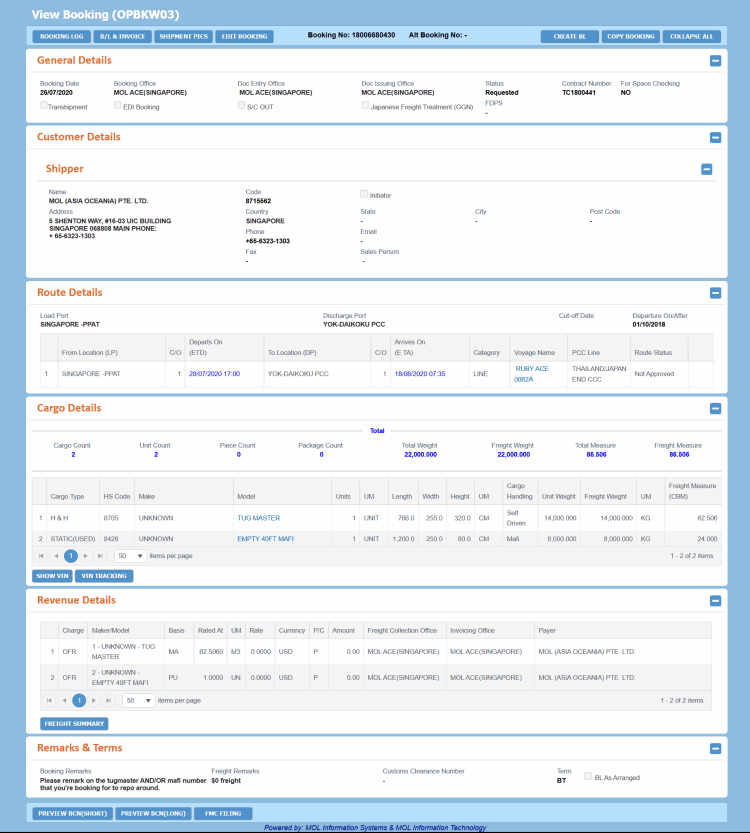 is used to view a Booking. It appears after clicking a Booking No. hyperlink in the Search Result panel of the Search Booking (OPBKW01) screen.
For a description of additional icons, buttons, fields and links appearing on this screen, see Common Interface Controls.
|
Field |
Description |
||||||||||||||||||||||||||||||||||||||||||
|
All the information in this screen is Read-only. |
|||||||||||||||||||||||||||||||||||||||||||
|
Fields |
|||||||||||||||||||||||||||||||||||||||||||
|
Booking No. |
PCC Booking number. |
||||||||||||||||||||||||||||||||||||||||||
|
Alt Booking No. |
Alternate Booking Number for EDI Bookings. |
||||||||||||||||||||||||||||||||||||||||||
|
Buttons |
|||||||||||||||||||||||||||||||||||||||||||
|
BOOKING LOG |
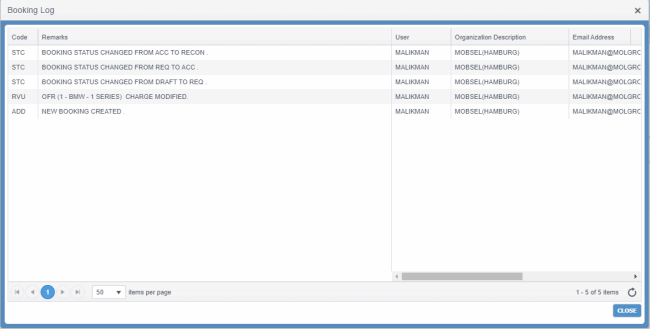
Button to view the transaction log details of the concerned Booking in the Booking LogBooking Log pop-up.
To view Booking log, you must have the Create Booking role and View Booking system action privilege. |
||||||||||||||||||||||||||||||||||||||||||
|
B/L & INVOICE |
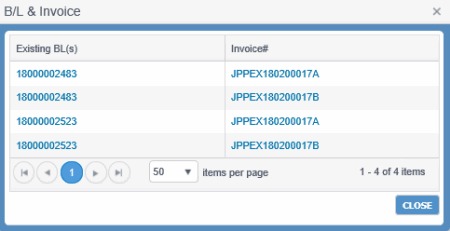
Button to view the B/L(s) and invoices are associated with an existing Booking using the B/L & InvoiceB/L & Invoice dialog box. The particular B/L or invoice can be accessed by navigating to the respective screen.
You must have View Booking without Revenue or Create Booking role and Navigate B/L View system action privilege to view B/Ls. |
||||||||||||||||||||||||||||||||||||||||||
|
SHIPMENT PICS |
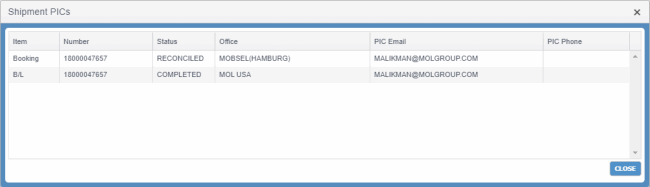
Button to display the physical Office, E-mail ID and Phone Number of the shipment contact person (PICs) for a Booking, and its associated B/L and Invoices (if any). The information is displayed in the Shipment PICsShipment PICs pop-up.
|
||||||||||||||||||||||||||||||||||||||||||
|
EDIT BOOKING |
Button to edit a Booking. This button is enabled only if the Booking user has permission to edit the Booking. To edit a Booking's complete information, you must have the Create Booking role and Update Booking system action privilege. To update a Booking without accessing its revenue information, you need the Update Booking Doc Entry Office role type along with Update Booking Without Revenue system action and delegation as Doc Entry Office.
|
||||||||||||||||||||||||||||||||||||||||||
|
BACK |
Button to return to the Search Booking (OPBKW01) screen. |
||||||||||||||||||||||||||||||||||||||||||
|
CREATE B/L |
Button to create B/L by navigating to the Create/Modify Bill of Lading (OPBLW03) screen populated with the data for the particular Booking which you are currently viewing. This button becomes enabled only if the Booking user has permission to create B/L. You must have Create B/L and Create B/L From Booking system action privilege to create B/Ls. |
||||||||||||||||||||||||||||||||||||||||||
|
Button to create a copy of any existing Booking number. This button is enabled only if you have permission to create a new Booking. The Copy Booking functionality is used in case of a Customer Requested booking only. The status of the corresponding Booking must be Requested, Accepted, or Reconciled. You must have the Create Booking role and Create Booking From Contract system action privilege, to create a copy of an existing Booking's information. |
|||||||||||||||||||||||||||||||||||||||||||
|
EXPAND ALL |
Button to expand all sections of View Booking (OPBKW03) screen. |
||||||||||||||||||||||||||||||||||||||||||
|
COLLAPSE ALL |
Button to collapse all sections of View Booking (OPBKW03) screen. |
||||||||||||||||||||||||||||||||||||||||||
|
General Details panel: Panel to view basic information of the PCC Booking. |
|||||||||||||||||||||||||||||||||||||||||||
|
Booking Date |
Date on which the space is reserved in the PCC Vessel and Voyage. |
||||||||||||||||||||||||||||||||||||||||||
|
Booking Office |
The office where MOL accepts the Booking request. |
||||||||||||||||||||||||||||||||||||||||||
|
Doc Entry Office |
The entry office of the Bill of Lading. |
||||||||||||||||||||||||||||||||||||||||||
|
Doc Issuing Office |
The issue office of the Bill of Lading. |
||||||||||||||||||||||||||||||||||||||||||
|
Status |
Booking status. |
||||||||||||||||||||||||||||||||||||||||||
|
Contract No. |
The number of the Contract associated with the PCC Booking. |
||||||||||||||||||||||||||||||||||||||||||
|
For Space Checking |
Indicates if the Booking is for space checking. |
||||||||||||||||||||||||||||||||||||||||||
|
Transshipment |
Indicates the presence of Transshipment leg in the Booking. |
||||||||||||||||||||||||||||||||||||||||||
|
EDI Booking/Web Booking |
Indicates if the Booking is created with the data received from EDI or RoRo Website. |
||||||||||||||||||||||||||||||||||||||||||
|
S/C OUT |
Indicates if a third party shipping company (as Shipper) has requested to ship their cargo in MOL vessel. |
||||||||||||||||||||||||||||||||||||||||||
|
Japanese Freight Treatment (GGN) |
Indicates if freight treatment code for Japan is applicable for the Booking. |
||||||||||||||||||||||||||||||||||||||||||
|
FDPS |
The payment terms associated with the selected Booking. |
||||||||||||||||||||||||||||||||||||||||||
|
Customer panel: Panel to view Initiator, Shipper, Forwarder, and Consignee information. |
|||||||||||||||||||||||||||||||||||||||||||
|
Initiator |
The customer who initiates the Booking of a cargo for shipment to the final destination.
|
||||||||||||||||||||||||||||||||||||||||||
|
Shipper |
The Shipper is the customer who sends a shipment after entering into a Contract with the Carrier, that is, the person or company who is usually the supplier or owner of the cargo shipped. The shipper need not be a registered exporter. He/she can also be a freight forwarder who transfers the cargo to the Carrier for shipment.
|
||||||||||||||||||||||||||||||||||||||||||
|
Forwarder |
Forwarder of the Booking.
|
||||||||||||||||||||||||||||||||||||||||||
|
Consignee |
The Consignee is the customer to whom the Carrier is supposed to deliver the goods at the destination. He is the person or company who is legally allowed to receive the cargo. In most cases the Consignee is the buyer of the cargo but not always. Consignee could be the agent nominated by the buyer or the buyer’s bank.
|
||||||||||||||||||||||||||||||||||||||||||
|
Route panel Panel to view the Booking route information. To let you easily distinguish Booking leg’s estimated date/time from the actual date/time, the ETD/ETA and ATD/ATA values are shown in different colors. ATD and ATA is shown in blue, whereas ETD and ETA in black. |
|||||||||||||||||||||||||||||||||||||||||||
|
<Serial No.> |
Sequential number of the record. |
||||||||||||||||||||||||||||||||||||||||||
|
Load Port |
First port of loading the cargo. |
||||||||||||||||||||||||||||||||||||||||||
|
Discharge Port |
Last port of discharging the cargo. |
||||||||||||||||||||||||||||||||||||||||||
|
Cut-Off Date |
Terminal cut-off date. For some countries (like US), this date must be notified to the customer at the time of issuing Booking Confirmation Note. |
||||||||||||||||||||||||||||||||||||||||||
|
Departure On/After |
Date of vessel departure. It is used for finding the voyage schedule if route category is LINE or PCL. |
||||||||||||||||||||||||||||||||||||||||||
|
From Location (LP) |
The First Port of loading for the itinerary leg. |
||||||||||||||||||||||||||||||||||||||||||
|
C/O |
Calling order of Port of Loading. |
||||||||||||||||||||||||||||||||||||||||||
|
Departs On (ETD) |
Expected time of Departure at Load Port of the vessel associated to the currently selected leg. |
||||||||||||||||||||||||||||||||||||||||||
|
To Location (DP) |
Port of discharge for the itinerary leg. |
||||||||||||||||||||||||||||||||||||||||||
|
C/O |
Calling order of Port of Discharge. In case voyage calls at a port twice, this field indicates the sequence of call on which the cargo is loaded on the vessel. |
||||||||||||||||||||||||||||||||||||||||||
|
Arrives On (ETA) |
Expected time of arrival at Discharge Port of the vessel associated to the currently selected leg. |
||||||||||||||||||||||||||||||||||||||||||
|
Category |
The transport mode for route creation. The drop-down list values are defined in the Code Definition (ADCMW02) screen (domain= BKG_RTCAT, for development usage only, by PCC.NET Administrative users). |
||||||||||||||||||||||||||||||||||||||||||
|
Voyage Name |
Voyage name for the selected vessel. The Voyage Name appears as a hyperlink allowing you to navigate to the Voyage Schedule (MOL Operating) (VYVYW09) or Voyage Schedule (PCL, S/C IN, Lay Up/Idling) (VYVYW16) screen for the specific voyage. |
||||||||||||||||||||||||||||||||||||||||||
|
PCC Line |
PCC Line of the voyage to the currently selected leg. |
||||||||||||||||||||||||||||||||||||||||||
|
Route Status |
Approval Status of currently selected leg. Following are the probable values: Not Approved/Approved/Rejected/Arranged. |
||||||||||||||||||||||||||||||||||||||||||
|
Panel to view all Cargo related information. |
|||||||||||||||||||||||||||||||||||||||||||
|
Total |
A summary of the following cargo attributes is displayed on top of this panel: Total Cargo Count, Total Unit Count, Total Pieces Count, Total Package Count, Total Weight, Total Freight Weight, Total Measure and Total Freight Measure. |
|
<Serial No.> |
Sequential number of the record. |
|
Cargo Type |
Type of the Cargo. |
|
HS Code |
Denotes the World Customs Organization (WCO) defined Harmonized Code (HS code) for the commodity. It is a coding for identification and classification of imported and exported goods, for the purpose of compiling trade statistics and determining customs tariff. |
|
Make |
Maker name of the model. |
|
Model |
Name of the Cargo Model appears as a hyperlink. Clicking this link lets you view the corresponding Cargo attributes and its details in the View Cargo DetailsView Cargo Details pop-up. Moreover, when you hover the pointer over the Model Description field in this pop-up, the entire Cargo description appears as a tool tip.
|
|
Units |
Number of units of PCC Cargo. |
|
UM |
Unit of measurement of the Cargo unit. |
|
Length |
Length of the PCC Cargo. |
|
Width |
Width of the PCC Cargo. |
|
Height |
Height of the PCC Cargo. |
|
Bump to Bump |
The distance between the front side bumper of a vehicle and the backside bumper of another vehicle associated with the corresponding Booking. |
|
Mirr to Mirr |
The distance between the left side mirror of a vehicle and the right side mirror of another vehicle associated with the corresponding Booking. |
|
UM |
Unit of measurement of the Cargo Length, Width, Height, Bump to Bump, and Mirr to Mirr. Default value is CM. |
|
Cargo Handling |
The mode of handling the Cargo to load or discharge from a vessel. |
|
Unit Weight |
Weight of one unit of car. |
|
Total Weight |
Weight of all units of the Cargo. |
|
Freight Weight |
Freighted weight of all units of the Cargo. |
|
UM |
Unit of measurement of the Cargo weight. |
|
Unit Measure (CBM) |
Volume of one unit of car. |
|
Total Measure (CBM) |
Total volume of the Cargo. Total Volume = Volume of one unit of car of the corresponding Mode Number in the Model Master (RFMKW02) screen multiplied by the number of units of car. |
|
Freight Measure (CBM) |
Volume of all units of the cargo in cubic meter. Total Volume = Volume of one unit of car will fetch from corresponding Mode Number in the Model Master (RFMKW02) screen multiplied number of units of the car. |
|
Remarks |
Remarks about the vehicle. |
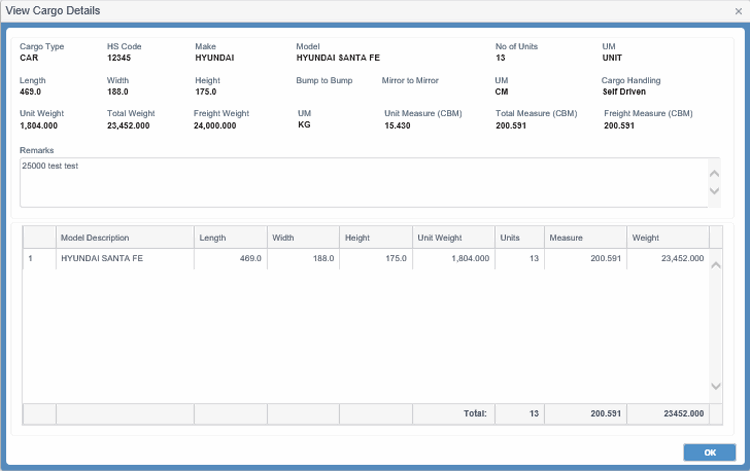
|
Button |
|||||||||||||||||||||||||||||||||||||||||||||||||||||||||||||||||||
|
SHOW VIN |
Button to view details of VINVIN association with the Booking. |
||||||||||||||||||||||||||||||||||||||||||||||||||||||||||||||||||
|
VIN TRACKING |
Button to open the VIN Tracking (OPBKW08) screen that displays the tracking information of the current Booking. You need to have the Create Booking or View Booking without Revenue role with VIN Tracking system action to perform this activity. |
||||||||||||||||||||||||||||||||||||||||||||||||||||||||||||||||||
|
Panel to view revenue information of a Booking by privileged users. Freight information is not displayed in absence of appropriate role type.
|
|||||||||||||||||||||||||||||||||||||||||||||||||||||||||||||||||||
|
<Serial No.> |
Sequential number of the record. |
||||||||||||||||||||||||||||||||||||||||||||||||||||||||||||||||||
|
Charge |
Charge code for the charge as classified for the shipping business. |
||||||||||||||||||||||||||||||||||||||||||||||||||||||||||||||||||
|
Maker/Model |
Maker/Model information in brief for the corresponding charge. |
||||||||||||||||||||||||||||||||||||||||||||||||||||||||||||||||||
|
Basis |
Basis for calculation:
The drop-down list values are defined in the Code Definition (ADCMW02) screen (domain= BKG_BASCODE, for development usage only, by PCC.NET Administrative users). |
||||||||||||||||||||||||||||||||||||||||||||||||||||||||||||||||||
|
Rated At |
Freighted quantity/value. |
||||||||||||||||||||||||||||||||||||||||||||||||||||||||||||||||||
|
UM |
Unit of measure for Rated At. |
||||||||||||||||||||||||||||||||||||||||||||||||||||||||||||||||||
|
Rate |
Charge rate applicable on the Rated At value. |
||||||||||||||||||||||||||||||||||||||||||||||||||||||||||||||||||
|
Currency |
Charge currency applicable to the rate, for example, USD (US dollars). |
||||||||||||||||||||||||||||||||||||||||||||||||||||||||||||||||||
|
P/C |
Value that indicates whether the revenue is prepaid or collect type. Available values are P, which means Prepaid and C, which means Collect. |
||||||||||||||||||||||||||||||||||||||||||||||||||||||||||||||||||
|
Amount |
PCC.NET automatically calculates this amount by multiplying the value of Rate with Rated At. |
||||||||||||||||||||||||||||||||||||||||||||||||||||||||||||||||||
|
Freight Collection Office |
Location name of the freight collection office of the charge. |
||||||||||||||||||||||||||||||||||||||||||||||||||||||||||||||||||
|
Invoicing Office |
The office where the invoice for the corresponding charge is created. |
||||||||||||||||||||||||||||||||||||||||||||||||||||||||||||||||||
|
Payer |
Payer is a customer against who pays the charges in the invoice. |
||||||||||||||||||||||||||||||||||||||||||||||||||||||||||||||||||
|
Button |
|||||||||||||||||||||||||||||||||||||||||||||||||||||||||||||||||||
|
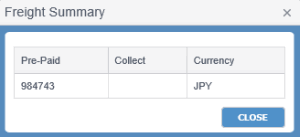
FREIGHT SUMMARY |
Button to view the total Prepaid and total Collect charges currency wise in the Freight SummaryFreight Summary pop-up.
|
||||||||||||||||||||||||||||||||||||||||||||||||||||||||||||||||||
|
Panel to view Booking remarks. |
|||||||||||||||||||||||||||||||||||||||||||||||||||||||||||||||||||
|
Booking Remarks |
Additional remarks for the Booking. |
||||||||||||||||||||||||||||||||||||||||||||||||||||||||||||||||||
|
Term |
Terms for the cargo:
|
||||||||||||||||||||||||||||||||||||||||||||||||||||||||||||||||||
|
BL As Arranged |
Indicates if the B/L contains Freight. |
||||||||||||||||||||||||||||||||||||||||||||||||||||||||||||||||||
|
Buttons |
|||||||||||||||||||||||||||||||||||||||||||||||||||||||||||||||||||
|
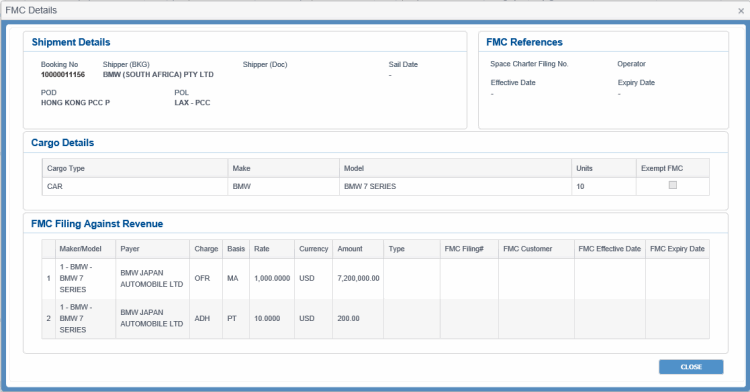
FMC FILING |
Button to view the FMC Filing details using the FMC DetailsFMC Details pop-up.
|
||||||||||||||||||||||||||||||||||||||||||||||||||||||||||||||||||
|
PREVIEW BCN (SHORT) |
Button to preview the shorter version of the Booking Confirmation Notice. On clicking this button, you are navigated to the Generalized Report Submission (RPGRW01) screen with the Booking Number, the particular BCN type along, the Delivery Mode as Preview along with other attributes selected. |
||||||||||||||||||||||||||||||||||||||||||||||||||||||||||||||||||
|
PREVIEW BCN (LONG) |
Button to preview the longer version of the Booking Confirmation Notice. On clicking this button, you are navigated to the Generalized Report Submission (RPGRW01) screen with the Booking Number, the particular BCN type along, the Delivery Mode as Preview along with other attributes selected. |
||||||||||||||||||||||||||||||||||||||||||||||||||||||||||||||||||
|
Related Topics |