|
|
Introduction |


Introduction
Booking is the process of reserving space on a PCC Vessel and Voyage for shipping Cargo, in advance. Customers request for space confirmation declaring the Port of loading and discharging, type of Cargo, its Weight, and Volume. The information received is processed by MOL Users and a Booking number is given to the Customer.
All Customers who wish to book a Cargo shipping with MOL require a prior Contract with MOL stating the basic shipment information, such as the Contract type, Main Customer and Sales Person of the Contract, validity period of the Contract, Origin and Destination of the Booking, Cargo Type, Make and Model. Any one of the Booking Customers must be present in the associated Contract. The Contract must be valid, non-expired and accepted by the Customer. Moreover, the Estimated Time of Departure (ETD) from the First Load Port, of the concerned Vessel and Voyage must be within the Contract’s validity period.
Types of Booking
A Customer can send a Booking request using any of the following means of communication:
-
E-mail, Phone call, Fax; or
-
Electronic Data Interchange (EDI).
Based on how a Booking request is received in PCC.NET, the process of creating PCC.NET Booking varies as follows:
User-created Booking
For Booking requests placed through E-mail, Phone Call and Fax, you (as the Booking user) can directly create the Booking from the customer’s Contract with MOL. You can create a Booking from the Create/Update Booking (OPBKW02) screen.
Details on how to create a Booking from Contract.
User-created Bookings can mainly be categorized into the following two types:
-
Customer-Requested: Customer-initiated Booking details are created for specific Customers with valid, complete and non-expired Contracts existing in PCC.NET.
-
Space Checking: Space Checking Booking details are forecasted based on historical business, assuming that the Booking for space checking will materialize into a Customer-Requested Booking. These are created in PCC.NET with minimum information on the basis of long termlong term and short termshort term cargo forecasts. Once Customers send the actual Booking request, the Booking details are converted to a Customer-Requested Booking. A Space Checking Booking helps Voyage Controllers to foresee the space allocation in a Vessel and optimize the available Vessel space to the fullest extent.
Notes:
- Both types of Booking can be completed only from valid Contracts.
- You can search for a Booking detail using the Search Booking (OPBKW01) screen.
- During checking space utilization, PCC.NET considers both above the types of Booking for a specific Vessel and Voyage combination. This maximizes the Vessel space utilization and hence, profitability.
EDI Booking
Booking requests that are received through EDI are automatically created in PCC.NET, with default indicative dataindicative data, in Draft status. Contract No may not always be available in such Booking requests. Thus, as a Booking user you must assign a Contract number for the respective Customer, Port pair, Make and Model and update its information after replacing the default indicative data by the desired actual data. You can search for the Booking using the Search Booking (OPBKW01) screen and update the information.
Details on how to update an EDI Booking.
Web Booking from RoRo Website
Customers send Web Booking Requests from the RoRo Website that is saved in PCC.NET in Draft status. Similar to an EDI Booking, these Web Bookings may also have actual data or some default data for a Booking.
Contract Number may not always be available in such a Booking request. Thus, as a Booking User, you must assign a Contract number for the respective Customer, Port pair, Make and Model and update its information after replacing default indicative data by the desired actual data. You can search the Booking using the Search Booking (OPBKW01) screen and update the information.
Details on how to update an Web Booking.
Space Charter In/Out Booking
Some of the Booking in PCC.NET may involve a third party carrier (for example, NYK Lines). These types of Booking are categorized in PCC.NET as following:
-
Space Charter (S/C) In BookingSpace Charter (S/C) In Booking
In such Bookings, MOL requests a third party Carrier to take its cargo on MOL’s behalf. In this scenario, MOL space charters to a third party vessel. All the necessary Bookings and B/Ls are created for S/C IN.
S/C IN Bookings have the following features:
-
During Booking creation, S/C IN voyage schedule should be present in PCC.NET. When Booking user selects the particular schedule in the Booking route, PCC.NET internally will mark this Booking as S/C IN.
-
Space checking is not required for corresponding Line leg.
-
Voyage Controller/Area Manager with appropriate role and delegation can approve the legs.
-
-
Space Charter (S/C) Out BookingSpace Charter (S/C) Out Booking
Third party Carriers often request MOL to accept its cargo on its behalf. In such a scenario, the third party shipping company space charters out to a MOL vessel. All the necessary Bookings and B/Ls need to be created for S/C IN cases.
S/C Out Bookings have the following features:
-
The third party customers are marked as S/C Out in the Customer (RFCSW01) screen. A Booking is treated as S/C Out Booking when the corresponding S/C Out check box of the Booking Shipper is selected.
-
S/C Out Booking can only be created from a valid Contract.
-
S/C Out has to be considered for space utilization purpose, Manifest preparation and Accounts Receivables purpose.
-
Space checking will be needed for corresponding Line leg. Voyage Controller/Area Manager with appropriate role and delegation can approve the legs.
-
Life Cycle of a Booking
A Booking matures stage by stage, starting as a Draft and ending with its completion and reconciliation with the corresponding B/L. The status of a Booking changes based on the information entered and user discretion. Booking statuses also vary based on the Booking type.
Click herehere to read more about the different statuses of a Booking.
Customer-Requested Booking:
-
Draft: Indicates the initial status of the Booking. It means that you have not provided all required information required for Booking creation.
-
Requested: Indicates all required information is available in the Booking and it is ready for Route leg approval. After you select this status, you cannot change it back to Draft.
-
Accepted: Indicates Bookings whose all Route legs have been approved and all the necessary checks are passed. PCC.NET changes the status to Accepted after all necessary checks are validated and all route legs of the Booking are approved. You can attach Model vessel to the Booking when the Booking is in this status. If required, you can provide extra information after the Booking is accepted. At this stage, you need to also send the Booking Confirmation Note to the Customer and Sales Person.
-
Declined: Bookings that are rejected by the Approver on behalf of MOL. A Booking may be declined for a number of reasons when it is in Requested status. If the Voyage Controller rejects any leg and you (as the Booking user) are unable to find any alternate route, you can change the Booking status to Declined. You need to send e-mail to the concerned users about the Booking being declined.
-
Cancelled: Indicates Bookings that are cancelled by customer to terminate the Booking request. In case of a Customer-requested Booking, you need to send e-mail to the concerned users about the Booking cancellation. For a Space Checking Booking, PCC.NET does not send e-mails.
-
Reconciled: After creation of the respective B/L in Complete status, you can perform the Mass Reconciliation process to make the Booking Reconciled. Reconciliation between Booking and B/L is done based on their Units of Cargo associated with the concerned Port.
Space Checking Booking:
-
Draft: Indicates that all information required for Booking creation is not yet entered in the Booking.
-
For Space Checking: Indicates that the data entry is complete for the Space Checking Booking.
-
Cancelled: Indicates that the Voyage Controller has cancelled the Booking.
After you convert Space Checking Booking to a Customer-requested Booking, the status of the Booking follows the behavior of the Customer Requested Booking.
Different Types of Customers in Booking
Customers who play a role in the Booking creation process:
-
Initiator: The customer who actually initiates the Booking of a cargo for shipment to the final destination.
-
Shipper: The customer who sends a shipment after entering into a Contract with MOL, that is, the person or company who is usually the supplier or owner of the cargo shipped.
-
Forwarder: The Forwarder performs the same function as a Shipper, however, he does it on behalf of a number of Shippers. Precisely, the Forwarder is a person or company who organizes shipments for individuals or corporations to transport cargo from the manufacturer or producer to the final point of distribution.
-
Consignee: The Consignee is the Customer to whom MOL is supposed to deliver the cargo at the destination. He is the person or company who is legally allowed to receive the cargo. Most of the times, the Consignee is the buyer of the cargo. He could also be the agent nominated by the buyer or the buyer’s bank.
Initiator or Shipper is required for saving a Booking with status as Requested or Accepted.
PCC.NET Booking Functions
A user with appropriate access rights and privileges can perform the following functions in the Booking module of PCC.NET:
Click on each function to navigate to the corresponding screen.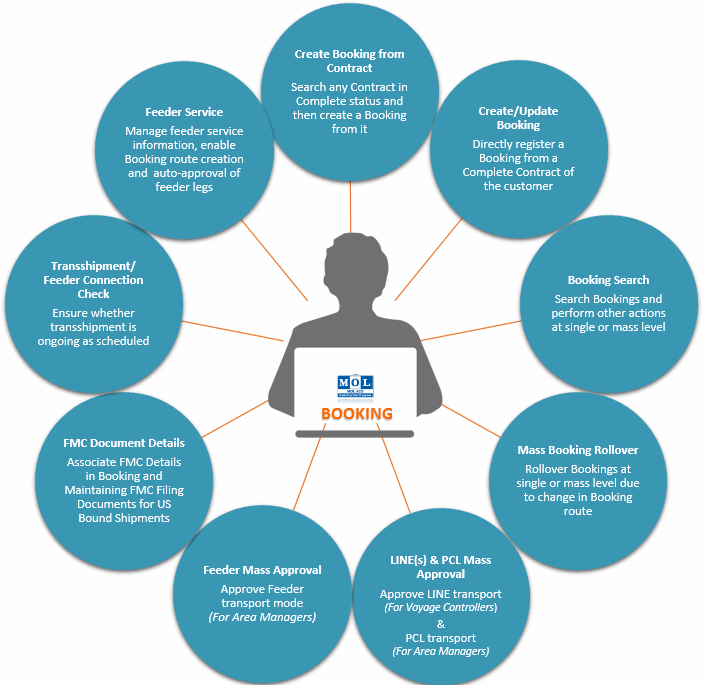
|
Related Topics |