Create Booking From Contract > View Contract > Field Descriptions
|
|
Create Booking From Contract > View Contract > Field Descriptions |
This screen appears while viewing information of an existing Contract. You can create a Booking from Contract using the screen.
The fields, links, and buttons available on the View Contract (OPCNW03) screen 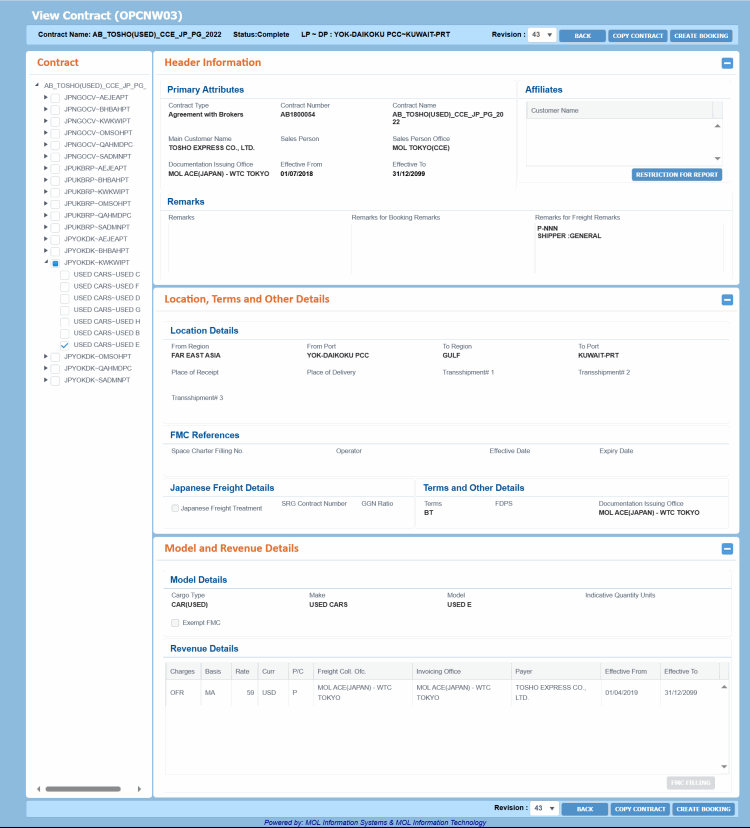 are described below. For a description of additional icons, buttons, fields and links appearing on this screen, see Common Interface Controls.
|
Field |
Description |
|
Header panel InformationInformation displayed in the static Header panel are Auto-populated and read-only.
|
|
|
Revision |
Drop-down list to select the a version of the Contract. Based on the selected revision, the information in the Tree View panel changes. By default, PCC.NET always displays the information based on the latest Contract revision number. |
||||||||||||||||||||||||||||||||||||||||||||||||||||||||||||||
|
Buttons The buttons are located both in the upper and bottom right corner of the screen. |
|||||||||||||||||||||||||||||||||||||||||||||||||||||||||||||||
|
BACK |
Button to return back to the Contract Search (OPCNW02) screen. |
||||||||||||||||||||||||||||||||||||||||||||||||||||||||||||||
|
COPY CONTRACT |
Button to create a new Contract based on the available details. You need to have the Manage Contract role and the Copy Contract system action to perform this activity. |
||||||||||||||||||||||||||||||||||||||||||||||||||||||||||||||
|
CREATE BOOKING |
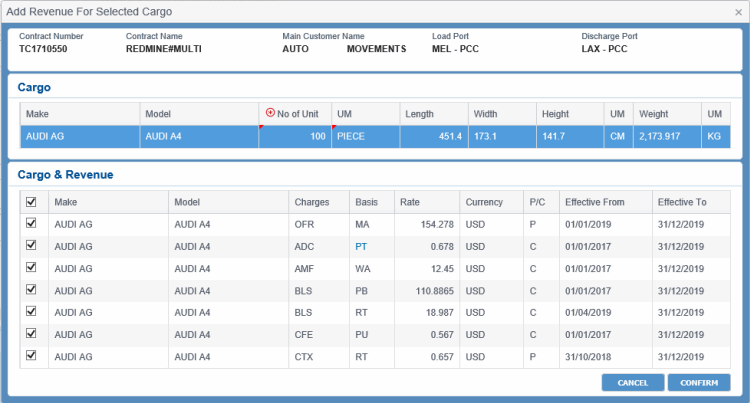
Button to create a new PCC Booking based on the latest version of the Contract Revision. On clicking, a dialog box Add Revenue for Selected CargoAdd Revenue for Selected Cargo appears with selected Make-Model(s) and associated Revenue details from the Contract. You can select all or particular revenue details of each Make-Model and click CONFIRM in the dialog box. On confirmation, you are navigated to the Create Booking (OPBKW02) screen with the details from the selected Contract (such as Customer, LP-DP, Make-Model(s) and revenue details). The current date is displayed as the default Booking Date. The new Booking is created with selected LP-DP, Make-Model(s) and Revenue details only. Only active records are displayed in this dialog box.
The fields, links, and buttons available on the dialog box are described below.
Notes:
You need to have the Create Booking role and the Create Booking From Contract system action to perform this activity. |
||||||||||||||||||||||||||||||||||||||||||||||||||||||||||||||
|
Contract panel This panel displays the details of the Contract in a hierarchical tree structure. The Contract Name is displayed as root node of the tree. The Location information appears as sub-node, under the Contract Name. The Make/Model and Revenue node is displayed as sub-node, under respective location (LP-DP combination). Notes:
|
|||||||||||||||||||||||||
|
Header Information panel Fields in this section are Read-only. |
|||||||||||||||||||||||||
|
Contract Type |
The type of Contract. Available values are:
The values are defined by PCC.NET Administrative users in the Code Definition (ADCMW02) screen (domain = CONTRACT_TYPE, for development usage only). |
||||||||||||||||||||||||
|
Contract Number |
The unique identification number of the Contract. |
||||||||||||||||||||||||
|
Contract Name |
Name of the Contract. |
||||||||||||||||||||||||
|
Main Customer Name |
Name of the main customer associated with the Contract. |
||||||||||||||||||||||||
|
Sales Person |
Name of the sales person who handles the corresponding customer. |
||||||||||||||||||||||||
|
Sales Person Office |
Name of the MOL sales organization that handles the corresponding customer. |
||||||||||||||||||||||||
|
Documentation Issuing Office |
The actual organization from where the B/L is issued. |
||||||||||||||||||||||||
|
Affiliates pane |
|||||||||||||||||||||||||
|
Customer Name |
Name of the Customer who is affiliated with the main customer. Along with the main customer, a Contract can have affiliated customers who can also use the same Contract number while creating a Booking creation. |
||||||||||||||||||||||||
|
RESTRICTION FOR REPORT |
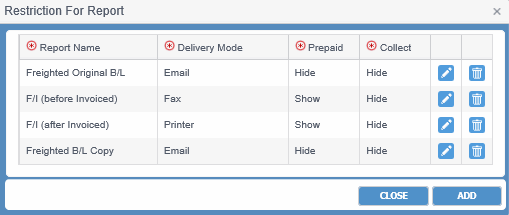
Button to view the freight information that has been prevented to be displayed to unintended customers. As you click the button, a dialog box, Restriction For ReportRestriction For Report appears. Use this dialog box to view the name of the Report and its delivery mode and payment terms that is to be restricted for unintended customers.
Notes:
|
||||||||||||||||||||||||
|
Remarks |
Remarks entered against the Contract. |
||||||||||||||||||||||||
|
Remarks for Booking Remarks |
Any additional remarks for the corresponding Booking. |
||||||||||||||||||||||||
|
Remarks for Freight Remarks |
Any additional Freight-related remarks for the corresponding Booking. |
||||||||||||||||||||||||
|
Location, Terms and Other Details panel Fields in this section are Read-only. |
|||||||||||||||||||||||||
|
Location Details |
|||||||||||||||||||||||||
|
From Region |
Name of the region from where the shipment originates. |
||||||||||||||||||||||||
|
From Port |
Name of the port from where the shipment originates. |
||||||||||||||||||||||||
|
To Region |
Name of the region to where the shipment is destined. |
||||||||||||||||||||||||
|
To Port |
Name of the port to where the shipment is destined. |
||||||||||||||||||||||||
|
Place of Receipt |
Name of the Place of Receipt. |
||||||||||||||||||||||||
|
Place of Delivery |
Name of the Place of Delivery. |
||||||||||||||||||||||||
|
Transshipment# 1 |
Name of the first Transshipment port, if any. |
||||||||||||||||||||||||
|
Transshipment# 2 |
Name of the second Transshipment port, if any. |
||||||||||||||||||||||||
|
Transshipment# 3 |
Name of the third Transshipment port, if any. |
||||||||||||||||||||||||
|
Japanese Freight Details |
|||||||||||||||||||||||||
|
Japanese Freight Treatment |
While coming into an agreement or creating Contracts with some special customers, sales persons of MOL quote special rates which is much lower than the rate published in MOL Tariff. This is referred to as the Net rate or Contracted rate. Additionally, for Japan export PCC shipments, a percentage of a sum already received is returned to the customer, say as an incentive which is termed as Kickback (KB). KB is applicable for both Gross and Net rates. |
||||||||||||||||||||||||
|
SRG Contract Number |
SRG Contract Number is used to create Booking List (Report). Documentation Entry Office will check the Booking list and recognize the proper SRG Contract number to create gross rate freight. |
||||||||||||||||||||||||
|
GGN Ratio |
A Japanese Freight Treatment code, where Gross rate is used in B/L but Net rate is used in Manifest and Invoice. |
||||||||||||||||||||||||
|
FMC References |
|||||||||||||||||||||||||
|
Space Charter Filing No. |
Space Charter Filing Number. |
||||||||||||||||||||||||
|
Operator |
Vessel Operator. |
||||||||||||||||||||||||
|
Effective Date |
Effective date of Space Charter Filing Number. |
||||||||||||||||||||||||
|
Expiry Date |
Expiry date of Space Charter Filing Number. |
||||||||||||||||||||||||
|
Terms and Other Details |
|||||||||||||||||||||||||
|
Terms |
|
||||||||||||||||||||||||
|
FDPS |
FDPS stands for Fixed Day Payment System, that is, a fixed day of the month on which customer makes payment against the invoice(s). |
||||||||||||||||||||||||
|
Documentation Issuing Office |
The actual organization from where the B/L is issued. In case of Transshipment, the B/L issue organization may change as per load port. |
||||||||||||||||||||||||
|
Model and Revenue Details panel The information in this panel will not be displayed if multiple Make-Model record is selected from the Contract tree view. in such case, the Model Details section changes to Model Details (Only selected models will be used to create booking) and the Revenue Details section changes to Revenue Details (Revenues with selected models will be used to create booking). Fields in this section are Read-only. |
|||||||||||||||||||||||||
|
Model Details |
|||||||||||||||||||||||||
|
Cargo Type |
The type of Cargo associated with the Contract. It can be any one of the following:
|
||||||||||||||||||||||||
|
Make |
The Identification code of the manufacturer of the vehicle. |
||||||||||||||||||||||||
|
Model |
Maker name of the model. Make and Model are often used together to identify a particular vehicle. A vehicle’s complete identification and name is made by the Make and its Model. |
||||||||||||||||||||||||
|
Indicative Quantity Units |
The quantity of cargo committed by the customer. |
||||||||||||||||||||||||
|
Revenue Details |
|||||||||||||||||||||||||
|
Charges |
Charge code for the charge as classified for the shipping business. Various charge codes like Ocean Freight, Currency Adjustment Factor, Destination Delivery Charge and so forth can be defined here. |
||||||||||||||||||||||||
|
Basis |
Basis on which the charge is determined. |
||||||||||||||||||||||||
|
Rate |
The unit (for instance, weight, cubic measure etc.) used to calculate the rate. The rate signifies charge basis-wise unit cost. |
||||||||||||||||||||||||
|
Curr |
Currency in which the amount for the charges are to be calculated. |
||||||||||||||||||||||||
|
P/C |
The charge imposed as prepaid or collect at charge for the Pay Office. |
||||||||||||||||||||||||
|
Freight Coll. Ofc. |
The organization that receives the payment. |
||||||||||||||||||||||||
|
Invoicing Office |
The organization that generates the invoice. |
||||||||||||||||||||||||
|
Payer |
Name of the payer customer associated to the charge. |
||||||||||||||||||||||||
|
Effective From |
The date from which the Charge is effective. |
||||||||||||||||||||||||
|
Effective To |
The date till which the Charge is effective. The effective and expiry dates can also fall on same date. |
||||||||||||||||||||||||
|
FMC FILING |
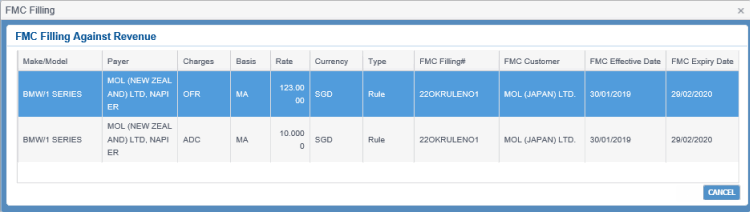
Button to view FMC filing information in the FMC FilingFMC Filing dialog box.
The fields, links, and buttons available on the dialog box are described below.
|
||||||||||||||||||||||||
|
Revision |
Drop-down list to select the a version of the Contract. Based on the selected revision, the information in the Tree View panel changes. By default, PCC.NET always displays the information based on the latest Contract revision number. |
||||||||||||||||||||||||||||||||||||||||||||||||||||||||||||||
|
Buttons The buttons are located both in the upper and bottom right corner of the screen. |
|||||||||||||||||||||||||||||||||||||||||||||||||||||||||||||||
|
BACK |
Button to return back to the Contract Search (OPCNW02) screen. |
||||||||||||||||||||||||||||||||||||||||||||||||||||||||||||||
|
COPY CONTRACT |
Button to create a new Contract based on the available details. You need to have the Manage Contract role and the Copy Contract system action to perform this activity. |
||||||||||||||||||||||||||||||||||||||||||||||||||||||||||||||
|
CREATE BOOKING |
Button to create a new PCC Booking based on the latest version of the Contract Revision. On clicking, a dialog box Add Revenue for Selected CargoAdd Revenue for Selected Cargo appears with selected Make-Model(s) and associated Revenue details from the Contract. You can select all or particular revenue details of each Make-Model and click CONFIRM in the dialog box. On confirmation, you are navigated to the Create Booking (OPBKW02) screen with the details from the selected Contract (such as Customer, LP-DP, Make-Model(s) and revenue details). The current date is displayed as the default Booking Date. The new Booking is created with selected LP-DP, Make-Model(s) and Revenue details only. Only active records are displayed in this dialog box.
The fields, links, and buttons available on the dialog box are described below.
Notes:
You need to have the Create Booking role and the Create Booking From Contract system action to perform this activity. |
||||||||||||||||||||||||||||||||||||||||||||||||||||||||||||||