Back Forward

Feeder Mass Approval/Arrangement > Field Descriptions

Feeder Mass Approval/Arrangement - Field Descriptions


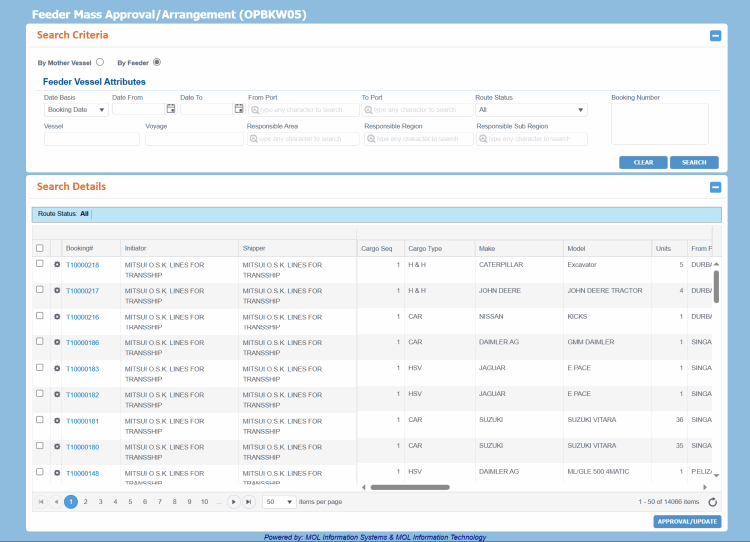
The fields, links, and buttons available on the Feeder Mass Approval/Arrangement (OPBKW05) screen are described below.
For a description of additional icons, buttons, fields and links appearing on this screen, see Common Interface Controls.

Field

Description

Search Criteria... Enter following search criteria to retrieve Bookings.

You can search feeder information using any of the following options:

  • Mother Vessel: Radio button to search feeder legs by the immediate preceding or following Mother vessel. Therefore, in this search mode, mother vessel, voyage and line is the minimum search criteria. Additionally, you can enter Load Port (LP) and/or Discharge Port (DP) for the Mother vessel.

    • If you do not enter Load Port (LP) or Discharge Port (DP), PCC.NET searches for all the feeder Bookings, which are connected to the selected mother voyage.

    • If you enter only Load Port (LP), PCC.NET searches for those feeder leg Bookings which are to be loaded on the mother vessel at that selected Load Port.

    • If you enter only Discharge Port (DP), PCC.NET searches for those feeder leg Bookings which gets loaded from the mother vessel at that selected Discharge Port.

    • If you enter both the Load Port (LP) and Discharge Port (DP), PCC.NET searches for all feeder Bookings which are to be loaded on the mother vessel at that selected Load Port and also those feeder Bookings which gets loaded from the mother vessel at that selected Discharge Port.

  • Feeder Vessel (Default): Radio button to search feeder legs by feeder vessel-related information like From/To Port, Booking No, Responsible Area, Region, Sub-Region, Route Status, etc.

Based on your selection of the radio button the search criteria fields change from Mother Vessel Attributes to Feeder Vessel Attributes (Default).

Mother Vessel Attributes...This panel is displayed on selecting the Mother Vessel option.

Vessel

Name and code of the vessel associated with the Booking to be retrieved. Auto-populated after the voyage is entered. This field has the Auto-Complete feature, which helps you to populate the relevant name of the vessel as you start typing the name. The vessel code is automatically displayed in the adjacent field once the vessel name is selected.

Voyage

Voyage name associated with the specified vessel on the basis of which you want to search feeders. This field has the Auto-Complete feature, which helps to populate the relevant voyage name and code as you start typing the voyage name or code.

On selecting a Voyage, the name of the Vessel and PCC Line is auto-populated.

PCC Line

PCC line or service code of the specified voyage. Auto-populated after the voyage is entered. You can modify this Line using the Auto-Complete feature, which helps to populate the relevant PCC Line as you start typing the Line name.

Load Port

The load port from where the shipment originates.

Discharge Port

The discharge port to where the shipment is destined.

Route Status

Status of the approval for route leg:

  • All (default)

  • Not Approved

  • Approved

  • Arranged

  • Rejected

The drop-down list values are defined in the Code Definition (ADCMW02) screen (domain= RT_STATUS, for development usage only, by PCC.NET Administrative users).

Feeder Vessel Attributes ...This panel is displayed on selecting the Feeder Vessel option.

Date Basis

Drop-down list to indicate the event date based on which you want to retrieve the Bookings. The available values are:

  • Booking Date: Date on which the Booking was created.
  • TA Date: Vessel's Time of Arrival along with the Date.
  • TD Date: Vessel's Time of Departure along with the Date.

The drop-down list values are defined in the Code Definition (ADCMW02) screen (domain= BKG_DATE_BASIS, for development usage only, by PCC.NET Administrative users).

Date From, Date To

Start and end dates of the date range of the selected event to search your Bookings. All Booking in between these dates are fetched. You can use the Calendar icon to select the date.

From Port, To Port

Load and Discharge PCC ports of the search criteria. All Booking matching these ports are fetched. These fields have the Auto-Complete feature, which help to populate the port name as you start typing it.

Booking Number

Booking Number you want to search. You can search Bookings by entering multiple Booking Numbers separated by comma (,) or in new lines.

Vessel

Vessel associated with this leg of the journey.

Voyage

Voyage Number. On selecting vessel, corresponding voyage will be available for selection.

Responsible Area

Area code as registered in the Location Master (RFLCW10) screen. This field has the Auto-Complete feature, which helps to populate the relevant area name as you start typing it.

Responsible Region

Region code as registered in the Location Master (RFLCW10) screen. This field has the Auto-Complete feature, which helps to populate the relevant region name as you start typing it.

Responsible Sub Region

Sub Region code as registered in the Location Master (RFLCW10) screen. This field has the Auto-Complete feature, which helps to populate the relevant sub region name as you start typing it.

Route Status

Status of the approval for route leg that appears as a hyperlink and when clicked shows the saved Approval/Rejection reason in Read-only mode. The following are the different status options:

  • All (default)

  • Not Approved

  • Approved

  • Arranged

  • Rejected

The drop-down list values are defined in the Code Definition (ADCMW02) screen (domain= RT_STATUS, for development usage only, by PCC.NET Administrative users).

Search Details...Bookings retrieved based on the criteria you searched.

(Check box)

Select the topmost check box to select all the Bookings for which you want to approve or update the feeder leg information. You can also select particular check box(es) against specific Booking(s) for feeder leg approval.

Icon to access a menu of actions that you can perform on the corresponding record. The following action is available:

  • Record Information - Option to view the name of the user who created and last modified the record, with the corresponding time stamp, in the Record Information pop-up.

Booking#

Booking Number for which you want to approve the feeder details. The Booking is hyperlinked clicking which you can navigate to the View Booking (OPBKW03) screen to view its information.

Initiator

Name of the associated customer who is the initiator of the Booking.

Shipper

Name of the associated shipper customer type.

Cargo Seq

Cargo sequence number of the Booking.

Cargo Type

Cargo Types present in the Booking.

Make

Maker of the cargo present in the Booking.

Model

Model name of the cargo present in the Booking.

Units

Number of cargo units present in the Booking.

From Port, To Port

Start and End PCC ports of search criteria.

Vessel

Vessel to perform this leg of the journey.

Voyage

Voyage Number.

ETD (From)

Expected Time of Departure of vessel at From Port.

ETA (To)

Expected Time of Arrival of vessel at To Port.

ATD (From)

Actual Time of Departure of vessel at From Port.

ATA (To)

Actual Time of Arrival of vessel at To Port.

Route Status

Status of the approval for route leg.

Route Details

For each leg sequence, the following details are shown in one line without wrapping text so that each leg’s information is aligned horizontally.

LP

Name of the load port(s) of the Vessel/Voyage associated with the VIN as per leg sequence.

TD

Actual or estimated time of departure from the corresponding Load Port.

Voyage Name

Name(s) of the Voyage(s) associated with the leg. On clicking this hyperlink you are redirected to the Voyage Schedule (MOL Operating) (VYVYW09) screen, where you can view the relevant voyage schedule.

The Voyage Name is displayed in different ways:

  • If a Booking or B/L has multiple voyages in the route, all voyages are displayed in one cell.

  • If Feeder Vessel is entered in Booking data, Voyage Name for Feeder leg is displayed as Vessel Name & "-"" & Voyage Number, regardless of whether Voyage number is entered.

  • If Feeder Vessel is not entered in Booking data, Voyage Name for Feeder leg is displayed as "Feeder".

You can view PCL/Line voyage information as well in a separate tab by clicking the Voyage link.

DP

Name of the discharge port(s) of the Vessel/Voyage associated with the VIN as per leg sequence.

TA

Actual or estimated time of arrival from the corresponding Discharge Port.

Buttons

APPROVE/UPDATE

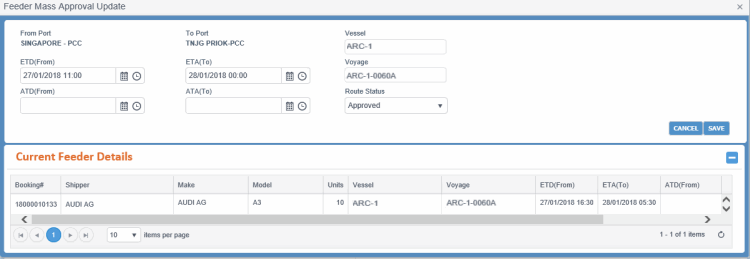
Button to approve or update the Feeder legs. The Feeder Mass Approval UpdateFeeder Mass Approval Update dialog box appears.

Field

Description

Feeder Mass Approval Update...

From Port, To Port

The PCC ports of departure and arrival. Read-only.

Vessel

Vessel to perform this leg of the journey. Read-only.

ETD (From)

Expected Time of Departure of vessel at From Port.

ETD is auto-populated from the Booking.

ETA (To)

Expected Time of Arrival of vessel at To Port. You can change this date if required using Calendar icon.

If PCC.NET finds a registered feeder for the "From Port" to "To Port" location and the entered ETD, ETA is auto-populated as per that registered Feeder Service Schedule. The ETA is also calculated based on the Transit Time mentioned in the Feeder Service.

Vessel

Vessel to perform this leg of the journey.

Voyage

Voyage Number. You can enter up to 5 characters.

Vessel and Voyage are free text fields. You can enter any Feeder Vessel, Truck or Burge or any other transporter when such transportation service is used for the Feeder leg.

ATD (From)

Actual Time of Departure of vessel at From Port. You can use the Calendar icon to select the date.

ATA (To)

Actual Time of Arrival of vessel at To Port. You can use the Calendar icon to select the date.

Route Status

Status of the approval for route leg:

  • Not Approved

  • Approved

  • Arranged

  • Rejected

Normally, during approval Feeder Transport Mode details may not be available, the Area Manager can simply approve the leg and come back later to provide these details and select the status as Arranged.

Buttons

SAVE

Button to save the route leg status based on selected Route Status.

CANCEL

Button to exit the dialog box without saving your updates.

Current Feeder Details

Booking#

Booking Number for which you want to approve the feeder details.

Shipper

Name of the associated shipper customer type.

Make

Maker of the cargo present in the Booking.

Model

Model name of the cargo present in the Booking.

Units

Number of cargo units present in the Booking.

Vessel

Vessel to perform this leg of the journey.

Voyage

Voyage Number.

ETD (From)

Expected Time of Departure of vessel at From Port.

ETA (To)

Expected Time of Arrival of vessel at To Port.

ATD (From)

Actual Time of Departure of vessel at From Port.

ATA (To)

Actual Time of Arrival of vessel at To Port.

Route Status

Current approval status of the route leg.


  • To approve Feeder legs, you (Area Manager) can select all the feeder legs which originated from and are destined to the same port pairs. For the respective vessel, voyage, ETD (From), ETA (To), ATD (From), ATA (To) and Route Status, if they have the same value in the selected feeder legs, that value gets displayed in the corresponding field of Feeder Mass Approval Update dialog box. In case, the selected feeder legs have different values for the respective vessel, voyage, ETD (From), ETA (To), ATD (From), ATA (To) and route status, the corresponding values in Feeder Mass Approval Update dialog box are left blank and you must enter those values before saving the approval details. PCC.NET displays the current values for the above mentioned fields against the selected legs just below the dialog box to be selected before applying new feeder details.

  • The Booking status automatically becomes Accepted if all route legs get approved and all Booking validations are passed. But if any essential information is missing, you must provide the required information and then change the Booking Status manually.

  • Similarly, if all legs are approved for a particular Booking and then the route status changes for the 'first' leg from Approved to Not Approved or Rejected, PCC.NET updates the Booking status back to Requested from Accepted. The change in Booking status happens only for the first leg and Accepted Bookings; it does not apply to a Booking in Reconciled status.

  • If a Booking is in Reconciled status and it’s Discharge Port (DP) falls under US territory, PCC.NET checks for the availability of FMC documentation during Route Leg approval for that Booking. In absence of FMC documentation, route leg is not possible and it shows error for FMC.

  • If all Bookings selected for Route Leg approval are in Requested Status and one/more Bookings have their Discharge Port (DP) falling under US territory without FMC Filing information, a warning message appears informing that FMC filing is not yet done for those Requested Bookings and will ask your agreement whether to proceed further for leg approval or not. On your approval, PCC.NET approves the legs, but keeps all those Bookings in Requested status for which FMC documentation is not available. If you disagree to proceed, however, the selected route legs are not approved.

  • If Feeder vessel and voyage values are updated in Feeder Approval process, the corresponding Load and Discharge VIN events for the earlier Feeder vessel and voyage get soft deleted.

                                                                                                                                                                                                                 Return