|
|
Feeder Service > Field Descriptions |


Feeder Service - Field Descriptions
The fields, links, and buttons available on the Feeder Service (OPBKW09) screen 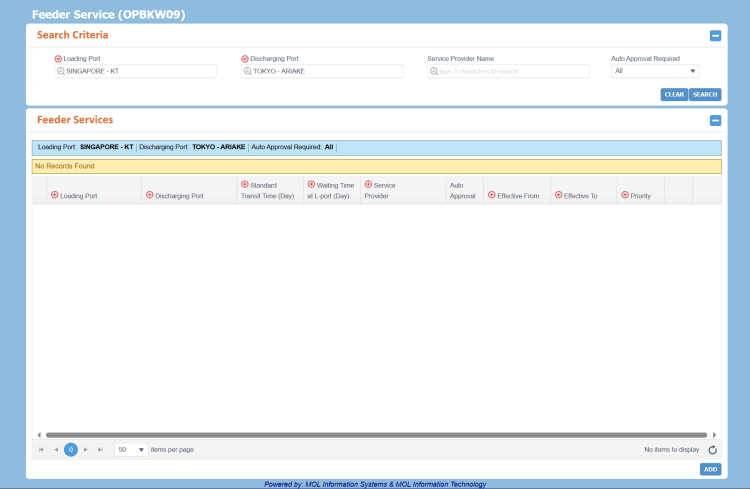 are described below.
For a description of additional icons, buttons, fields and links appearing on this screen, see Common Interface Controls.
|
Field |
Description |
|
Initially, this panel appears as expanded to enter search criteria. Once the search is performed and the search results are displayed, the panel collapses. |
|
|
Loading Port |
Name of the PCC Load port, based on which the Feeder Service information is to be retrieved. This field has the Auto-Complete feature, which helps you to populate the relevant port name from the LOV as you start typing at least three characters of the load port's actual/abbreviated name or location code. This information in the LOV is populated as per the location registered in the Location Master (RFLCW10) screen. |
|
Discharging Port |
Name of the PCC Discharge port, based on which the Feeder Service information is to be retrieved. This field has the Auto-Complete feature, which helps you to populate the relevant port name from the LOV as you start typing at least three characters of the discharge port's actual/abbreviated name or location code. This information in the LOV is populated as per the location registered in the Location Master (RFLCW10) screen. |
|
Service Provider Name |
Name of the service provider in charge of the Feeder Service. This field has the Auto-Complete feature, which helps you to populate the relevant port name as you start typing at least three characters of the same. This information in the LOV is populated as per the name registered in the Feeder Services panel on the Feeder Service (OPBKW28) screen. |
|
Auto Approval Required |
Drop-down list to select the option for auto-approval. The drop-down list values are as follows:
|
|
Buttons |
|
|
CLEAR |
Button to clear all search criteria and refresh the screen. |
|
SEARCH |
Button to search Feeder Service records as per the search criteria provided. |
|
Notes:
|
|
|
|
Icon to access a menu of actions that you can perform on the corresponding record. The following action is available:
|
|
Loading Port |
Name of the Load port. Add/Edit Mode: This field has the Auto-Complete feature, which helps to populate the relevant port name from the LOV, as you start typing at least three characters of load port's actual/abbreviated name or location code. |
|
Discharging Port |
Name of the Discharge port. Add/Edit Mode: This field has the Auto-Complete feature, which helps to populate the relevant port name from the LOV, as you type at least three characters of discharge port's actual/abbreviated name or location code. |
|
Standard Transit Time (Day) |
Standard number of days required to travel from the load port to the discharge port. Add/Edit Mode: Type the standard number of days required to travel from the load port to the discharge port. |
|
Waiting Time at Load Port (Day) |
Number of days for which the feeder vessel is required to wait at the load port. Add/Edit Mode: Type the number of days for which the feeder vessel is required to wait at the load port. |
|
Service Provider |
Name of the Feeder Service provider. Add/Edit Mode: Type the relevant Service Provider name. |
|
Auto Approval |
Indicates whether the Feeder Service is qualified for auto approval. Add/Edit Mode: Drop-down list to select the auto-approval option. The available options are:
|
|
Effective From |
The start date of validity for the Feeder Service. The date is displayed in DD/MM/YYYY format. Add/Edit Mode: Click |
|
Effective To |
The end date of validity for the Feeder Service. The date is displayed in DD/MM/YYYY format. Add/Edit Mode: Click The Effective To date should be later than the Effective From date. |
|
Priority |
Priority level for the Feeder Service based on the Load Port and Discharge Port pair for different Feeder Service providers. The highest priority is one, priority decreases with increase in value. When creating a route for a Booking, the order in which the feeder service options appear in the Route Details panel is based on this priority level. Add/Edit Mode: Type the relevant priority number. |
|
Buttons You need to have the Managing Voyage role and the Update Feeder Service Master system action to add, modify, or delete Feeder Service records. |
|
|
|
Button to modify the details of the feeder service. As you click this button, the corresponding record becomes editable and this button toggles to PCC.NET checks for the following before saving the Feeder Service record.
|
|
|
Button to delete the corresponding Feeder Service record based on your confirmation. |
|
ADD |
Button to add a new record in an editable row above all the existing records. Click PCC.NET checks for the following before saving the Feeder Service record.
|

 to select the relevant date.


