|
|
Tranship/Feeder Connection Check >Field Descriptions |


Tranship/Feeder Connection Check - Field Descriptions
The fields, links, and buttons available on the Tranship/Feeder Connection Check (OPBKW06) screen 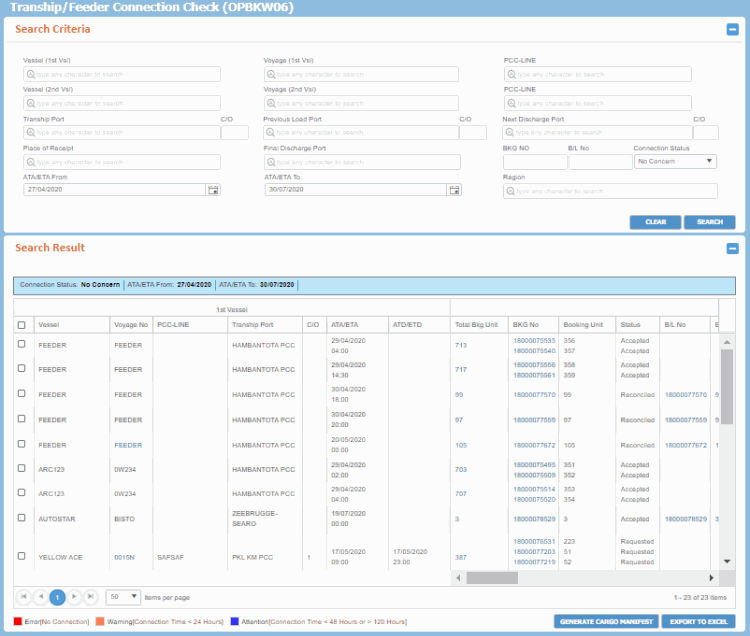 are described below.
For a description of additional icons, buttons, fields and links appearing on this screen, see Common Interface Controls.
|
Field |
Description |
|
Notes:
|
|
|
Vessel (1st Vsl) |
Name of the first vessel. |
|
Voyage (1st Vsl) |
Voyage number of the first vessel. |
|
PCC-LINE |
PCC Line of the first vessel. |
|
Vessel (2nd Vsl) |
Name of the second vessel. |
|
Voyage (2nd Vsl) |
Voyage number of the second vessel. |
|
PCC-LINE |
PCC Line of the second vessel. |
|
Tranship Port |
Name of the Transshipment port. |
|
C/O |
The call order of the vessel at the Transshipment port. |
|
Previous Load Port |
Load Port preceding the Transshipment port. This field has the Auto-Complete feature, which helps to populate the port name as you start typing the port name. |
|
C/O |
The call order of the vessel at the load port preceding the Transshipment port. |
|
Next Discharge Port |
Discharge Port ensuing the Transshipment port. This field has the Auto-Complete feature, which helps to populate the port name as you start typing the port name. |
|
C/O |
The call order of the vessel at the discharge port. |
|
Place of Receipt |
Place of Receipt as selected in the Booking. |
|
Place of Delivery |
Place of Delivery as selected in the Booking. |
|
Final Discharge Port |
Final discharge port as selected in the Booking. |
|
BKG No |
Booking Number you want to search. |
|
BL No |
B/L Number if associated with the Booking you want to search. |
|
Connection Status |
The current status of the transshipment connection. Connection time denotes the difference between the Time of Departure of the second vessel and the time of the arrival of the first vessel at the transshipment port. The status values may be:
|
|
ATA/ETA From |
Starting date range for the actual/expected time of arrival of the vessel. Click |
|
ATA/ETA To |
Ending date range for the actual/expected time of arrival of the vessel. Click |
|
Region |
Region for the transshipment. |
|
Buttons |
|
|
CLEAR |
Button to clear all search criteria along with the previous search result. |
|
SEARCH |
Button to initiate the search process as per the search criteria provided. |
|
Search Result panel
|
|
|
Check box |
Check box to select the transshipment port when you want to export the details to excel or generate the Cargo Manifest. The top most check box in the Search Result Header allows selecting/de-selecting of all transshipment ports retrieved, across all pages. |
|
1st Vessel |
|
|
Vessel |
Name of the first vessel. If this vessel is a feeder and the feeder name is left blank, a default text Feeder is shown in this field. |
|
Voyage No |
Voyage number of the first vessel.
|
|
PCC-LINE |
PCC Line corresponding to the 1st vessel. For feeder vessel, this field is left blank. |
|
Tranship Port |
Name of the Transshipment port for the first vessel |
|
C/O |
Call order of the vessel at the particular transshipment port. For feeder vessel, this field is left blank. |
|
ATA/ETA |
Expected time of arrival for the first vessel. |
|
ATD/ETD |
Expected time of departure for the first vessel. |
|
Total Bkg Unit |
Sum of all cargo units of the Bookings to be loaded on to the second vessel. Clicking the hyperlink opens the Search Booking (OPBKW01) screen in a separate tab, pre-populated with all the associated Booking No. (Booking numbers) entered in the Search Criteria panel. |
|
BKG No. |
Booking number associated with the vessel/port. Clicking this hyperlink opens the View Booking (OPBKW03) screen displaying the Booking details in a separate tab. |
|
Booking Unit |
Cargo units against the corresponding Booking number. |
|
Status |
Status of the corresponding Booking. |
|
B/L No. |
B/L associated with the Booking number. Clicking this hyperlink opens the View Bill of Lading (OPBLW02) screen displaying the B/L details in a separate tab. |
|
B/L Unit |
Sum of B/L units against the corresponding Booking. Clicking the hyperlink opens up the Bill of Lading - Search (OPBLW01) screen in a separate tab, pre-populated with all the associated Booking No. (Booking numbers) entered in the Search Criteria panel. |
|
First Load Port |
First Load Port of the Booking. |
|
Prev Load Port |
Load Port preceding the Transshipment port. |
|
C/O |
Call of the vessel at that Load Port preceding the Transshipment port. For feeder vessel, this field is left blank. |
|
Conn. Time (DD:HH:MM) |
Connection time of the first vessel and the second vessel. It is the difference between the Time of Departure of the second vessel and the time of the arrival of the first vessel at the transshipment port. |
|
2nd Vessel |
|
|
Vessel |
Name of the second vessel. If this vessel is a feeder and the feeder name is left blank, a default text Feeder is shown in this field. |
|
Voyage No |
Voyage number of the second vessel.
|
|
PCC-LINE |
PCC Line corresponding to the second vessel. For feeder vessel, this field is left blank. |
|
ATA/ETA |
Actual/Expected time of arrival for the second vessel. |
|
ATD/ETD |
Actual/Expected time of departure for the second vessel. |
|
Next Disch. Port |
Name of the Discharge Port ensuing the transshipment port. |
|
C/O |
Call of the vessel at that Discharge Port ensuing the transshipment port. For feeder vessel, this field is left blank. |
|
Final Disch. Port |
Name of the final discharge port of the associated Bookings. |
|
Place of Delivery |
“Place of Delivery/Transshipment To" as mentioned in B/L. Notes:
|
|
Warning/Attention |
|
|
Buttons |
|
|
EXPORT TO EXCEL |
Button to download the entire search result into an excel file. Notes:
To search for Connections and export the Search Result, you must have either Create Booking or View Booking role with View Tranship/Feeder Connection System Action privilege. |
|
GENERATE CARGO MANIFEST |
Button to generate and check the Cargo Manifest regarding the first vessel and voyage. You are navigated to the Generalized Report Submission screen with pre-selected Vessel/Voyage/PCC-Line,Transshipment Port (as discharging port) and its corresponding C/O. Notes:
|
 to select the relevant date.
 Notes:
|
Related Topics |